Microsoft Exchange 2010 – Dumpster

Dumpster is essentially a view stored per folder.  Items in the dumpster  stay in the folder where they were soft-deleted (shift-delete or delete from Deleted Items) and are stamped with the ptagDeletedOnFlag flag.  These items are special-cased in the store to be excluded from normal Outlook views and quotas.  In addition, data with this flag cannot be searched or indexed. 

Key architectural changes in Exchange 2010 must meet these requirements

  • Exchange has to ensure that dumpster data moves with the mailbox.
  • Dumpster data must be indexed and discoverable.
  • Dumpster must have a quota.
  • Exchange has to prevent purging of data from dumpster.
  • Exchange has to track edits of certain content.
  • Dumpster should be per mailbox and not per folder.

To facilitate these requirements, Dumpster was re-architected, Dumpster 2.0 is no longer simply a view…Dumpster in Exchange 2010 is implemented as a folder called the Recoverable Items and is located within the Non-IPM subtree of the user’s mailbox (note that this is a hidden section of the mailbox and is not exposed to the end user through any client interface).  The folder has three sub-folders:

  1. Deletions
  2. Versions
  3. Purges

Dumpster data is now indexed and discoverable,  can now be moved with the mailbox, and is now stored on a per-mailbox basis rather than a per folder basis. Exchange 2010 includes capability for each mailbox to also maintain an archive mailbox as well.  There is a dumpster for both the primary mailbox and the archive mailbox. Data deleted in the primary mailbox is placed in the primary mailbox dumpster, while data deleted in the archive mailbox is placed in the archive mailbox dumpster. Unlike previous exchange server, Exchange 2010 automatically purges items from dumpster 14 days by default and 120 days for calendar items..you can set this up..

Exchange 2010 includes the ability to ensure that data within the mailbox is preserved for a period of time…short term or long term.  This feature can be enabled enabled on a per mailbox basis by running the following cmdlet:  Set-Mailbox <identity> -SingleItemRecoveryEnabled $true

Overview of upgrade steps from Exchange 2007 to Exchange 2010

This is going to be our new task…here are some of the tips for how to start this

Upgrade process Exchange 2007 to Exchange 2010

Within the first Active Directory site or sites you are upgrading, the first Exchange 2010 server role you should install is the Client Access server role. When you are ready to begin your deployment, it is recommended to upgrade a single Active Directory site at a time to Exchange 2010. Depending on the size of your Active Directory site, this might be a single Client Access server computer or a load balanced array of Exchange 2010 Client Access servers. The recommended order to install the Exchange 2010 server roles is the following:

  1. Client Access Server role
  2. Hub Transport Server role
  3. Mailbox Server role
  4. Unified Messaging (UM) Server role
  5. Edge Transport Server role

When upgrading to Exchange 2010, you can’t perform an in-place server upgrade on an existing Exchange server

More article on this please click here

 Microsoft Exchange Analyzer, click here


Upgrading to Exchange 2007 SP2 on SCC

When you are going to consider upgrading from Exchange Server SP1 to SP2 on Single Copy Cluster environment, following needs to be taken care..Our Environment as follows

  • 2 Domain controller
  • 2 Hub and CAS
  • 2 Mailbox on SCC
  • 1 Edge server

We have just finish the upgrade process and the steps recorded as follows.

First step is to prepare the Schema on the Active Directory for Exchange server SP2 installation. This installation is typically a preparation of Exchange server 2010 readiness and i believe there won’t be any schema preparation, when you migrate from Exchange server 2007 SP2 to Exchange Server 2010.

  • Go to the domain controller, and insert the Exchange Server SP2 CD or copy the folder to the C drive of the domain controller.
  • Run on the command prompt level : SETUP /PS  or SETUP /PREPARESCHEMA
  • once you successfully finish the above step, run SETUP /PREPAREAD
  • once you successfully finish the above step, run SETUP /PREPAREDOMAIN

Now you have prepare your domain to accept the Exchange Server  2007 SP2 upgrade….(Server don’t re-start after the upgrade)

Now go to the Passive Node of each role.. Start with Hub & CAS role server(first one) and then copy the SP2 folder to C drive and run the setup on GUI mode…and then go to Hub & CAS (next server) and run the same… This will take minimum 1hr to complete on each server on Virtual machine.. Once the Hub & CAS is upgraded to SP2, Goto Exhcange Server Edge server and run the same. In each server, you will see the roles are getting updated to SP2.. Once you finish these server, the main task starts…While doing the upgradation process, there will be minimal disturbance…when H&C server in progress, OWA, OMA, IMAP will not work, When Edge is in progress, Mail flow will be disturbed…If you have a mail queue, users won’t notice any disturbance. You can do this on the live environment…with a minimal disturbance only.

This picture shows that all role are on the same..because this is on my test environment…when it comes to the role based server to do the upgrade, each role prerequisite will run on that server.

Lets go to Mail box(Mail1) and Mailbox server (server 1 & server 2) upgrade on SCC scenario…

  • Go to Passive cluster server(server 1) (This time Active mailbox (server 2) will be running and no disturbance)
  • Stop all the service that have open handles to performance counters…this includes OpsMgr Health Service, Backup Exec remote agent, Performance Log and Alerts, MOM Agent.
  • Then Stop and then restart the Remote Registry Service.
  • Now you have to go to command prompt and go to the folder of SP2 under C drive and run SETUP /M:UPGRADE
  • This will perform command line Exchange Server SP2 upgrade….once this finish, either restart the server or restart the service that has been stoped.
  • Now you have one Mailbox server (server1) with SP2 upgraded..
  • Go to Server1 and open Exchange Management Shell (this is to bring the mailbox to upgrade to SP2)
  • Type Stop-ClusteredMailboxServer Mail1  -StopReason “Upgrade to EXCH SP2” …Press enter and then “y” to confirm
  • Now the Mail box is offline
  • type Move-ClusteredMailboxServer Mail1 -TargetMachine server1 -MoveComment “Upgrade to SP2)..Press enter and then “y” to confirm
  • Now goto Command prompt of server1 and goto the directory of SP2 on C drive
  • Run the command to upgrade the clustered mailbox that is now owned by server1 
  • type Setup /upgradecms
  • This command will perform the clustered mailbox prerequisite checks and then upgrade the mailbox to SP2
  • Once this task is completed, and if it is not come online, we have to go and mount the database manually using Exchange management console GUI…now your mail store is also on SP2
  • Now your mail server is up and running with Exchange server 2007 SP2…don’t forget you have one more server on SCC to upgrade.
  • log on to server2 and go to  goto the directory of SP2 on C drive and run SETUP /M:UPGRADE
  • Once this is finish, your Exchange server environment is now on SP2… Versioning number will be 8.2.xx

Exchange Server SP2 upgrade procedure results in a brief outage during the upgrade process. Exchange Setup should be run only on the passive nodes in the cluster. All nodes need to be upgraded to Exchange 2007 SP1 or SP2 to be supported, but you must upgrade the nodes one at a time. After all nodes have been upgraded, the clustered mailbox server is upgraded, and then brought online.

Microsoft Exchange Server adds new Active Directory schema classes and attributes and modifies new ones. This document provides a summary of the Active Directory schema changes that are made when you install Microsoft Exchange Server 2007 Service Pack 2 (SP2). Refer to the .ldf files for more information about changes to the Active Directory schema. The .ldf files are located in the \AMD64\Setup\Data\ directory on the Setup media. For release note from Microsoft on this topic, click here

This document includes the following sections:

  • Classes Modified by Exchange 2007 SP2
  • Attributes Modified by Exchange 2007 SP2
  • Classes Added by Exchange 2007 SP2
  • Attributes Added by Exchange 2007 SP2
  • MAPI IDs Added by Exchange 2007 SP2
  • Extended Rights Added by Exchange 2007 SP2
  • Object IDs Added by Exchange 2007 SP2
  • Indexed Attributes Added by Exchange 2007 SP2

If you need more info, Click here

Microsoft Exchange Server 2007 RTM Build – Versioning

The RTM version of Exchange 2007 SP1 is build 08.01.0240.006, which is also represented as Version 8.1 (Build 240.6). This version information is consistently displayed in the Exchange Management Console, the Exchange Management Shell, and in the About Exchange Server 2007 Help dialog box. However, after applying SP1 to an Edge Transport server running the RTM version of Exchange 2007, the version information for the Edge Transport server will not be updated in the Exchange Management Console unless the Edge Transport server is re-subscribed to the Active Directory site. This is because the Edge Transport server does not directly update Active Directory with any configuration information. Instead, the version information for Edge Transport servers is recorded in Active Directory during the creation of an Edge Subscription. You can also determine the installed version of Exchange 2007 by examining the value for each installed role in the Registry at:

HKEY_LOCAL_MACHINE\SOFTWARE\Microsoft\Exchange\v8.0\<Role>\ConfiguredVersion

ConfiguredVersion is a string value in the format of X.X.XXX.X (e.g., 8.1.240.6). 8 is the major version number. The .1 portion indicates it is SP1 (RTM would have .0). 240 is the build number, and the .0 after 240 would be .6, the minor build number. The value of the ExchangeVersion property remains unchanged in Exchange 2007 SP1; the output of the Get-ExchangeServer cmdlet for the ExchangeVersion parameter is 0.1 (8.0.535.0).  More info Click here

Microsoft Dynamics GP 2010 – cool

User credentials and Company preference saved in the new GP2010, the user can launch Microsoft Dynamics GP 2010 and get to their role-based home page with ONE CLICK and no user interaction…still no sign on AD integration.

Office 2010 will be out in couple of month

Microsoft has yet to release the actual launch date for Office 2010, but according to the company’s Chief Executive Officer Steve Ballmer the next version of Office is closer than everybody thought….You’ll see the new version of Office, which comes out here in just a couple of months. It not only works on your PC but it will work through any Web browser and down onto the phone in new and rich ways…i’m already running the beta version and its so perfect to work with…and it has a tight integration with Exchange server 2010

Microsoft Internet Explorer Flaw…!!!! :(

Microsoft IE Flaw Exploited by Hackers to Steal Info From Google…Chinese hackers used a memory flaw in Internet Explorer to carry out a series of highly sophisticated attacks, which stole info from Google, Adobe, and others. Once the attackers execute the memory attack, they use it to download and run an executable — a malicious trojan that allows remote access to corporate machines.  The entire set of attacks has become known as “Operation Aurora”…click for more
Microsoft’s General Manager of Trustworthy Computing Security, George Stathakopoulos, has released a new statement which warns information technology departments to change their ways when it comes to the slow pace of browser upgrades, or risk losing valuable company information….more info Click here

Microsoft Dynamics 2010 – Beta released…whaooooo

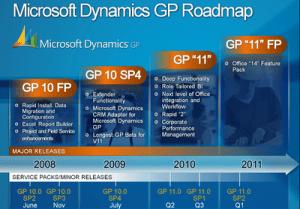
Microsoft Dynamics GP 11 released their Beta yesterday…tight integration towards Microsoft SharePoint 2010, Microsoft Office 2010…but i still need to know about the integration towards Microsoft CRM 4 with the adaptor..
Will see

Windows 7 – stabilized platform


One of the best Os platform, after XP, from Microsoft…with this, collaboration towards Windows Server 2008 R2, SharePoint Server 2010(Now on Beta), Microsoft Office 2010 (Now on Beta), Exchange 2010, and now Greatplains 11(Microsoft Dynamics GP 2010 – Beta release) full integration….i’m so happy to see these integration running  within next few month, in our office….

See what PC authority has to say about the features from Windows 7. Windows 7 should now be feature-locked, though some changes will appear in the release candidate in late 2009, so this is your best guide to the new Operating System. … To know more, click here

Microsoft DirectAccess – Windows server 2008 R2 with Windows 7

Microsoft’s is connecting Windows 7 and Windows Server 2008 R2 for connect-anywhere access using DirectAccess technology

DirectAccess is a way for Windows 7 clients to securely connect the corporate network from any location without  any traditional VPN. It encrypts bidirectional connection between the enterprise domain and the client device prior to the user logging on to the system, allowing admins to manage the remote machine via Group Policy and it physically connected to the network and always stays on. This is very useful for network administrator to troubleshoot the server. Greater functionality means greater hardware and software requirements.

The following list of DirectAccess requirements comes directly from Microsoft TechNet:

One or more DirectAccess servers running Windows Server 2008 R2 with two network adapters:
One connected directly to the Internet, and a second connected to the intranet.
On the DirectAccess server, at least two consecutive, public IPv4 addresses assigned to the network adapter that’s connected to the Internet.

DirectAccess clients running Windows 7.
At least one domain controller and DNS server running Windows Server 2008 SP2 or Windows Server 2008 R2.
A public key infrastructure (PKI) to issue computer certificates to the protection for traffic.

IPv6 transition technologies available for use on the DirectAccess server: ISATAP, Teredo, and 6to4. Optionally, DirectAccess runs over IPv6 and only connects to Windows Server 2008 R2 or Windows Server 2008 with SP2 and most of the network are still on IPv4. In order for DirectAccess to communicate over the Internet, bridging protocols such as 6to4 or Teredo have to be used to encapsulate IPv6 packets over any IPv4 medium or network device.