Remote Wipe – on iPhone
This feature is available on Mobile Me for iPhone, but you have to subscribe this account…if you have exchange server in your organization/company….below article is for you guys…!!!
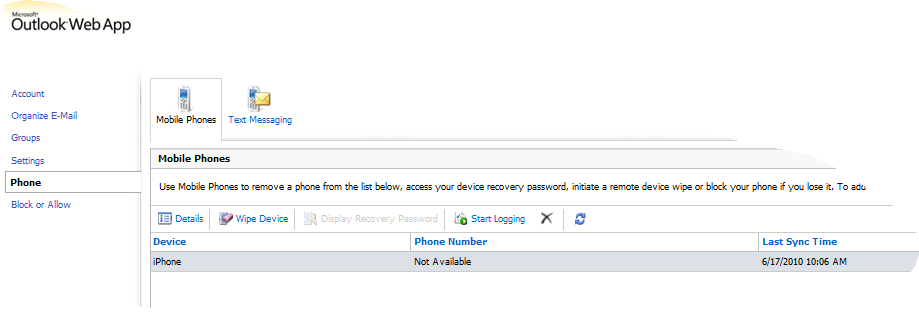
Mobile phones can store sensitive corporate data and provide access to many corporate resources. If a device is lost or stolen, that data can be compromised. Microsoft Exchange Server 2010 / 2007 provides a remote device wipe feature. You can issue a remote device wipe command from the Exchange Management Shell. Users can issue their own remote device wipe commands from the Microsoft Office Outlook Web App user interface. (For users to do their remote wipe from Outlook Web Access->log into their Outlook Web access->on the right top, there will be a menu called “Options”->click Options–>on the left pane…you will find “Mobile Devices”–>click and select “Wipe all Data from Device…”)
The remote device wipe feature also includes a confirmation function that writes a time stamp in the sync state data of the user’s mailbox. This time stamp is displayed in Outlook Web App and in the user’s mobile phone properties dialog box in the Exchange Management Console.
So to test this feature, i’ve done the remote wipe from my Exchange server to my iPhone 3Gs…(This server should be mailbox store where the mailbox properties of each user displayed) as displayed below.

Select the user whom you want to do the remote wipe, Click on Manage mobile device…

From the “Managed mobile device for….” area, select the iPhone, which is listed for this particular user, and at the bottom area where “Action” pane….select “Perform a remote wipe…” and then click “Clear” button.
IF YOU ARE DOING THIS AS A TEST, MAKE SURE THAT YOU TAKE A BACKUP OF YOUR IPHONE FROM ITUNES FOR LATER RESTORE MODE…VERY IMPORTANT.
Once this action is done, the next sync from the mobile to the server, Wipe command executes on the iPhone device..and screen goes blank….cool..No tention about the contacts or data.
Now the hardest part is …this sounds great on, when you lost your iPhone and your IT team secure your data safe…!!!! but if you are doing a test on your own iPhone…errrrrrrrrrrrrrrrrrrrrrrrrrr
After the remote wipe…iPhone just hung and display only Apple logo….for a very long time…(i never had a patient to wait…so i hard boot it…still the same logo smiling at me…and my colegues are telling me…”I told you…i told you…)
Next step is to take the iphone to the next level….First Switch off the phone.. take it to DFU mode!!!! What is this? DFU (Device Firmware Upgrade) mode is not the same as restore mode. DFU mode bypasses the current OS installed and allows you to upgrade or downgrade your OS.
Attach the iPhone to the PC/MAC (make sure that your USB bay on your computer is working and the cable from apple too)
Turn the iPhone power off
Hold power and home together for *exactly* 10 seconds
Release power but keep holding home button in your phone until the PC/MAC beeps as a USB device is recognized.
At no point will the display come on with a USB symbol and iTune. Now your restore should work…iTunes will turn on and will ask you to upgrade the firmware and it starts downloading the firmware from apple site and once it is done,
Your restoress starts on the iphone…
After it is done, Device will get activated…but make sure that all the sync you should choose to “NONE” (There is a reason for this…believe me)…NO NEED TO CONFIGURE ANYTHING…BECAUSE WE ARE GOING TO RESTORE IT.
When we are doing all these stuff, there must be a mail from Exchange server to the selected user, in that user name.. in his/her inbox…a cool one like below..(i did not get this pic so i choose one from the net..instead of Device Type as PocketPC…our case it will show iPhone)
 Read the red line…cool is’nt it…now you go back to Exchange server where you initiate the wipe..remove the device from the user list…and then clear the data….now your iphone is ready to sync
If you don’t do it, in my case..i was busy with restore option and did’nt saw the mail and once i restore from my backup…syncing contacts….gone again…thats a real pain…i’ve to do all from scratch…!!
Now connect your newly restored iPhone…it will show you on the iTunes area..Rightclick on the iPhone name and click Restore from Backup…and select the time you did last backup.
Now you iPhone is back as it was before….HOPE YOU WILL FIND A LOT OF MISSED CALL NOTIFICATION..
Read the red line…cool is’nt it…now you go back to Exchange server where you initiate the wipe..remove the device from the user list…and then clear the data….now your iphone is ready to sync
If you don’t do it, in my case..i was busy with restore option and did’nt saw the mail and once i restore from my backup…syncing contacts….gone again…thats a real pain…i’ve to do all from scratch…!!
Now connect your newly restored iPhone…it will show you on the iTunes area..Rightclick on the iPhone name and click Restore from Backup…and select the time you did last backup.
Now you iPhone is back as it was before….HOPE YOU WILL FIND A LOT OF MISSED CALL NOTIFICATION..
ENJOY…!!!!

 TO
TO 
 PREMNAIR'S Blog