Old public folder – How to remove from Exchange server

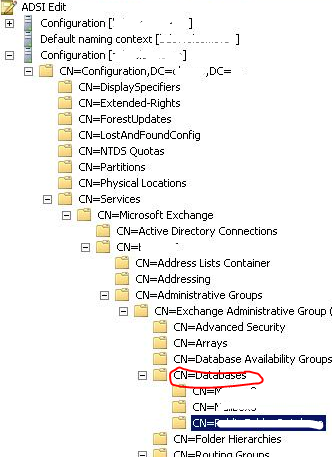
It is difficult to delete old public folder from EMC. How to do it, use the ADSIEDIT to clear the old ones.

Right click on the folder you want to delete from CN=Exchange Administrative Group, CN=Databases,  and click delete. The go to Active directory Sites and Services and initiate the replication across the domain.

Go to EMC and refresh.

Thats it.

Exchange Server 2010 Migration – Useful tools

Exchange Pre-Deployment Analyzer..Click here

The ExPDA tool performs a scan of your existing Exchange and Active Directory environments and produces a report that lists all items that require attention prior to deployment.

Exchange Server Profile Analyzer..Click here

The EPA tool performs a scan of either a single database or the entire organization to create an aggregated report of mailbox statistical information.

Log Parser…Click here

Log Parser, a powerful tool for querying text-based log files such as those that are generated by IIS and Message Tracking on Exchange servers

Exchange Server Remote Connectivity Analyzer..Click here

This tool will help you analyze whether the configuration has been done properly.

Performance Monitor..Click here or click here

The built-in Performance Monitor tool for Windows lets you collect performance data for every element of the Exchange servers and use it for capacity planning of the new Exchange 2010 servers.

Mailbox Server Requirements Calculator…Click here

The most complicated server role in an Exchange Server 2010 environment to calculate the sizing for is the Mailbox Server role, particularly when it comes to storage.

Exchange server 2007 to 2010 Live migration!!!! Live blog!!! Live Platform…real time scenario!!!

Please find on my blog, one page dedicated to this task…you can see it on my blog top page… or click here

             TO                                          

 MIGRATION…Started on June 8, 2010 ….Today 20th of June..all the objects has been replicated to Exchange 2010..Now the decommissioning starts..Finish too

Exchange 2010 Mailbox role – installation failed

Error

Microsoft.Exchange.Management.Deployment.UpdateRmsSharedIdentity.Link()

This error occurs because the federated built-in e-mail account that links to the computer account no longer exists. Or, the federated built-in e-mail account in the Active Directory directory service is corrupted.

Resolution..go to Active Directory server

  1. Click Start, click Run, type adsiedit.msc, and then click OK.
  2. Locate the Default Naming Context node, and then locate to the CN=Users container.
  3. Locate and then right-click the CN=FederatedEmail.4c1f4d8b-8179-4148-93bf-00a95fa1e042 container. Then, click Delete.
  • Rerun the Exchange Server 2010 Mailbox role setup application.
  • Create a new federated e-mail account by using the following command: (No change in the below command…just type as it is)
    New-Mailbox -Arbitration -Name FederatedEmail.4c1f4d8b-8179-4148-93bf-00a95fa1e042 -UserPrincipalName FederatedEmail.4c1f4d8b-8179-4148-93bf-00a95fa1e042@<Default_Accepted_Domain>
  • Useful link : http://support.microsoft.com/kb/978776