Exchange 2010 – Distribution group email id – Not able to receive email from external source – Solution

On Exchange server 2010, If you create a distribution group with scope as Universal and type as Distribution, in your domain active directory.

and then you enable the mail from creating the mailbox server, then do the testing of email flow from internal and external.,

if you ever had face an error, “Technical details of permanent failure: SERVER tried to deliver your message, but it was rejected by the recipient domain. We recommend contacting the other email provider for further information about the cause of this error. The error that the other server returned was: 550 550 5.1.1 User unknown (state 14).”

Please do the following.

From your active directory, select the property of the group email id, then under mail flow settings, select Message Delivery Restrictions, then select Properties…, new window will open.

uncheck the box which states “Require that all senders are authenticated” and click ok..then apply and ok again.

Give some time to replicate this to Edge server…

Enjoy!!!!

Outlook Hotmail Connector 32-bit

With Microsoft Outlook Hotmail Connector 32-bit, you can use Microsoft Office Outlook 2003, Microsoft Office Outlook 2007 or Microsoft Office Outlook 2010 to access and manage your Microsoft Windows Live Hotmail or Microsoft Office Live Mail accounts, including e-mail messages, contacts and calendars for free!

Outlook Hotmail Connector enables you to use your Live Hotmail accounts within Outlook:

    • Read and send your Office Live Mail/Windows Live Hotmail e-mail messages.
    • Manage your contacts in Windows Live Hotmail.
    • Use advanced options for blocking junk e-mail messages.
    • Manage multiple e-mail accounts in one place.
    • Manage, and synchronize multiple calendars, including shared calendars to Windows Live Calendar from Outlook

If you use the Outlook Hotmail Connector with Outlook 2010 you gain these additional benefits:

  • Your Safe Sender List/Blocked sender list/Safe Recipient lists are synchronized between Outlook and Hotmail.
  • Send/receive works like your other Outlook accounts.
  • Your Hotmail account status appears in the Outlook status bar.
  • Rules work with the Hotmail account in Outlook even if it’s not your primary account.

To download this from Microsoft site, click here

Best Practices for Virtualizing Exchange Server 2010 with Windows Server® 2008 R2 Hyper V™

Many organizations today rely on some degree of virtualization. Whether it is a few virtual machines running on a single physical computer or a whole server farm across multiple root servers, virtualization optimizes investment in hardware and network infrastructure by:• Increasing the utilization of underused hardware. • Improving server availability.• Reducing IT costs. The purpose of this paper is to provide guidance and best practices for deploying Microsoft® Exchange Server 2010 in a virtualized environment with Windows Server® 2008 R2 Hyper V™ technology.  This paper has been carefully composed to be relevant to organizations of any size…Click here to download this paper from Microsoft

Enhanced Hardware Virtualization Support for Exchange 2010

The Microsoft Exchange team is enhancing positioning by including additional supported scenarios regarding Exchange Server 2010 running under hardware virtualization software. As of today, the following support scenarios are being updated, for Exchange 2010 SP1, and later…To know more, click here

Microsoft Exchange 2010 – Administrator Audit logging

Another nice feature introduced in Exchange 2010 is Administrator Audit logging. Audit logging allows an organization to examine different policies. A second important benefit is the review of configuration changes made to the Exchange organization through the Exchange Management Console, Exchange Web Services, and Exchange Management Shell. Audit Logging is useful in tracking configuration changes made within an Exchange Organization, and help identifying any errors. In Exchange 2010 Microsoft introduced AdminAuditLogConfig.

Check out the following commands

Get-AdminAuditLogConfig: http://technet.microsoft.com/en-us/library/dd298077.aspx

To enable if its disabled: Set-AdminAuditLogConfig -AdminAuditLogEnabled $true :http://technet.microsoft.com/en-us/library/dd298169.aspx

Search in the AdminAuditLog: Search-AdminAuditLog –Cmdlets New-Mailbox, Remove-Mailbox | FT :http://technet.microsoft.com/en-us/library/ff459250.aspx

Microsoft article about AdminAuditLog, Click here

Exchange 2010 – Attachment size – Global setting (for Send & Receive)

Attachment size setting inside Exchange server 2010 for global user settings.

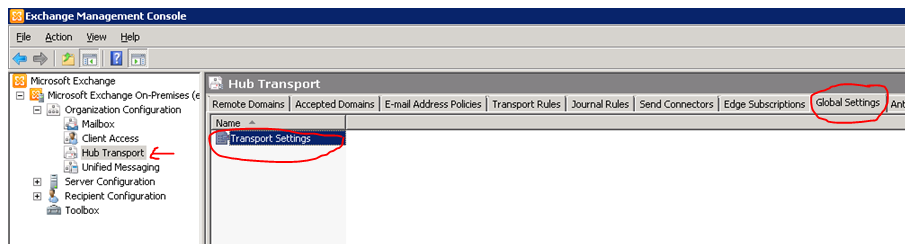
  • Go to your mailbox server
  • open EMC
  • goto Organization configuration
  • goto Hub Transport
  • select global setting tab

Edit the Transport settings and change the parameters as below.

Once you done it, click Apply and ok

Remember one thing, the more you increase the size of the attachment, the load on the CAS & Edge server increase…plus the Virus scanning engine too.

Thats all folks!!!

Exchange server 2010 CAS array to MAPI load balance – Detailed

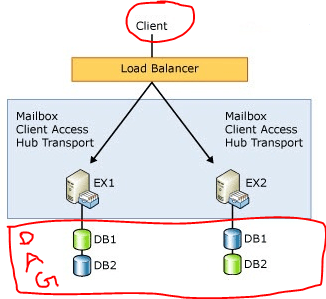
Most of you guys must have experience the scenario when “Outlook connection lost….” even if you have Exchange server 2010 (with Edge, 2 clustered H&C and 2 DAG configured MB) and Outlook 2010 in place. The reason is that, when you are doing a maintenance on one of the H&C, and if the client is connected to that H&C, communication to the MB is lost. The reason for this is that the cluster load balancing on the H&C cluster handler is not in place, even if the cluster name is published in the DNS server.
In Exchange 2007, 5 server roles that performed distinct functions within the Exchange organization. One role in particular – the Client Access server role – introduced a variety of new Web services, including the Availability service, the Auto discover service and Calendar Concierge services.

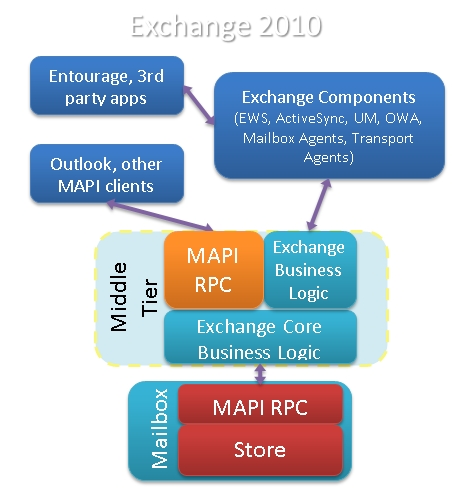
In Exchange 2010, same 5 server roles exists. However, there are some significant architectural changes and some shift in responsibilities. The most significant change in Exchange 2010, two new services on CAS called the RPC Client Access and Address Book services establish the RPC (Repote Procedure Call) endpoint for MAPI(Messaging Application Programming Interface), NSPI(Name Service Provider Interface) and RFR (Request for Response) client access. This new functionality replaces the RPC endpoints in the Information Store. The RPC endpoint in the Information Store has not been removed in Exchange 2010, but it has been modified to only accept requests from CAS servers. The RPC endpoint for public folder database access remains on the Mailbox server, however, Outlook clients now communicate directly with the RPC Client Access service on the Mailbox Server for public folder database access, and not with the Information Store.

When CAS starts communicating with the Mailbox server, it makes sense to view it as the Client Access server communicating with the Mailbox database via the Mailbox server that hosts the database. This is especially evident in a load-balanced array of Client Access servers and/or where your environment is configured to use Database Availability Groups that are associated with a Client Access server or Client Access server array.

  • In a non-load balanced environment, the mailbox database is associated with only a single Client Access server.
  • In a load-balanced environment, the Mailbox database is associated with the load balanced array of multiple Client Access servers.

By default, before a Client Access array is configured,

  • all databases are associated with a Client Access server in the environment
  • the Outlook clients communicate directly with the Client Access server until the association with the database is updated to be the Client Access array.

In order for the clients to utilize a CAS array

  1. Create a Client Access array with an FQDN (Fully Qualified Domain Name).
  2. Load balance your CAS servers in a CAS array by whatever method you choose – Both Hardware LB or Windows Network LB are supported load balancers
  3. Add the Client Access servers within the AD site to a load balanced array and in DNS associate the unique FQDN to the Virtual IP of the load-balanced array.
  4. Configure your load balancing array to load balance the MAPI RPC ports – TCP 135, UDP/TCP 6005-65535; or set static ports
  5. Configure the databases to utilize the CAS array… Use the new-clientaccessarray cmdlet to create the CAS array object. Eg: New-ClientAccessArray –Name “Tromso CAS Array” –Fqdn tromso.site.com” –Site “SITEA”
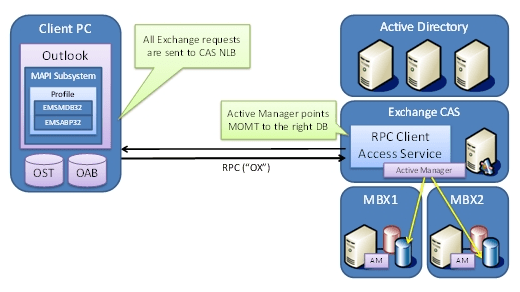
How to Setup!!!..

Goto one of the CAS server where the NLB is ( to read more about New-ClientAccessArray cmdlet, click here )

[1] Check is there are any pre-created CAS Arrays. PS Command : Get-ClientAccessArray

[2] Create new Client Access Array. Run the Cmdlet in EMS New-ClientAccessArray -Fqdn server.contoso.com -Site “Redmond” -Name “server.contoso.com”

[3] Associate databases with this CAS Array –

Use this CMDLet to add mailbox database to CAS array. Add all mailbox databases at once – Get-MailboxDatabase | Set-MailboxDatabase -RPCClientAccessServer “CASNLB.contoso.com”

Now the best part –

Configuring Outlook 2010 using Auto Discover

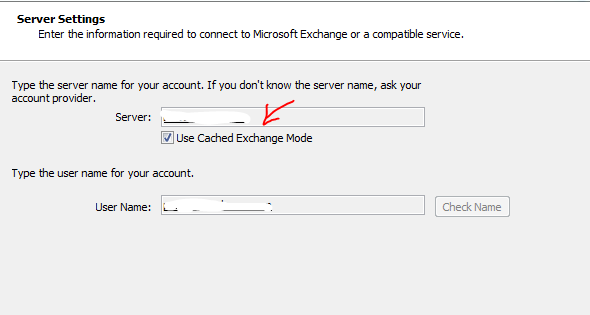
If you already configured Outlook client, Close the outlook, then goto Control Panel->Mail and change the Server name to the new CAS NLB name

If you are going to use a new outlook configuration, Auto discover will return the new CAS NLB name.

Thats all folks!!! Enjoy!!!

Restricting email to the Internet on a per user AND per domain basis

This blog post is meant to show how easy it now is to accomplish this oft heard request in Exchange 2010. Transport rules, introduced with Exchange 2007, provided a lot of new options for administration of mail resulting in even more requests for additional functionality. The rules now have new predicates and actions extending the possibilities of what can be done. For our example, the rule will restrictActive Directory Mail enabled users” who have their ‘Department‘ defined as ‘Temp Employees‘ from sending mail to the internet, except they must be allowed to send to 2 external domains called: ‘partnerdomain.com‘ and ‘fourthcoffee.com‘. Additionally, to reduce Helpdesk calls, you want to send an NDR when they violate the rule. For demonstration purposes I will use 2 Conditions, one Action and one Exception.

Microsoft Exchange Team Blog will explain you how to do it in Exchange 2010…beautiful blog post..click here

An error occurred during discovery of the database availability group topology. Error: An error occurred while attempting a cluster operation. Error: Cluster API “AddClusterNode() (MaxPercentage=12) failed with 0×80070005. Error: Access is denied.”

If the witness server you specify isn’t an Exchange 2010 server, you must add the Exchange Trusted Subsystem universal security group to the local Administrators group on the witness server. These security permissions are necessary to ensure that Exchange can create a directory and share on the witness server as needed. If the proper permissions aren’t configured, the following error is returned:
Error: An error occurred during discovery of the database availability group topology. Error: An error occurred while attempting a cluster operation. Error: Cluster API “AddClusterNode() (MaxPercentage=12) failed with 0×80070005. Error: Access is denied.”

If you specify a witness server, you must use either a host name or a fully-qualified domain name (FQDN). Using an IP address or a wildcard name isn’t supported. In addition, the witness server cannot be a member of the DAG.

To know more read Exchange server migration – 2007 to 2010 – Live cast

Un-installing/De-commissioning Exchange server 2007 Mailbox from Passive cluster node for Exchange 2010

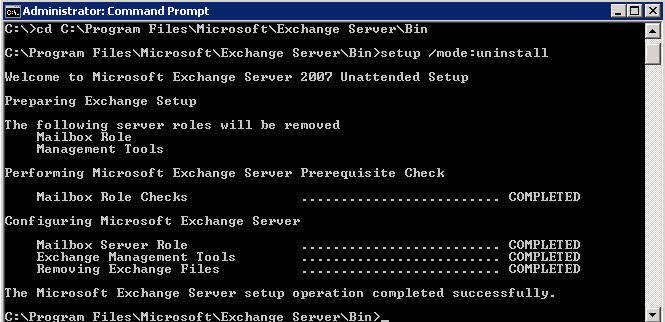
  1. Open the command prompt of the Passive mailbox server..make sure you logged in as domain administrator.
  2. Go to C:\Program Files\Microsoft\Exchange SErver\Bin
  3. Type the command setup /mode:uninstall

Now you have successfully uninstall the Exchange server mailbox role from the passive node, but the cluster environment server information still exists, and we need to remove that as well.

To do that we need to…

  • Open the Cluster Management Tool
  • Expand the cluster resource name
  • Expand the Nodes
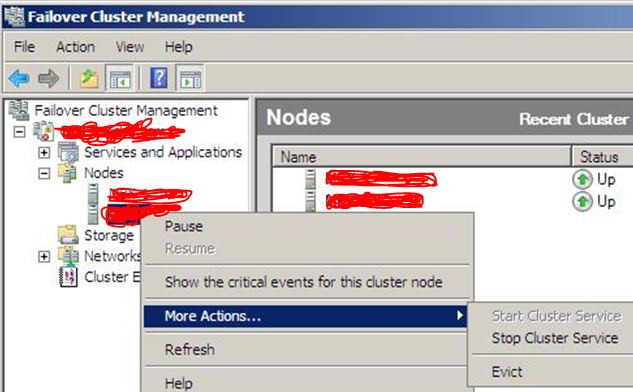
  • Right click the passive node server
  • Click on More actions -> click on “Stop cluster service”


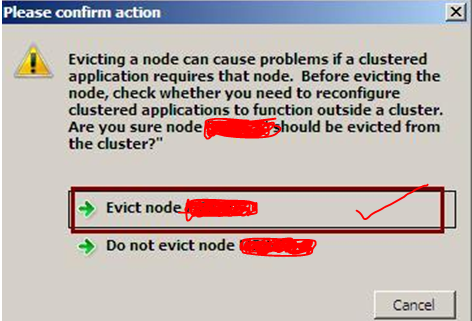
 Once you “Stop Cluster Service”, then click on More actions again and click Evict and click the Evict Node….

Once you done this, restart the server.

Once the server is up…do the following too

  1. Open the Server manager console
  2. Click on Features and then click on Remove Features
  3. Uncheck Failover Clustering
  4. Click on Yes to reconfirm and click on NEXT
  5. Click on Remove.
  6. After the Server is restarted
  7. Remove any remaining files and folders from the Exchange Server program files folder and subfolders.

Thats the end of Exchange Server 2007 Mailbox de-commissioning on a Passive node….Now go to the Active mailbox server of Exchange server 2007

This process is not as same like passive node. Here we can’t go with uninstall command only, because this server holds the culstered mailbox server information and it is online. In order to remove this,

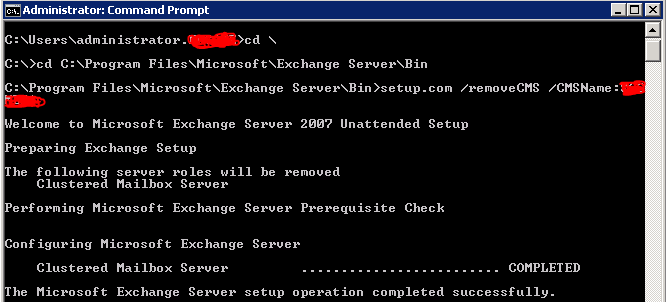
Go to the command prompt..change the directory to C:\Program files\Microsoft\Exchange Server\Bin

Type command setup.com /removeCMS /CMSName:<Clustername>

This will take the mailbox now offline from the cluster…

Now type setup /mode:uninstall

Once you finish this uninstallation, Exchange server 2007 last mail box has been remove from your domain..now do the evict

Goto command prompt (If the command prompt is open, close it and open it and then type

Cluster <mailbox cluster name> node <nodename> /force

That’s the end of the “EXCHANGE SERVER 2007 DE-COMMISSIONING PROCESS”

Now you are completely depended on Exchange server 2010.