Microsoft Online Services – Business productivity online standard suite

Microsoft brings together online versions of our most trusted communication and collaboration products with the security, reliability, and control you require.

Choosing Microsoft Online Services allows you to combine the power of rich desktop-based applications with the flexibility of fully-hosted Internet services. That gives your users an all-in-one integrated experience on the same rich clients your users already know with a consistent look and feel from virtually any device, in almost any location.

Microsoft Online Services benefits include:

The latest business productivity capabilities

  • Business-class e-mail, web conferencing, instant messaging, document collaboration and workflow all designed to work together seamlessly.

Ease of use

  • Services synchronize with your Microsoft Active Directory, so you maintain control and can continue to manage user policies centrally
  • A single administrative panel enables simple and centralized provisioning and management of new and existing users
  • End users can securely access the service virtually anywhere without the need for a VPN connection and through a wide selection of mobile
    devices

Privacy & rapid disaster recovery

  • Secure Internet protocols including HTTPS and HTTP over SSL to access your services
  • Redundant network architecture capable of disaster recovery
  • In the event of datacenter connectivity issues, services switch over to a backup datacenter

Greater flexibility

  • Build your own solution with individual services or purchase as an integrated suite
  • Choose to run some applications on-premises, or choose Online Services hosted and managed by Microsoft or Microsoft Partners
  • Leverage tools such as Active Directory Synchronization so you can make online, on-premises, or hybrid deployment choices by service, user roles,
    and geography to meet organizational needs best
  • Adjust your deployment model dynamically as your business needs shift and grow

Improved agility

  • Easily extend new capabilities to your organization without straining internal resources
  • Expand your IT capacity by adding new services without investing in the development of new skills or deploying new hardware and software
  • Free your valuable IT resources from routine management tasks to focus on core business initiatives that can deliver a true competitive
    advantage

Security & reliability

  • Microsoft Online Services run on a global network of data centers protected by multiple layers of security and operational best practices
  • Microsoft Online Services guarantee a service level agreement of 99.9% uptime
  • Data centers and services managed by rigorously screened and highly trained staff

Forefront Client Security has been superseded by Forefront Endpoint Protection 2010

This new addition to the Forefront family of security products builds on System Center Configuration Manager 2007 to provide desktop security and management in a single infrastructure. Forefront Endpoint Protection 2010 enables businesses to align security and management to improve endpoint protection while greatly reducing operational costs. This shared infrastructure helps reduce ownership costs while providing improved visibility and control over endpoint management and security.

Upgrading and migrating Client Security

Forefront Endpoint Protection 2010 features

Microsoft IT Increases Security and Streamlines Antimalware Management by Using Microsoft Forefront Endpoint Protection 2010

Microsoft Dynamics GP 2010 Service Pack 2 – Released

CONGRATULATIONS!!!

The Microsoft Dynamics GP development team have been hard at work and have just released Service Pack 2 (R2) for Microsoft Dynamics GP 2010 on the 21st of April, 2011.

INSTALLATION INSTRUCTIONS

It is recommended to have a working backup of the the following items before applying any patch file:

1. DYNAMICS database
2. All company databases
3. Reports.dic – export the reports through Customization Maintenance (Tools | Customize | Customization Maintenance)
4. Forms.dic – export the forms through Customization Maintenance (Tools | Customize | Customization Maintenance)
5. eConnect PRE and POST Procedures if customized

NOTE: The Reports.dic and the Forms.dic may be located on the server or each workstation. If located at each workstation, make sure to backup the dictionaries at all workstations.

If you have Microsoft Dynamics GP 2010 already installed, use the steps below:
1. Download the latest patch release and installation guide below.
2. At the Microsoft SQL Server, double-click the patch file and the install will be silent and only show a progress window.
3. At the Microsoft SQL Server, launch Microsoft Dynamics GP Utilities and update the DYNAMICS database and all company databases.
4. Once the databases are updated at the server, update the modified forms and reports at the Additional Tasks window. Refer to the installation guide for the steps to update.
5. Install the patch file at all client workstations. The patch file can be published using Automatic Client Updates. Once a user logs in, they will be automatically prompted to install the patch. Refer to Chapter 5 in the
SystemAdminGuide.pdf on the Release 2010 DVD under Documentation.

If you are updating to Microsoft Dynamics GP 2010, the latest patch must be installed prior to launching Utilities. Refer to the steps below:
1. Install a server installation of Microsoft Dynamics GP 2010 including the Microsoft Dynamics GP features you use.
2. At the end of the Microsoft Dynamics GP 2010 installation, click Finish in the Installation Complete window.
3. Install the latest Microsoft Dynamics GP 2010 patch.
4. Convert your databases using Microsoft Dynamics GP 2010 Utilities.
5. Update all modified reports and forms dictionaries.

WHERE CAN YOU FIND IT?

Required: Live ID for sign-in to these portal.

CustomerSource: https://mbs.microsoft.com/customersource/downloads/servicepacks/mdgp2010_patchreleases.htm?printpage=false

PartnerSource: https://mbs.microsoft.com/partnersource/downloads/servicepack/mdgp2010_patchreleases.htm?printpage=false

Other useful links:

  1. Developing for Microsoft Dynamics GP by David Musgrave (Australia) and the Microsoft Dynamics GP Developer Support Team (USA).
  2. Inside Microsoft Dynamics GP – Official Blog page

Enjoy!!!

Remote Server Administration Tools for Windows 7 with Service Pack 1 (SP1)

Remote Server Administration Tools for Windows 7 with SP1 enables IT administrators to manage roles and features that are installed on remote computers that are running Windows Server 2008 R2 with SP1 or Windows Server 2008 R2 (and, for some roles and features, Windows Server 2008 or Windows Server 2003) from a remote computer that is running Windows 7 or Windows 7 with SP1. It includes support for remote management of computers that are running either the Server Core or full installation options of Windows Server 2008 R2 with SP1, Windows Server 2008 R2, and for some roles and features, Windows Server 2008. Some roles and features on Windows Server 2003 can be managed remotely by using Remote Server Administration Tools for Windows 7 with SP1, although the Server Core installation option is not available with the Windows Server 2003 operating system.

This feature is comparable in functionality to the Windows Server 2003 Administrative Tools Pack and Remote Server Administration Tools for Windows Vista with Service Pack 1 (SP1).

To download Remote server administration tools for Windows 7 SP1, click here

Installing Remote Server Administration Tools for Windows 7 with SP1
You must be either a member of the Administrators group on the computer on which you want to install the Administration Tools pack, or you must be logged on to the computer by using the built-in Administrator account.

  • On a computer that is running Windows 7 or Windows 7 with SP1, download the Remote Server Administration Tools for Windows 7 with SP1 package from the Microsoft Download Center.
  • Open the folder into which the package downloaded, double-click the package to unpack it, and then start the Remote Server Administration Tools for Windows 7 with SP1 Setup Wizard. Important: You must accept the License Terms and Limited Warranty to start to install the Administration Tools pack.
  • Complete all installation steps in the wizard, and then click Finish to exit the wizard when installation is finished.
  • Click Start, click Control Panel, and then click Programs.
  • In the Programs and Features area, click Turn Windows features on or off.
  • If you are prompted by User Account Control to enable the Windows Features dialog box to open, click Continue.
  • In the Windows Features dialog box, expand Remote Server Administration Tools.
  • Select the remote management tools that you want to install and click OK.
  • Configure the Start menu to display the Administration Tools shortcut, if it is not already there.
  • Right-click Start, and then click Properties.
  • On the Start Menu tab, click Customize.
  • In the Customize Start Menu dialog box, scroll down to System Administrative Tools, and then select Display on the All Programs menu and the Start menu. Click OK.
  • Shortcuts for snap-ins installed by Remote Server Administration Tools for Windows 7 with SP1 are added to the Administrative Tools list on the Start menu.

Microsoft BizSpark: Helping startups succeed with all the right resources

Microsoft® BizSpark™ is a global program that helps software startups succeed by giving them access to Microsoft software development tools, connecting them with key industry players, including investors, and providing marketing visibility to help entrepreneurs starting a business. Get immediate access to current full-featured Microsoft development tools, platform technologies, and production licenses of server products (including Windows Azure Platform) for use in developing and bringing to market innovative and interoperable solutions…click here to know more

To know more about Microsoft App Hub, click the image below

Excellent Windows Phone 7 Development Tutorials

Here are 30+ cool Windows Phone Development articles for all developers interested in developing applications or games for the new Windows Phone 7 Platform. These tutorials covers the Windows Phone 7 Overview, the Developer and the Windows Phone 7 Marketplace, How to become a developer, Setting up your system, Intro to creating Windows Phone applications and many more.

To know more, click here

Enjoy!

What you can do with the Windows 7 taskbar?

In Windows 7, the  taskbar has been completely redesigned to help you more easily manage and access your most important files and programs. As of Windows 7, the taskbar has been extended significantly under the guiding principle of getting users where they’re going as quickly and efficiently as possible. To that end, the application windows, files, and commands that the user needs to accomplish that are now centralized into a single taskbar button that consolidates previously scattered information sources and controls. A user can now find common tasks, recent and frequent files, alerts, progress notifications, and thumbnails for individual documents or tabs all in one place.

A small set of applications are pinned by default for new installations. Other than these, only the user can pin further applications; programmatic pinning by an application is not permitted. The Show Desktop feature from Quick Launch is now located at the taskbar’s far right. Hovering over this area causes all active windows to become transparent, showing the desktop. Clicking the area executes the familiar action of minimizing all windows and switching to the desktop.

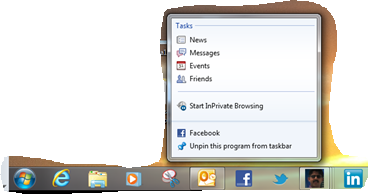
You can just drag your web pages/programs to the task bar and the icon is created plus the menu available to that program is also listed..cool na take a look at what i created for me…my facebook, twitter, linkedin and my blog page…hmm


Change how icons appear in the notification area…to know click here

Enjoy!!!

Microsoft Office for Mac 2011 SP1… comming soon

Next week (Week 15), Microsoft will release Office for Mac 2011 Service Pack 1 (SP1) which will provide increased stability, security, and some new features to the suite – including improved Outlook syncing support – as well as some performance enhancements. This update will enable calendar syncing between Outlook for Mac and Apple’s Sync Services. This will let you sync your Outlook calendar as well as contacts, notes and tasks with any service or device that supports Sync Services, including your iPhone and iPad.  Apple is introducing with their new version of MobileMe. MobileMe will no longer sync with MacOS Sync Services as of May 5th (or now if you have already moved your account to the new version of MobileMe calendar). As a result, Outlook 2011 SP1 calendars that sync with Sync Services on the Mac, will NOT be synced with MobileMe calendars.

The new Apple MobileMe Calendar service is an updated calendar service for iPhone, iPad, iPod touch, Mac, and PC. It includes:

  • The best calendar service for iPhone, iPad, and iPod touch
  • Calendar sharing with family and friends
  • Calendar publishing for a group or team
  • Event invitations with RSVPs
  • A new web application

The new MobileMe Calendar uses the CalDAV standard so users can view and edit their calendars using the built-in calendar applications on their iPhone, iPad, iPod touch, and Mac. Windows users can also view and edit their calendars with Microsoft Outlook using the MobileMe Control Panel for Windows.

More info Click here

Microsoft Dynamics CRM 2011 Software Development Kit (SDK)

The Microsoft Dynamics CRM 2011 Software Development Kit (SDK) is for developers, system customizers, and report writers.This SDK documentation contains information for developers writing server side code, custom business logic, integration modules, workflow assemblies, and plug-ins. It provides an architectural overview of Microsoft Dynamics CRM, the entity model, security model, and Web services. Sample code and walkthroughs are provided to guide you through the new features. It also contains information for developers customizing the Web client or Microsoft Dynamics CRM for Microsoft Office Outlook, including scripting, integration of custom Web pages, and lots of sample code.

To download complete software development kit for Microsoft Dynamics CRM 2011, click here