Exchange Server 2010 Service Pack 1 Beta released

In my last post Exchange Server 2010 Service Pack 1 – Sneak-peak and Microsoft Exchange Team Blog Yes Virginia, there is an Exchange Server 2010 SP1, the team shared information on some of the features  and  expected fixes  that are coming with the SP1 update. Microsoft committed to providing the final version of Exchange Server 2010 SP1 before the end of 2010, and now they have release the Beta of Exchange Server 2010 SP1. Video Preview from MSEXCHANGE Team ..You can download the Microsoft Exchange Server 2010 SP1 Beta from here…This pre-release software is intended for evaluation purposes only. You must accept the license terms before you are authorized to use the software. There is no product support for this trial software.

Is The New Exchange 2010 Service Pack Enough to Stop the Migration to Google Apps?..Click here to read

iOS 4 and Exchange ActiveSync

Apple released iOS 4 recently and since its release there have been numerous reports of a number of issues with new iPhone 4s when using Exchange ActiveSync . Here is the link from Microsoft Exchange Team Blog

PATCH Released from Apple : iPhone users who use the iPhone4 or upgraded to iOS4 must install a related Apple configuration patch on their iPhone. The patch, along with installation directions, can be found here:
http://support.apple.com/kb/TS3398.

Exchange Server 2007 Service Pack 3 released

Exchange Server 2007 SP3 supports all Exchange 2007 roles on the Windows Server 2008 R2 operating system.

Exchange 2007 SP3 provides support only for a new installation of Exchange on Windows Server 2008 R2.

Exchange 2007 SP3 is not supported in an upgrade scenario on Windows Server 2008 R2. For example, Exchange 2007 SP3 does not support the following installation scenarios:

  • A new Exchange 2007 SP3 installation on a Windows Server 2008 R2-based computer that has been upgraded from Windows Server 2008
  • Upgrading Exchange 2007 SP2 to Exchange 2007 SP3 on a Windows Server 2008 R2-based computer that has been upgraded from Windows Server 2008
  • Upgrading the operating system from Windows Server 2008 to Windows Server 2008 R2 on a computer that has Exchange 2007 SP3 installed

Exchange Server 2007 SP3 provides

  • further flexibility with the addition of Windows Server 2008 R2 support for server roles and Windows 7 support for the Exchange management tools.
  • These additions, along with enhancements for the advanced protection options against e-mail security threats, such as spam and viruses and the tools which help manage internal compliance and high availability needs provide Exchange administrators with the tools they need to manage their Exchange 2007 environments efficiently.
  • Exchange 2007 SP3 introduces password reset functionality for Internet Information Services (IIS) 7.
  • Exchange 2007 SP3 includes updates to the Exchange Search (MSSearch) component.
  • MSSearch provides support for creating full text indexes for Exchange stores.
  • Exchange 2007 SP3 updates the MSSearch binary files to MSSearch 3.1.
  • Exchange 2007 SP3 includes Active Directory schema changes for certain Unified Messaging (UM) mailbox attributes.
  • Exchange 2007 SP3 includes support for Right-to-Left text in e-mail message disclaimers in a right-to-left language, such as Arabic.
  • In earlier versions of Exchange, when you use a transport rule to create a disclaimer in a right-to-left language on an Exchange 2007 Hub Transport server, the text appears incorrectly when you view it from Outlook 2007.
  • Exchange 2007 SP3 adds functionality to the transport rule setting to fully support right-to-left text in disclaimers

Useful Links

Other downloads

Issues

  1. In the recently released Exchange 2007 Service Pack 3, there’s a version mismatch between the Outlook Web Access (OWA) S/MIME Control, an Active X control used to provide S/MIME support in OWA. After you install SP3, users who have the control installed will get prompted to install the latest version of the control. The way this works – the code compares the “Version” property of the client S/MIME control (MIMECTL.DLL) on the user’s computer with the ProductVersion property of the MSI file (OWASMIME.MSI) on the Client Access Server. to know more click Exchange 2007 SP3 and OWA S/MIME Version Mismatch from Microsoft Exchange Team Blog

Etisalat new HSPA + Wifi Router

New HSPA + Wifi Router Model number 3G21WE from Etisalat….Its a 3G Modem Router with Wireless N technology, 4Ethernet Port and 2 USB port for File/Print sharing. This supports the downlink speed upto 21Mbps and an uplink speed upto 5.76Mpbs. Purpose for this is to use remote internet access accross UAE. Cool product..

What is HSPA?

HSPA supports increased peak data rates of up to 14 Mbit/s in the downlink and 5.8 Mbit/s in the uplink. It also reduces latency and provides up to five times more system capacity in the downlink and up to twice as much system capacity in the uplink, reducing the production cost per bit compared to original WCDMA protocols. HSPA increases peak data rates and capacity in several ways:

  • Shared-channel transmission, which results in efficient use of available code and power resources in WCDMA
  • A shorter Transmission Time Interval (TTI), which reduces round-trip time and improves the tracking of fast channel variations
  • Link adaptation, which maximizes channel usage and enables the base station to operate close to maximum cell power
  • Fast scheduling, which prioritizes users with the most favorable channel conditions
  • Fast retransmission and soft-combining, which further increase capacity
  • 16QAM (Quadrature Amplitude Modulation), which yields higher bit-rates

HSPA has been commercially deployed by over 200 operators in more than 80 countries.

Microsoft Dynamics CRM 2011 Public Beta

Announced at the Microsoft Worldwide Partner Conference on July 12, 2010, Microsoft Dynamics CRM 2011 – formerly codenamed “CRM5” – will be publicly available as a beta release in September 2010 for both online and on-premises deployments. If you want to get notified for this release, please click this link

Microsoft is going to stop support for Windows XP SP2

SP1 and SP2 retirement

Microsoft support for the Windows XP with Service Pack 2 (SP2) 32-bit operating system will end July 13, 2010, and support for the Windows Vista Release to Manufacturing (RTM) operating system will end April 13, 2010.

Important Dates Product End of Mainstream Support End of Extended Support
Windows XP SP2   July 13, 2010
Windows Vista RTM April 13, 2010  
Windows 2000 Professional SP4   July 13, 2010
Windows 2000 Server SP4   July 13, 2010

Users can upgrade their Windows XP SP2 to Windows XP  SP3 and use the system till 2014… If you are still running Microsoft Windows XP SP2 (Service Pack 2), you have until July 13 to upgrade. The venerable SP2 version reaches the end of its life on July 13, after which there will be no more updates…more info click here

Technet Top 10 Webcasts

Microsoft has recently clubbed the most viewed top 10 Technet Web cast, which is now available on the site.. To view that, click here

Now most of the microsoft site is well organized..cool

Configure EWS, Autodiscover, OWA, OAB, ECP on Exchange Server 2010

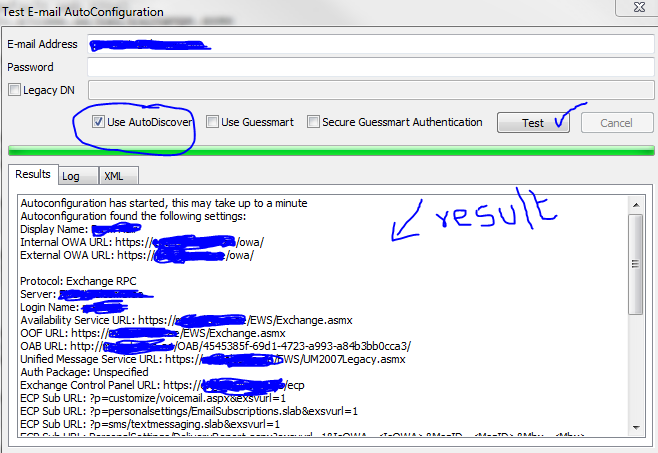
As you all know that the service connectivity for a mail server is the  main concern to all of us. In Exchange server 2010, the connectivity is as same as Exchange server 2007. Once you migrate or install the new version, this should be tested with the proper credentials and certificate..or else, you will end up with your mail server IP going to the blacklist, because of the wrong pointers and configurations. First of all, do the internal test. Go to your computer start bar, right side where Date and time is showing, you will find the Outlook icon, hold Ctrl + right click on the outlook icon and click “Test Email Auto Configuration…”

Select the “Use AutoDiscover” and click Test..

Above one is a success one..If failed, do the below. The Exchange Web Service (EWS) is the web service that allows access to the Out of Office service. If either the internal or external URL for the EWS is missing or incorrect, OOF will fail and other services may not work as expected. Using Exchange Management Shell, check the URLs assigned to the web service virtual directory using the Get-WebServicesVirtualDirectory command

First goto CAS server

Type the following Power Shell command for EWS (Exchange Web Service)

Copy code Get-WebServicesVirtualDirectory |fl identity,internalurl,externalurl

You will get the result like below

Identity    : ECAS1\EWS (Default Web Site)
InternalUrl : https://mailv.domain.com/EWS/Exchange.asmx
ExternalUrl : https://mailv.domain.com/ews/exchange.asmx

Identity    : ECAS2\EWS (Default Web Site)
InternalUrl : https://mailv.domain.com/EWS/Exchange.asmx
ExternalUrl : https://mailv.domain.com/ews/exchange.asmx

If this is not correct, you need to fix it.. This has to be done on Powershell command on the CAS server.

To do that…Copy code

[PS]C:\Windows\system32>Set-WebServicesVirtualDirectory -Identity “ECAS1\EWS (Default Web Site)” -InternalUrl https://mail.domain.com/EWS/Exchange.asmx -BasicAuthentication:$true

[PS]C:\Windows\system32>Set-WebServicesVirtualDirectory -Identity “ECAS2\EWS (Default Web Site)” -InternalUrl https://mail.domain.com/EWS/Exchange.asmx -BasicAuthentication:$true

[PS] C:\Windows\system32>Get-WebServicesVirtualDirectory |fl identity,internalurl,externalurl

Identity    : ECAS1\EWS (Default Web Site)
InternalUrl : https://mail.domain.com/EWS/Exchange.asmx
ExternalUrl : https://mail.domain.com/ews/exchange.asmx

Identity    : ECAS2\EWS (Default Web Site)
InternalUrl : https://mail.domain.com/EWS/Exchange.asmx
ExternalUrl : https://mail.domain.com/ews/exchange.asmx

Now you can see that the URL has been fixed. This is for Web Services.

Now for Autodiscovery….

[PS] C:\Windows\system32>Get-AutodiscoverVirtualDirectory

To see the settings

[PS] C:\Windows\system32>Get-ClientAccessServer |fl identity,autodiscoverserviceinternaluri

RESULT

[PS] C:\Windows\system32>Get-ClientAccessServer |fl identity,autodiscoverserviceinternaluri
Identity                       : ECAS1
AutoDiscoverServiceInternalUri : https://mailv.domain.com/Autodiscover/Autodiscover.xml

Identity                       : ECAS2
AutoDiscoverServiceInternalUri : https://mailv.domain.com/Autodiscover/Autodiscover.xml

To FIX it..

[PS] C:\Windows\system32>Set-ClientAccessServer -Identity ECAS1 -AutoDiscoverServiceInternalUri https://mail.domain.com/Autodiscover/Autodiscover.xml
[PS] C:\Windows\system32>Set-ClientAccessServer -Identity ECAS2 -AutoDiscoverServiceInternalUri https://mail.domain.com/Autodiscover/Autodiscover.xml 

 Now for the Outlook Web Apps, Exchange Control Panel, Exchange ActiveSync, Offline Address book…you have to go to Exchange Management Console (EMC)

  1. Goto one of the CAS server
  2. Open EMC
  3. Goto Server Configuration
  4. Select Client Access
  5. On the Middle top pannel, you can see the CAS server listed.
  6. Select one, on the bottom pannel, you will see like below.
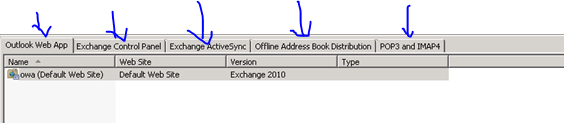
Select each tab and then right click on the object and change the path as required. Once you done with the first CAS servr, do the same for the second as well.

Thats it…you are good to go for production.