Even if you delete item from the deleted items from your outlook 2010, you can go to the tab under folder on the main page of the outlook 2010 and click “Recover Deleted Item” and view the items on the list

- Outlook 2010 feature

Even if you delete item from the deleted items from your outlook 2010, you can go to the tab under folder on the main page of the outlook 2010 and click “Recover Deleted Item” and view the items on the list

MailTips are informative messages displayed to users while they compose a message. Works with only Exchange server 2010 with Outlook 2007/2010.
Microsoft Exchange Server 2010 analyzes the message, including the list of recipients to which it’s addressed. If a potential problem is detected, MailTips notify users prior to sending the message. With the help of the information provided by MailTips, senders can adjust the message they are composing to avoid undesirable situations or non-delivery reports (NDRs).
You can’t use the EMC to enable or disable MailTips. You need to be assigned permissions before you can perform this procedure. To see what permissions you need, click here
EMS : Set-OrganizationConfig cmdlet to enable or disable MailTips in your organization. MailTips are enabled by default, when you install a new Exchange 2010 organization.
Examples of Mailtips, when you activate is like
To know more.. click here
Exchange server 2010 SP1 is bringing up with more featueres and i will update you this in my comming blog
Since Exchange server 2010 SP1 has been released on the 1st of September 2010, its too early for me to roll out on my production environment. “Some of the hotfixes would have been rolled up in a Windows update or service pack. Given that the Exchange team released SP1 earlier than what was planned and announced earlier, it did not align with some of the work with the Windows platform. As a result, some hotfixes are available from MSDN/Connect, and some require that you request them online using the links in the corresponding KBAs. The administrator experience when initially downloading these hotfixes may be a little odd. However, once you download the hotfixes, and receive two of the hotfixes from CSS, you can use the same for subsequent installs on other servers. In due course, all these updates may become available on the Download Center, and also through Windows Update.”. Good to know that Exchange team is closely working on all the issues and updating it. I will wait for another 1 to 2 months for my rollout. For more information http://msexchangeteam.com/archive/2010/09/01/456094.aspx
Also another helpful blog for the SP1 installation… click here
Microsoft Exchange Server 2010 SP1 accepts only ten devices per account – iOS4..more info click here
Problems when installing Exchange 2010 Service Pack 1 on a TMG configured for Mail protection..Click here (Update: A fix for this problem is now available for download as part of Software Update 1 for Microsoft Forefront Threat Management Gateway (TMG) 2010 Service Pack 1.)
Recently we have noticed that some of the users after upgrading from Microsoft Outlook 2007 to 2010, Meeting request gets auto accept and user won’t notice it.
How to resolve it in Outlook 2010…!
Goto->File->Options->Calender->Resource scheduling and uncheck it

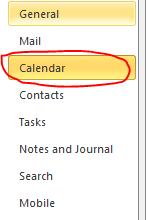

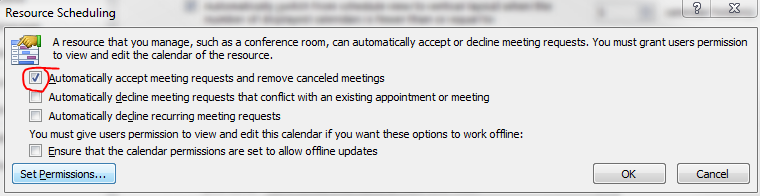
Thats it…uncheck and click ok..problem solved.
From my previous post Exchange Server 2010 Service Pack 1 Beta released and Exchange Server 2010 Service Pack 1 – Sneak-peak , they have released the RTM of Exchange server 2010 SP1..Read the blog

Microsoft says it’s learned from user feedback about Office 2008 and has tweaked the user interface accordingly in Office 2011. Most notably, there’s a new Ribbon at the top of each document window. The Mac version of the Ribbon doesn’t replace any menu bars, but it does replace Office 2008’s controversial Elements Gallery, which took some fire from Mac users for its size and inflexibility. This new Ribbon is designed to give users quick access to each program’s most commonly used tools. Unlike the Elements Gallery, the ribbon is customizable and, if you want more screen space, completely collapsible. Now users who has volume license can start download the new version from their site and for the rest, it will arrive in time for the 2010 holiday season.

The other big news in Office 2011 is the demise of Entourage and the return of Outlook. The new Outlook will support PST imports (allowing you to move an Outlook installation, including all your old e-mails, from a Windows PC to a Mac). It will also support Microsoft’s Information Rights Management (IRM), which allows senders to specify what recipients can do with messages (print, forward, and so on). Previously-Windows only, IRM is required in some corporate settings.
Microsoft has re-engineered the Outlook message database system to be a series of small files, so it’s more easily backed up with Time Machine and searched in Spotlight. “Outlook’s new database is more reliable, faster, and fully supports Time Machine and Spotlight.
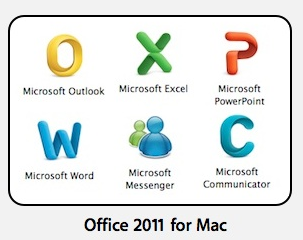
Icons also changed…now they look more professional too..To see the Office 2011 box art,Word click here Excel click here Powerpoint click here


Visual Basic was dropped from Office 2008 in part because it was too technically difficult to port it to the Mac’s then-new Intel CPUs. Microsoft says it began work on that port as far back as 2008—before the last Mac Office shipped. That work is now complete. And the Mac suite will be using the most up-to-date version of Visual Basic, so it’ll be much more compatible with Office for Windows than the Visual Basic in previous versions of Office for Mac.
If you come across the issue of saving the IP which needs to block it under the “Edge server IP Block List” entry, following error receive “The server threw an exception. (Exception from HRESULT: 80010105 (RPC_E_SERVERFAULT))”
Why this is used : IP Block List is part of the connection filtering feature in Exchange. When the IP Block List feature is enabled on a computer, the Connection Filter agent analyzes all messages that come through all Receive connectors on that computer and it block all incoming messages from addresses specified in the IP Block list.
Reason for the above error : Duplicate IP exist inside the IP block list.
Resolution : From the EMS (Exchange management shell) use the following. You use the Add-IPBlockListEntry and Remove-IPBlockListEntry cmdlets to manage the addresses in the IP Block list. You can specify individual IP addresses, IP subnets using the CIDR notation, or IP ranges.
From the EMS,
If you want to list all the IP blocklist for verification, type Get-IPBlockListEntry . This will list all the Block IP, and you can see the duplicate entries. Write down each of the dupicate entry seperately and then run the following command for each entries.
To remove an address from the IP Block list using the Shell, you must specify this IP. However, an easier way to remove an address is to pipeline the output of the Get-IPBlockListEntry cmdlet to the Remove-IPBlockListEntry cmdlet.
For example, if you want to remove the IP address 192.168.1.100 from your IP Block list, run the following command:
Get-IPBlockListEntry -IPAddress 192.168.1.100 | Remove-IPBlockListEntry
This will remove 192.168.1.100 from your IP block list, which is a duplicate, identified by you. For each entry, do the same by changing the IP. Once it is done, Your block list will start accepting the IP to block and save it on the list, without throwing the error (as above mentioned)
When you have a mail enabled public folder in your exchange server 2007/2010 environment, you might face issues with email forwarding from the public folder from your user account, where you will get an error “Operation failed”.
Resolution :
The Microsoft Outlook Social Connector Provider for Facebook allows you to connect your Facebook account to the Outlook Social Connector and obtain information about your friends and colleagues.
You can see status updates and recently posted items from your Facebook contacts.
You can also use Outlook Social Connector to display a quick view of related Outlook content when you click on an email from a contact, such as recent e-mail conversations, meetings, and shared attachments to help you easily track your communications

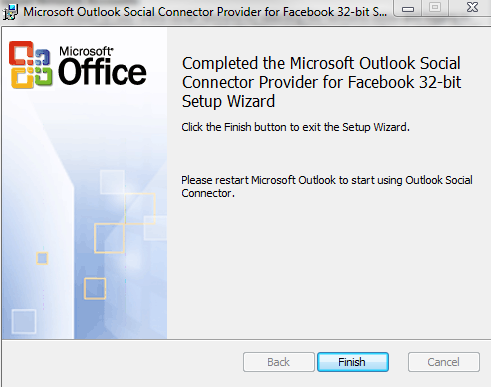

Once you finish installing the Social connector, Please re-start the Outlook and then goto your reading panel below down you can see the user icon and underneath, there is a button called +ADD…click that (Check the above image) and then select each connector and type the credential…

You are ready to go!!! …read my previous blog for more Microsoft Outlook 2010 – Social connector
NOTE: The Microsoft Outlook Social Connector Provider requires Microsoft Outlook Social Connector and the related update (KB983403) to be installed. If these components are not already installed on your machine, the Microsoft Outlook Social Connector Provider for Facebook will download and install the necessary updates from the Microsoft Download Center before completing the provider installation.
To download click here

In my last post Exchange Server 2010 Service Pack 1 – Sneak-peak and Microsoft Exchange Team Blog Yes Virginia, there is an Exchange Server 2010 SP1, the team shared information on some of the features and expected fixes that are coming with the SP1 update. Microsoft committed to providing the final version of Exchange Server 2010 SP1 before the end of 2010, and now they have release the Beta of Exchange Server 2010 SP1. Video Preview from MSEXCHANGE Team ..You can download the Microsoft Exchange Server 2010 SP1 Beta from here…This pre-release software is intended for evaluation purposes only. You must accept the license terms before you are authorized to use the software. There is no product support for this trial software.
Is The New Exchange 2010 Service Pack Enough to Stop the Migration to Google Apps?..Click here to read
 PREMNAIR'S Blog