iOS 4 and Exchange ActiveSync

Apple released iOS 4 recently and since its release there have been numerous reports of a number of issues with new iPhone 4s when using Exchange ActiveSync . Here is the link from Microsoft Exchange Team Blog

PATCH Released from Apple : iPhone users who use the iPhone4 or upgraded to iOS4 must install a related Apple configuration patch on their iPhone. The patch, along with installation directions, can be found here:
http://support.apple.com/kb/TS3398.

Microsoft Dynamics CRM 2011 Public Beta

Announced at the Microsoft Worldwide Partner Conference on July 12, 2010, Microsoft Dynamics CRM 2011 – formerly codenamed “CRM5” – will be publicly available as a beta release in September 2010 for both online and on-premises deployments. If you want to get notified for this release, please click this link

Configure EWS, Autodiscover, OWA, OAB, ECP on Exchange Server 2010

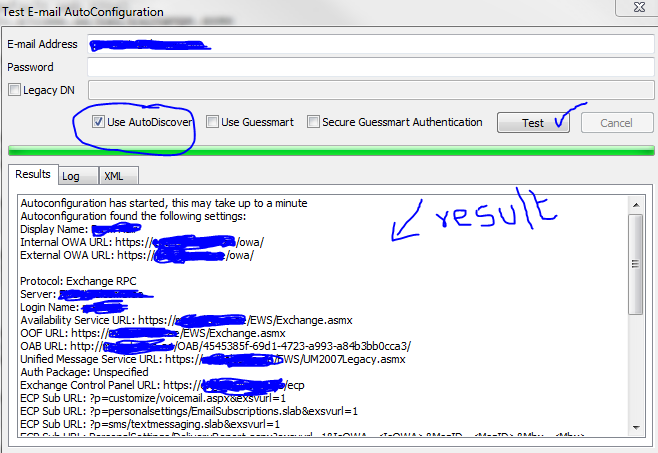
As you all know that the service connectivity for a mail server is the  main concern to all of us. In Exchange server 2010, the connectivity is as same as Exchange server 2007. Once you migrate or install the new version, this should be tested with the proper credentials and certificate..or else, you will end up with your mail server IP going to the blacklist, because of the wrong pointers and configurations. First of all, do the internal test. Go to your computer start bar, right side where Date and time is showing, you will find the Outlook icon, hold Ctrl + right click on the outlook icon and click “Test Email Auto Configuration…”

Select the “Use AutoDiscover” and click Test..

Above one is a success one..If failed, do the below. The Exchange Web Service (EWS) is the web service that allows access to the Out of Office service. If either the internal or external URL for the EWS is missing or incorrect, OOF will fail and other services may not work as expected. Using Exchange Management Shell, check the URLs assigned to the web service virtual directory using the Get-WebServicesVirtualDirectory command

First goto CAS server

Type the following Power Shell command for EWS (Exchange Web Service)

Copy code Get-WebServicesVirtualDirectory |fl identity,internalurl,externalurl

You will get the result like below

Identity    : ECAS1\EWS (Default Web Site)
InternalUrl : https://mailv.domain.com/EWS/Exchange.asmx
ExternalUrl : https://mailv.domain.com/ews/exchange.asmx

Identity    : ECAS2\EWS (Default Web Site)
InternalUrl : https://mailv.domain.com/EWS/Exchange.asmx
ExternalUrl : https://mailv.domain.com/ews/exchange.asmx

If this is not correct, you need to fix it.. This has to be done on Powershell command on the CAS server.

To do that…Copy code

[PS]C:\Windows\system32>Set-WebServicesVirtualDirectory -Identity “ECAS1\EWS (Default Web Site)” -InternalUrl https://mail.domain.com/EWS/Exchange.asmx -BasicAuthentication:$true

[PS]C:\Windows\system32>Set-WebServicesVirtualDirectory -Identity “ECAS2\EWS (Default Web Site)” -InternalUrl https://mail.domain.com/EWS/Exchange.asmx -BasicAuthentication:$true

[PS] C:\Windows\system32>Get-WebServicesVirtualDirectory |fl identity,internalurl,externalurl

Identity    : ECAS1\EWS (Default Web Site)
InternalUrl : https://mail.domain.com/EWS/Exchange.asmx
ExternalUrl : https://mail.domain.com/ews/exchange.asmx

Identity    : ECAS2\EWS (Default Web Site)
InternalUrl : https://mail.domain.com/EWS/Exchange.asmx
ExternalUrl : https://mail.domain.com/ews/exchange.asmx

Now you can see that the URL has been fixed. This is for Web Services.

Now for Autodiscovery….

[PS] C:\Windows\system32>Get-AutodiscoverVirtualDirectory

To see the settings

[PS] C:\Windows\system32>Get-ClientAccessServer |fl identity,autodiscoverserviceinternaluri

RESULT

[PS] C:\Windows\system32>Get-ClientAccessServer |fl identity,autodiscoverserviceinternaluri
Identity                       : ECAS1
AutoDiscoverServiceInternalUri : https://mailv.domain.com/Autodiscover/Autodiscover.xml

Identity                       : ECAS2
AutoDiscoverServiceInternalUri : https://mailv.domain.com/Autodiscover/Autodiscover.xml

To FIX it..

[PS] C:\Windows\system32>Set-ClientAccessServer -Identity ECAS1 -AutoDiscoverServiceInternalUri https://mail.domain.com/Autodiscover/Autodiscover.xml
[PS] C:\Windows\system32>Set-ClientAccessServer -Identity ECAS2 -AutoDiscoverServiceInternalUri https://mail.domain.com/Autodiscover/Autodiscover.xml 

 Now for the Outlook Web Apps, Exchange Control Panel, Exchange ActiveSync, Offline Address book…you have to go to Exchange Management Console (EMC)

  1. Goto one of the CAS server
  2. Open EMC
  3. Goto Server Configuration
  4. Select Client Access
  5. On the Middle top pannel, you can see the CAS server listed.
  6. Select one, on the bottom pannel, you will see like below.
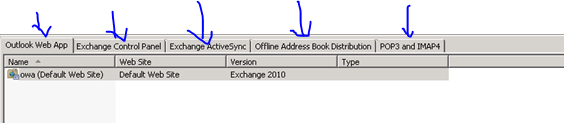
Select each tab and then right click on the object and change the path as required. Once you done with the first CAS servr, do the same for the second as well.

Thats it…you are good to go for production.

Exchange Server 2010 Service Pack 1 – Sneak-peak

Exchange Team Blog that provides the first public details about Exchange Server 2010 Service Pack 1 (SP1).  SP1 will of course include fixes and enhancements in the areas customers have helped us identify (including code from all of the Exchange 2010 post RTM update rollups we’ve released to date).  But SP1 will also include some new features and functionality changes, as well….cool

  • A new search preview helps with early case assessment by providing you an estimate on the number of items in the result set-with keyword statistics-before e-mail located in the search are copied to the designated discovery mailbox.
  • And, a new search result de-duplication option, when checked, only copies one instance of a message to the discovery mailbox.

Look at the below  menu for the DAG…what a cool feature it will be

With the release of Exchange Server 2010 last November, Microsoft introduced integrated archiving capabilities aimed at helping you preserve and discover e-mail data. In SP1, this has enhanced its archiving functionality based on the great feedback you’they got since the launch. This includes adding the flexibility to provision a user’s Personal Archive to a different mailbox database from their primary mailbox. This means your organization can now more easily implement separate storage strategies (or tiered storage) for less frequently accessed e-mail. And, we didn’t just stop there! We’ve also added new server side capabilities so you can import historical e-mail data from .PST files, directly into Exchange, as well as IT pro controls to enable delegate access to a user’s Personal Archive.

To help streamline the implementation of retention policies, SP1 updates the Exchange Management Console with new tools to create Retention Policy Tags, so you can automate the deletion and archiving of e-mail and other Exchange items. New optional Retention Policy Tags give you even more flexibility in defining your organizations retention management strategy….coooool

Can’t wait to get hold of this…Announcement blog from Microsoft Exhange Team …click here Yes Virginia, there is an Exchange Server 2010 SP1

Learn more about our approach to archiving by reading the Archiving with Exchange 2010 whitepaper.

Scott Schnoll’s weblog…click here

Exchange Server 2010 Migration – Useful tools

Exchange Pre-Deployment Analyzer..Click here

The ExPDA tool performs a scan of your existing Exchange and Active Directory environments and produces a report that lists all items that require attention prior to deployment.

Exchange Server Profile Analyzer..Click here

The EPA tool performs a scan of either a single database or the entire organization to create an aggregated report of mailbox statistical information.

Log Parser…Click here

Log Parser, a powerful tool for querying text-based log files such as those that are generated by IIS and Message Tracking on Exchange servers

Exchange Server Remote Connectivity Analyzer..Click here

This tool will help you analyze whether the configuration has been done properly.

Performance Monitor..Click here or click here

The built-in Performance Monitor tool for Windows lets you collect performance data for every element of the Exchange servers and use it for capacity planning of the new Exchange 2010 servers.

Mailbox Server Requirements Calculator…Click here

The most complicated server role in an Exchange Server 2010 environment to calculate the sizing for is the Mailbox Server role, particularly when it comes to storage.

Exchange server 2010 – SAN certificate creation for autodiscover,EWS and OWA etc…!

Good News for installations guys out there, Exchange server 2010 SAN certificate creation very easy…click here to read my blog
ENJOY!!!!!!!!!!!!!!!!!!!!

Microsoft Outlook Web apps – Administrator login – new features

Did you know that when you have Exchange 2010 server in your organization and you login through Outlook Web Apps, with administrator account, you have a lot of options to manage and view the entire organization, rather than going through EMC!!!!!

Logon to Outlook Web apps in your organization, and select options on the right side of the screen on top

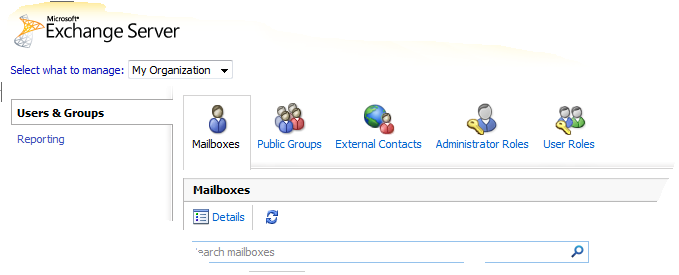
You get this screen, from there Select “Select what to manage:” and from the drop down menu, select My Organization..and then go to Reporting on the Left pane

Here you can view the queues, delevery status of each users, Public folder status, Mail enabled public folder status etc…!

BUT IF YOU LOGIN AS A NORMAL USER, ALL YOU CAN SEE IS AS BELOW..LIKE

Your organization contact details, Tools for organize mails, Groups belogs to, Settings,  Syncronized phone device to this account, etc…

and a cool feature of Outlook web apps is thaton the right side of the window, where help button is, click on the down arrow of the help icon and you will see “About”..click there and you will see the connectivity of your account with exchange server (good for administrators) like below one

Enjoy!!! i am enjoying it

Microsoft Outlook Web apps – Phone sync

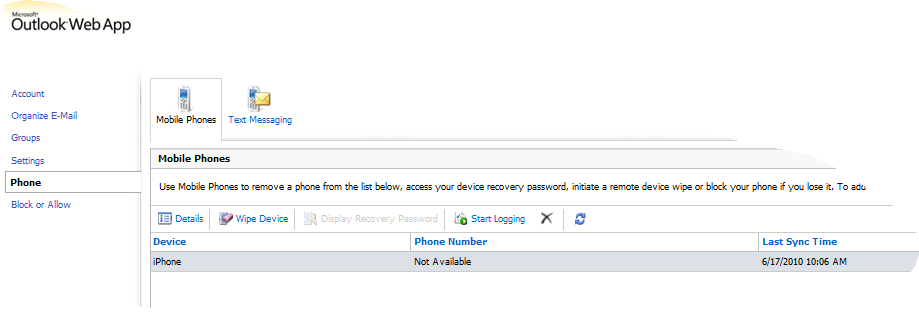
Now with Exchange server 2010 and Outlook Web apps, there is a menu called Option, where this is actually giving you the Exchange control panel for the selective user. From here you can manage the Phone syncronization.

From this option, you can see your device sync status and also when you lost the phone, you can wipe the data from here to protect your data of the lost phone.

Cool features..when you do Exchange server 2010 with Office 2010 and Office web apps.

Sender Policy Framework…need to know about how to protect the Mail spam

If you have not already done so, I highly recommend you create an SPF record for your domain as this will make it much more difficult for spammers to forge your domain in order to spam domains in other organizations.

Sender Policy Framework..WikiPedia Definition

Creating your own SPF record is a relatively simple process, Microsoft even provides a web-based GUI wizard that will help you do this.. Domain holders need to complete an inventory and publish all IP addresses of their outbound email servers in the DNS zone file. This is an administrative step that requires no changes to an organizations email or DNS software. Even if your domain has no outbound email servers, you can help protect your domain from spoofing by publishing an SPF record in the DNS that states this. Microsoft Safety Home Page click here

Implementation Tips for the Sender ID Framework—Creating Your SPF Record..Click here

Sender ID Overview Click here

Outlook 2010 Web App – Exchange Management Console for Users..cool one

Users can use the Exchange Control Panel for Outlook Web App to manage some on-premises tasks.

The following is a list of the administrative features available:

 Text messaging integration

Voice messaging integration

 Multiple mailbox search

Additional proxy addresses for mailboxes

Moderation and approval for distribution list submission