Microsoft Online Services – Business productivity online standard suite

Microsoft brings together online versions of our most trusted communication and collaboration products with the security, reliability, and control you require.

Choosing Microsoft Online Services allows you to combine the power of rich desktop-based applications with the flexibility of fully-hosted Internet services. That gives your users an all-in-one integrated experience on the same rich clients your users already know with a consistent look and feel from virtually any device, in almost any location.

Microsoft Online Services benefits include:

The latest business productivity capabilities

  • Business-class e-mail, web conferencing, instant messaging, document collaboration and workflow all designed to work together seamlessly.

Ease of use

  • Services synchronize with your Microsoft Active Directory, so you maintain control and can continue to manage user policies centrally
  • A single administrative panel enables simple and centralized provisioning and management of new and existing users
  • End users can securely access the service virtually anywhere without the need for a VPN connection and through a wide selection of mobile
    devices

Privacy & rapid disaster recovery

  • Secure Internet protocols including HTTPS and HTTP over SSL to access your services
  • Redundant network architecture capable of disaster recovery
  • In the event of datacenter connectivity issues, services switch over to a backup datacenter

Greater flexibility

  • Build your own solution with individual services or purchase as an integrated suite
  • Choose to run some applications on-premises, or choose Online Services hosted and managed by Microsoft or Microsoft Partners
  • Leverage tools such as Active Directory Synchronization so you can make online, on-premises, or hybrid deployment choices by service, user roles,
    and geography to meet organizational needs best
  • Adjust your deployment model dynamically as your business needs shift and grow

Improved agility

  • Easily extend new capabilities to your organization without straining internal resources
  • Expand your IT capacity by adding new services without investing in the development of new skills or deploying new hardware and software
  • Free your valuable IT resources from routine management tasks to focus on core business initiatives that can deliver a true competitive
    advantage

Security & reliability

  • Microsoft Online Services run on a global network of data centers protected by multiple layers of security and operational best practices
  • Microsoft Online Services guarantee a service level agreement of 99.9% uptime
  • Data centers and services managed by rigorously screened and highly trained staff

Restricting email to the Internet on a per user AND per domain basis

This blog post is meant to show how easy it now is to accomplish this oft heard request in Exchange 2010. Transport rules, introduced with Exchange 2007, provided a lot of new options for administration of mail resulting in even more requests for additional functionality. The rules now have new predicates and actions extending the possibilities of what can be done. For our example, the rule will restrictActive Directory Mail enabled users” who have their ‘Department‘ defined as ‘Temp Employees‘ from sending mail to the internet, except they must be allowed to send to 2 external domains called: ‘partnerdomain.com‘ and ‘fourthcoffee.com‘. Additionally, to reduce Helpdesk calls, you want to send an NDR when they violate the rule. For demonstration purposes I will use 2 Conditions, one Action and one Exception.

Microsoft Exchange Team Blog will explain you how to do it in Exchange 2010…beautiful blog post..click here

Adding attachment size limit in Outlook through Exchange 2010 EMC

Common for entire organization, from the mail box server, from EMC, under Organization, Mailbox->Select database, Properties, do the following

Here i mentioned about 20MB attachments to send and receive by the users. The problem here is that, it take a bit time to receive/send because of the high size. So be careful and be patient.

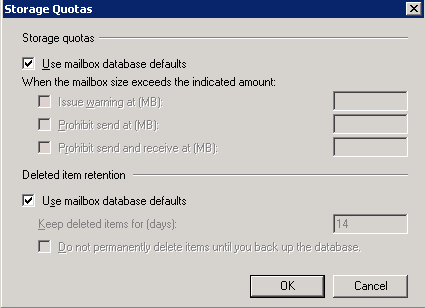
When you do this default setting on the organization level, each users mailbox will have the following (User mailbox database defaults)

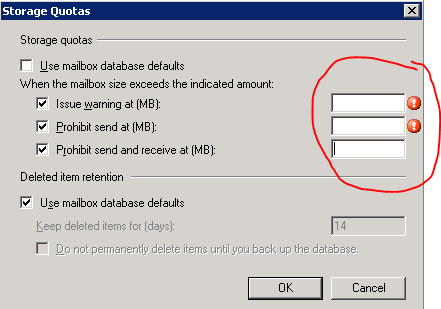
If you want to over write this policy to certain users, go to the users mailbox settings, Storage quotas and edit as below. 

First Uncheck the “Use mailbox database defaults and insert the value as you want. This settings will override the defaults.

Thats all folks!!!

Recover deleted email item(s) – Outlook 2010 with Exchange 2010

Even if you delete item from the deleted items from your outlook 2010, you can go to the tab under folder on the main page of the outlook 2010 and click “Recover Deleted Item” and view the items on the list

Outlook 2010 feature


Microsoft Exchange Server 2010 – Organizational Settings for MailTips

MailTips are informative messages displayed to users while they compose a message. Works with only Exchange server 2010 with Outlook 2007/2010.

Microsoft Exchange Server 2010 analyzes the message, including the list of recipients to which it’s addressed. If a potential problem is detected, MailTips notify users prior to sending the message. With the help of the information provided by MailTips, senders can adjust the message they are composing to avoid undesirable situations or non-delivery reports (NDRs).

You can’t use the EMC to enable or disable MailTips. You need to be assigned permissions before you can perform this procedure. To see what permissions you need, click here

EMS : Set-OrganizationConfig cmdlet to enable or disable MailTips in your organization. MailTips are enabled by default, when you install a new Exchange 2010 organization.

Examples of Mailtips, when you activate is like

  • Invalid Internal Recipient : The Invalid Internal Recipient MailTip is displayed if the sender adds a recipient that appears to be internal to the organization but doesn’t exist in Active Directory. It comes due to name resolution cache or an entry in the sender’s Contacts or if the sender types an SMTP address with a domain for which Exchange is authoritative and the address doesn’t resolve to an existing recipient. The MailTip indicates the invalid recipient and gives the sender the option to remove the recipient from the message…cool na
  • Mail Box full :  MailTip is displayed if the sender adds a recipient whose mailbox is full and your organization has implemented a Prohibit Receive restriction for mailboxes over a specified size. MailTip will be updated every two hours in his/her draft folder even if you save it and did’nt send the message.
  • External Recipients : The External Recipients MailTip is displayed if the sender adds a recipient that’s external, or adds a distribution group that contains external recipients. By default, this MailTip is turned off. You can turn it on using the Set-TransportConfig cmdlet. The External Recipients MailTip relies on group metrics data. Therefore, if you enable the External Recipients MailTip, make sure that the group metrics MailTip is also enabled. EMS : Set-OrganizationConfig -MailTipsExternalRecipientsTipsEnabled $true

To know more.. click here

Exchange server 2010 SP1 is bringing up with more featueres and i will update you this in my comming blog

Automatically accepting meeting request from Microsoft Outlook 2010

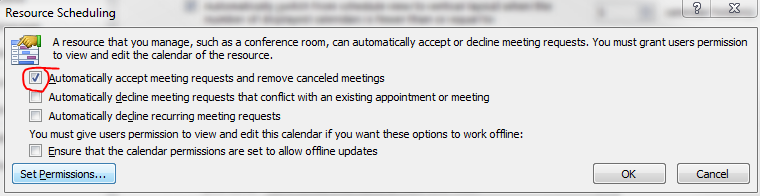
Recently we have noticed that some of the users after upgrading from Microsoft Outlook 2007 to 2010, Meeting request gets auto accept and user won’t notice it.

How to resolve it in Outlook 2010…!

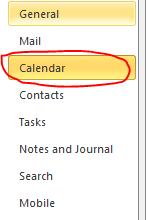
Goto->File->Options->Calender->Resource scheduling and uncheck it

Thats it…uncheck and click ok..problem solved.

Microsoft Office 365…whaooo

Microsoft Office 365 - Online Services & Hosted Software in the Cloud

What is this?????

Microsoft Office 365 delivers the power of cloud productivity to businesses of all sizes, helping to save time and money and free up valuable resources. Office 365 combines the familiar Microsoft Office desktop suite with online versions of our next-generation communications and collaboration services: Microsoft Exchange Online, Microsoft SharePoint Online, and Microsoft Lync Online. Office 365 services are easy to administer and simple to use—with the robust security, reliability, and control you need to run your business

Microsoft Office 365 includes: Exchange Online, SharePoint Online, Lync Online and the latest version of Microsoft Office Professional Plus desktop suite.

Microsoft Exchange Online is designed for organizations who want to get the benefits of cloud-based email without sacrificing the business-class capabilities that Exchange Server has been providing for decades. Built on Exchange Server 2010, Exchange Online provides organizations with the latest capabilities including built-in archiving, optional Conversation View, and MailTips, along with powerful web-based tools for managing online deployments.  With Exchange Online, Microsoft handles the ongoing maintenance, patches, and upgrades of the Exchange infrastructure while providing IT administrators the control and flexibility they require.

Microsoft Lync Online is a next-generation cloud communications service that connects people in new ways, anytime, from anywhere. Lync Online provides intuitive communications capabilities across presence, instant messaging, audio/video calling and a rich online meeting experience including PC-audio, video and web conferencing. Transform your interactions with colleagues, customers and partners from today’s hit-and-miss communication to a more collaborative, engaging, and effective experience.

Office 365 is the introduction of new productivity online services and capabilities. It provides new online platform capabilities related to the introduction of the latest underlying 2010 server software into Microsoft Online Services datacenters.  The limited beta release will be offered in following languages: Chinese (traditional), English, French, German, Italian, Japanese, and Spanish.

To know more..click here and to follow their blog, click here

Office 365 will be available for purchase in 2011.

Enterprise customers can contact a Microsoft sales representative or Microsoft partner directly for purchase details..to know about volume licensing, click here

Exchange Server 2010 Service Pack 1 – Sneak-peak

Exchange Team Blog that provides the first public details about Exchange Server 2010 Service Pack 1 (SP1).  SP1 will of course include fixes and enhancements in the areas customers have helped us identify (including code from all of the Exchange 2010 post RTM update rollups we’ve released to date).  But SP1 will also include some new features and functionality changes, as well….cool

  • A new search preview helps with early case assessment by providing you an estimate on the number of items in the result set-with keyword statistics-before e-mail located in the search are copied to the designated discovery mailbox.
  • And, a new search result de-duplication option, when checked, only copies one instance of a message to the discovery mailbox.

Look at the below  menu for the DAG…what a cool feature it will be

With the release of Exchange Server 2010 last November, Microsoft introduced integrated archiving capabilities aimed at helping you preserve and discover e-mail data. In SP1, this has enhanced its archiving functionality based on the great feedback you’they got since the launch. This includes adding the flexibility to provision a user’s Personal Archive to a different mailbox database from their primary mailbox. This means your organization can now more easily implement separate storage strategies (or tiered storage) for less frequently accessed e-mail. And, we didn’t just stop there! We’ve also added new server side capabilities so you can import historical e-mail data from .PST files, directly into Exchange, as well as IT pro controls to enable delegate access to a user’s Personal Archive.

To help streamline the implementation of retention policies, SP1 updates the Exchange Management Console with new tools to create Retention Policy Tags, so you can automate the deletion and archiving of e-mail and other Exchange items. New optional Retention Policy Tags give you even more flexibility in defining your organizations retention management strategy….coooool

Can’t wait to get hold of this…Announcement blog from Microsoft Exhange Team …click here Yes Virginia, there is an Exchange Server 2010 SP1

Learn more about our approach to archiving by reading the Archiving with Exchange 2010 whitepaper.

Scott Schnoll’s weblog…click here

Microsoft Outlook Web apps – Administrator login – new features

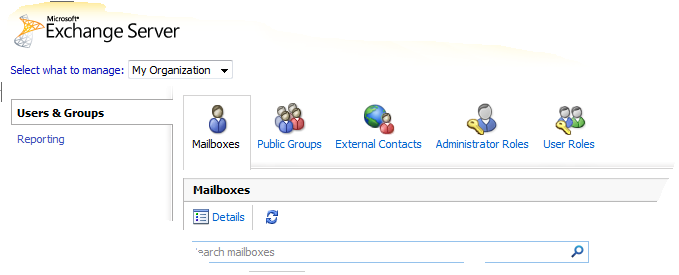
Did you know that when you have Exchange 2010 server in your organization and you login through Outlook Web Apps, with administrator account, you have a lot of options to manage and view the entire organization, rather than going through EMC!!!!!

Logon to Outlook Web apps in your organization, and select options on the right side of the screen on top

You get this screen, from there Select “Select what to manage:” and from the drop down menu, select My Organization..and then go to Reporting on the Left pane

Here you can view the queues, delevery status of each users, Public folder status, Mail enabled public folder status etc…!

BUT IF YOU LOGIN AS A NORMAL USER, ALL YOU CAN SEE IS AS BELOW..LIKE

Your organization contact details, Tools for organize mails, Groups belogs to, Settings,  Syncronized phone device to this account, etc…

and a cool feature of Outlook web apps is thaton the right side of the window, where help button is, click on the down arrow of the help icon and you will see “About”..click there and you will see the connectivity of your account with exchange server (good for administrators) like below one

Enjoy!!! i am enjoying it

Free Microsoft Office Web Apps Available

Microsoft launched its free Windows Live versions of Office Web Apps on Monday…click here to know more

The new service is currently available in English for Canada, Ireland, the United Kingdom and the United States. Canadians can access a French version too; a Spanish version is also available for the United States. Office Web Apps are simplified versions of Word, Excel, PowerPoint and OneNote that run in supported Web browsers. These applications use the “Ribbon” user interface menu system that was first introduced in Office 2007. Users need to sign up for a Windows Live password to access the service, but it’s all free. The service can be accessed anywhere using a supported browser and an Internet connection at http://www.office.live.com. Smartphone users can view Word and PowerPoint files without additional software on most devices, according to Microsoft’s announcement. Printing files in Word and PowerPoint Web Apps can be done right from the browser. Office Web Apps are tied to SkyDrive, Microsoft’s storage space in the Internet cloud. SkyDrive provides Office Web App users with 25 GB of storage space, which can be used to save files and share them with others. A coauthoring feature is available, but just for Excel and OneNote. Microsoft claims that users can collaborate on a document at the same time and not be locked out, even as various people try to access it. In addition, Office Web Apps preserves a version history, which is saved on SkyDrive.