Microsoft Exchange 2010 – Administrator Audit logging

Another nice feature introduced in Exchange 2010 is Administrator Audit logging. Audit logging allows an organization to examine different policies. A second important benefit is the review of configuration changes made to the Exchange organization through the Exchange Management Console, Exchange Web Services, and Exchange Management Shell. Audit Logging is useful in tracking configuration changes made within an Exchange Organization, and help identifying any errors. In Exchange 2010 Microsoft introduced AdminAuditLogConfig.

Check out the following commands

Get-AdminAuditLogConfig: http://technet.microsoft.com/en-us/library/dd298077.aspx

To enable if its disabled: Set-AdminAuditLogConfig -AdminAuditLogEnabled $true :http://technet.microsoft.com/en-us/library/dd298169.aspx

Search in the AdminAuditLog: Search-AdminAuditLog –Cmdlets New-Mailbox, Remove-Mailbox | FT :http://technet.microsoft.com/en-us/library/ff459250.aspx

Microsoft article about AdminAuditLog, Click here

Microsoft Online Services – Business productivity online standard suite

Microsoft brings together online versions of our most trusted communication and collaboration products with the security, reliability, and control you require.

Choosing Microsoft Online Services allows you to combine the power of rich desktop-based applications with the flexibility of fully-hosted Internet services. That gives your users an all-in-one integrated experience on the same rich clients your users already know with a consistent look and feel from virtually any device, in almost any location.

Microsoft Online Services benefits include:

The latest business productivity capabilities

  • Business-class e-mail, web conferencing, instant messaging, document collaboration and workflow all designed to work together seamlessly.

Ease of use

  • Services synchronize with your Microsoft Active Directory, so you maintain control and can continue to manage user policies centrally
  • A single administrative panel enables simple and centralized provisioning and management of new and existing users
  • End users can securely access the service virtually anywhere without the need for a VPN connection and through a wide selection of mobile
    devices

Privacy & rapid disaster recovery

  • Secure Internet protocols including HTTPS and HTTP over SSL to access your services
  • Redundant network architecture capable of disaster recovery
  • In the event of datacenter connectivity issues, services switch over to a backup datacenter

Greater flexibility

  • Build your own solution with individual services or purchase as an integrated suite
  • Choose to run some applications on-premises, or choose Online Services hosted and managed by Microsoft or Microsoft Partners
  • Leverage tools such as Active Directory Synchronization so you can make online, on-premises, or hybrid deployment choices by service, user roles,
    and geography to meet organizational needs best
  • Adjust your deployment model dynamically as your business needs shift and grow

Improved agility

  • Easily extend new capabilities to your organization without straining internal resources
  • Expand your IT capacity by adding new services without investing in the development of new skills or deploying new hardware and software
  • Free your valuable IT resources from routine management tasks to focus on core business initiatives that can deliver a true competitive
    advantage

Security & reliability

  • Microsoft Online Services run on a global network of data centers protected by multiple layers of security and operational best practices
  • Microsoft Online Services guarantee a service level agreement of 99.9% uptime
  • Data centers and services managed by rigorously screened and highly trained staff

Exchange server 2010 CAS array to MAPI load balance – Detailed

Most of you guys must have experience the scenario when “Outlook connection lost….” even if you have Exchange server 2010 (with Edge, 2 clustered H&C and 2 DAG configured MB) and Outlook 2010 in place. The reason is that, when you are doing a maintenance on one of the H&C, and if the client is connected to that H&C, communication to the MB is lost. The reason for this is that the cluster load balancing on the H&C cluster handler is not in place, even if the cluster name is published in the DNS server.

In Exchange 2007, 5 server roles that performed distinct functions within the Exchange organization. One role in particular – the Client Access server role – introduced a variety of new Web services, including the Availability service, the Auto discover service and Calendar Concierge services.

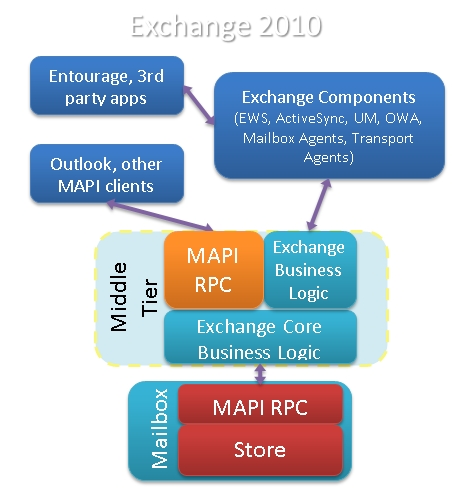
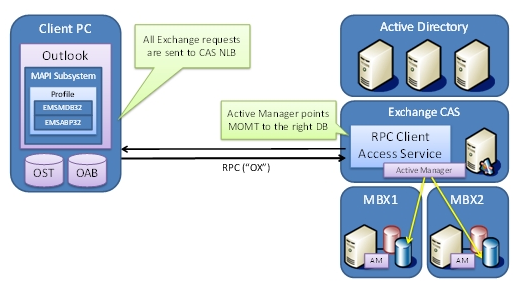
In Exchange 2010, same 5 server roles exists. However, there are some significant architectural changes and some shift in responsibilities. The most significant change in Exchange 2010, two new services on CAS called the RPC Client Access and Address Book services establish the RPC (Repote Procedure Call) endpoint for MAPI(Messaging Application Programming Interface), NSPI(Name Service Provider Interface) and RFR (Request for Response) client access. This new functionality replaces the RPC endpoints in the Information Store. The RPC endpoint in the Information Store has not been removed in Exchange 2010, but it has been modified to only accept requests from CAS servers. The RPC endpoint for public folder database access remains on the Mailbox server, however, Outlook clients now communicate directly with the RPC Client Access service on the Mailbox Server for public folder database access, and not with the Information Store.

When CAS starts communicating with the Mailbox server, it makes sense to view it as the Client Access server communicating with the Mailbox database via the Mailbox server that hosts the database. This is especially evident in a load-balanced array of Client Access servers and/or where your environment is configured to use Database Availability Groups that are associated with a Client Access server or Client Access server array.

  • In a non-load balanced environment, the mailbox database is associated with only a single Client Access server.
  • In a load-balanced environment, the Mailbox database is associated with the load balanced array of multiple Client Access servers.

By default, before a Client Access array is configured,

  • all databases are associated with a Client Access server in the environment
  • the Outlook clients communicate directly with the Client Access server until the association with the database is updated to be the Client Access array.

In order for the clients to utilize a CAS array

  1. Create a Client Access array with an FQDN (Fully Qualified Domain Name).
  2. Load balance your CAS servers in a CAS array by whatever method you choose – Both Hardware LB or Windows Network LB are supported load balancers
  3. Add the Client Access servers within the AD site to a load balanced array and in DNS associate the unique FQDN to the Virtual IP of the load-balanced array.
  4. Configure your load balancing array to load balance the MAPI RPC ports – TCP 135, UDP/TCP 6005-65535; or set static ports
  5. Configure the databases to utilize the CAS array… Use the new-clientaccessarray cmdlet to create the CAS array object. Eg: New-ClientAccessArray –Name “Tromso CAS Array” –Fqdn tromso.site.com” –Site “SITEA”

How to Setup!!!..

Goto one of the CAS server where the NLB is ( to read more about New-ClientAccessArray cmdlet, click here )

[1] Check is there are any pre-created CAS Arrays. PS Command : Get-ClientAccessArray

[2] Create new Client Access Array. Run the Cmdlet in EMS New-ClientAccessArray -Fqdn server.contoso.com -Site “Redmond” -Name “server.contoso.com”

[3] Associate databases with this CAS Array –

Use this CMDLet to add mailbox database to CAS array. Add all mailbox databases at once – Get-MailboxDatabase | Set-MailboxDatabase -RPCClientAccessServer “CASNLB.contoso.com”

Now the best part –

Configuring Outlook 2010 using Auto Discover

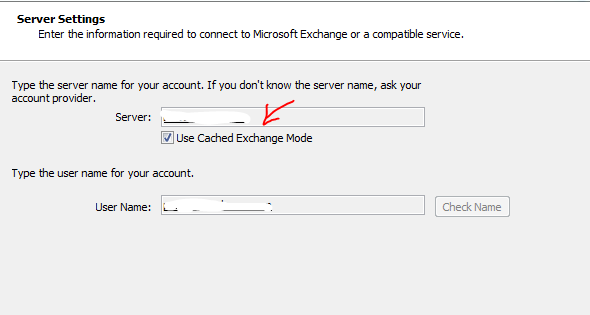
If you already configured Outlook client, Close the outlook, then goto Control Panel->Mail and change the Server name to the new CAS NLB name

If you are going to use a new outlook configuration, Auto discover will return the new CAS NLB name.

Thats all folks!!! Enjoy!!!

Restricting email to the Internet on a per user AND per domain basis

This blog post is meant to show how easy it now is to accomplish this oft heard request in Exchange 2010. Transport rules, introduced with Exchange 2007, provided a lot of new options for administration of mail resulting in even more requests for additional functionality. The rules now have new predicates and actions extending the possibilities of what can be done. For our example, the rule will restrictActive Directory Mail enabled users” who have their ‘Department‘ defined as ‘Temp Employees‘ from sending mail to the internet, except they must be allowed to send to 2 external domains called: ‘partnerdomain.com‘ and ‘fourthcoffee.com‘. Additionally, to reduce Helpdesk calls, you want to send an NDR when they violate the rule. For demonstration purposes I will use 2 Conditions, one Action and one Exception.

Microsoft Exchange Team Blog will explain you how to do it in Exchange 2010…beautiful blog post..click here

Microsoft SharePoint Workspace 2010 – New turn

SharePoint Workspace 2010 is the new name for and succeeds Microsoft Office Groove 2007. SharePoint Workspace 2010 is a client application that provides fast, any-time interactive access to document libraries and lists on Microsoft SharePoint Server 2010 and Microsoft SharePoint Foundation 2010. SharePoint Workspace 2010 also provides options for creating Groove peer workspaces and Shared Folder workspaces. SharePoint Workspace 2010 is more versatile than Microsoft Office Groove 2007 and can be integrated with Microsoft SharePoint Server 2010 or can run independently. Microsoft SharePoint Workspace 2010 provides a client for Microsoft SharePoint Server 2010 and Microsoft SharePoint Foundation 2010 that enables real-time synchronization of desktop content with SharePoint documents and lists. SharePoint Workspace 2010 also provides options for creating Groove collaboration workspaces and synchronized shared folders. By using SharePoint Workspace 2010, information workers can easily synchronize online and offline content with a designated SharePoint site or collaborate with external partners and offsite team members through shared workspaces. SharePoint Workspace 2010 is included with Microsoft Office Professional Plus 2010.

Key features of SharePoint Workspace 2010 include the following:

A choice of workspace types:

  • SharePoint workspaces — Provide direct bi-directional synchronization of library and list content between a SharePoint site and a workspace on an individual client computer. Creation of a SharePoint workspace enables individual SharePoint users to check out and check in SharePoint library documents from their local computers, bring SharePoint documents and lists to their computers where they can work online or offline, and synchronize local content with a SharePoint site. When an individual client establishes a connection with a SharePoint server, synchronization occurs at regular intervals when the client is online. When a client cannot connect to a SharePoint site, the user can easily take work offline to make updates. The updated documents are automatically synchronized with SharePoint document libraries and lists when the user reconnects. This interface offers an efficient and satisfying alternative to browser access of SharePoint. Unlike other workspace types, the SharePoint workspace is a personal synchronized copy of a SharePoint site.
  • Groove workspaces — Provide a rich and secure peer collaboration environment that supports synchronization of content among peer client computers that host a shared workspace. Creation of a Groove workspace enables SharePoint Workspace users to quickly form teams and automatically synchronize online or offline contributions with fellow team members. A full set of collaboration tools lets team members schedule meetings, hold discussions, and share work with trusted partners around the world. Support for communications under various network conditions and across firewalls facilitates timely and effective collaboration.
  • Shared Folder workspaces — Support Windows folder sharing among clients. Creation of a Shared Folder workspace lets information workers share the contents of a common folder in a designated Windows Explorer directory.
  • Easy setup   Windows users can easily download and run SharePoint Workspace 2010 without IT assistance.
  • Offline and online collaboration   Information workers can easily synchronize online and offline work, through a SharePoint workspace, Groove workspace, or Shared Folder workspace. Content is synchronized dynamically among online collaboration points and updates are transmitted immediately when an offline client comes back online. When an offline client reconnects, SharePoint Workspace automatically adds offline contributions to the workspace and applies workspace updates to the previously offline client.
  • Integration with Windows logon   SharePoint Workspace 2010 uses Windows logon credentials to authenticate users so that a separate logon is not necessary.
  • Common file dialog boxes   Windows technology enables Microsoft Office 2010 users to directly open and save files in SharePoint Workspace.

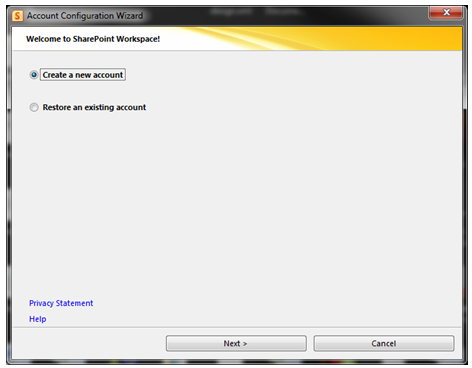
When you install Microsoft Office 2010 package, you will get a program, which is Sharepoint workspace 2010, which is the replacement of Grove and the installation as follows

If you have a SPS domain in your domain network, use your own login credential only.

Once this is done, click Internet Explorer and open your SPS webpage. Under Site Action, Click Sync to SPS workspace

Once the Sync is completed, you can now use your doman SharePoint Site offline and online.

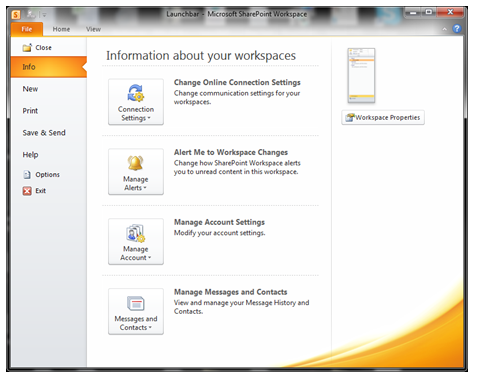
For Setting modification, use the File menu and do the needful

Operational Restrictions
SharePoint Workspace operates with a recommeded maximum number of synchronized documents – 10,000. Synchronizing extremely large document libraries, such as a Document Center, is not supported.

SharePoint Workspace also has limited support for metadata extensions to the document library. BDC Fields based on Business Connectivity Services – tagging documents based on external datasources – is not supported, and libraries that use BDC field definitions cannot be synced to Workspace. On the other hand, Managed Metadata fields (MMS) can be included in synchronized libraries. SharePoint Workspace is able to view, but not modify, field values based on MMS term stores.

To Download SharePoint Workspace 2010: Groove Web Services Software Development Kit, Click here.

Enjoy!!!

Microsoft Lync 2010 – Discovering the product

Awaiting for this product from Microsoft is over, Communications Server 2010, also called Wave 14 – renamed to Microsoft Lync Server 2010. Microsoft has announced that the new 2010 edition has been released to manufacturing (RTM). The official launch event was on November 17th 2010,  so I am sure now that those who have Software assurance, will be downloading now and preparing for the installation/migration.

Microsoft Lync Server 2010 communications software offers instant messaging (IM), presence, conferencing, and telephony solutions that can support enterprise-level collaboration requirements. This is  only available in 64-bit edition , it requires 64-bit hardware and the 64-bit edition of the Windows Server operating system.  Client computers does not required to have 64-bit hardware or software.

Features and capabilities of Microsoft Lync Server 2010 communications software clients in the following categories:

  • Presence
  • Contacts and groups
  • Instant messaging
  • Conferencing
  • Telephony
  • External user support
  • Mobile access
  • Archiving and compliance
Client Comparison Tables for the above from Microsoft site, click here.
Microsoft Lync 2010 : The default client for Lync Server 2010 meetings. Features include presence, contact management, instant messaging (IM), telephony, and greatly enhanced conferencing. To implement the manager/delegate scenario with Lync 2010, both manager and delegate need to install and use Lync 2010.
 
 
Microsoft Lync 2010 Attendee  : This is a rich conferencing client that allows users without Lync 2010 installed to fully participate in Lync Server 2010 meetings. Lync 2010 Attendee can be installed on a per-user basis, so you can choose to selectively deploy this client, or you can allow users to download and install it as needed.
 
Microsoft Lync Web App : This is a web-based conferencing client that supports most Lync 2010 collaboration and sharing features, in addition to presenter meeting controls and dial-in and dial-out voice conferencing. For users who do not have Lync 2010 installed, you can offer this conferencing option when it isn’t practical or possible to install Lync 2010 Attendee. All of the in-meeting features except computer audio, video, and PowerPoint presentations are available to Lync Web App users.
 
 Microsoft Lync Server 2010 Attendant  : This is an integrated call management application that enables a receptionist to manage multiple conversations at the same time through rapid call handling, IM, and on-screen routing. Although previous versions of Microsoft Office Communications Server 2007 Attendant supported both manager/delegate scenarios and receptionist scenarios, Microsoft Lync 2010 Attendant is designed for the receptionist scenario only. If necessary, a delegate can use Lync 2010 Attendant to receive calls for the manager, but delegate features are now provided in Lync 2010
  
Microsoft Lync 2010 Mobile : This provides IM, enhanced presence, and telephony for users in your organization who are connecting from a smartphone or a phone running a Professional edition of Windows Mobile.
 
Microsoft Lync 2010 Phone Edition : This software that runs on intelligent Internet Protocol (IP) phones (for example, USB-attached phones), and supports placing and receiving calls, enhanced presence, and client audio capabilities for conferences.
 
The Online Meeting Add-in for Microsoft Lync 2010 : This supports meeting management from within Outlook. This software is installed automatically with Lync 2010
Microsoft now recently announced that there will be an iPhone client available in addition to Windows Mobile for Microsoft Lync Server 2010.  Maybe an Android client will be next!!! Good to hear that.
  
What Lync comes with the new features !!! : There are a lot of enhancements to existing product, on server side definitely there are lot of architectural changes related to Management, Deployment, Bandwidth Resilency and Branch office redundancy mainly for call route.,  and last but not least Shell command and a basic configuration through web control panel (Commmunications Server Control Panel [CSCP] ).
Plus
  • Publish your photo using sharepoint and others can view your pictures on their client
  •  Lync client can now join the Live meeting
  • Administrative jobs have to be done through Microsoft Lync Shell Command
  • Basic configurations  through web control panel
  • Branch office resilency call route feature
  • Virtualized topology of Microsoft Lync Server 2010
  •  Active Directory for storing Lync server configurtaion has been moved into a new database server Central Management Server which hosts Central Management Store db. in SQL…but some of the info like SIP URI and phone numbers are still in AD.
  • Mediation Server can route calls to Multiple Gateways..sounds nice
  • The Lync clients can now be directly updated using windows software update service or windows update.
  • ……more to go…i will update you over here
FEW USEFUL LINK
 
Microsoft Lync Server 2010, Planning Tool Release Candidate..Click here Microsoft Lync Server 2010, Planning Tool, which is available in a 32-bit edition.
Lync Server 2010 documentation library, Click here
To successfully migrate user and client settings from Microsoft Office Communications Server 2007 R2 to Lync Server 2010 click here
Migration from Office Communications Server 2007 R2 to Lync Server 2010, click here 
Official Microsoft Lync Page click here
This is not enough for me..more to come…i will be opening a page dedicated for Lync installation…catch you later..watch my space.


View user mailbox size from Outlook

Adding attachment size limit in Outlook through Exchange 2010 EMC

Common for entire organization, from the mail box server, from EMC, under Organization, Mailbox->Select database, Properties, do the following

Here i mentioned about 20MB attachments to send and receive by the users. The problem here is that, it take a bit time to receive/send because of the high size. So be careful and be patient.

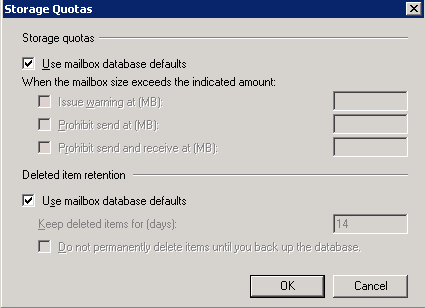
When you do this default setting on the organization level, each users mailbox will have the following (User mailbox database defaults)

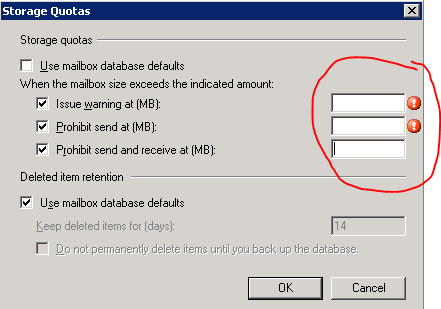
If you want to over write this policy to certain users, go to the users mailbox settings, Storage quotas and edit as below. 

First Uncheck the “Use mailbox database defaults and insert the value as you want. This settings will override the defaults.

Thats all folks!!!

Recover deleted email item(s) – Outlook 2010 with Exchange 2010

Even if you delete item from the deleted items from your outlook 2010, you can go to the tab under folder on the main page of the outlook 2010 and click “Recover Deleted Item” and view the items on the list

Outlook 2010 feature


Microsoft Exchange Server 2010 – Organizational Settings for MailTips

MailTips are informative messages displayed to users while they compose a message. Works with only Exchange server 2010 with Outlook 2007/2010.

Microsoft Exchange Server 2010 analyzes the message, including the list of recipients to which it’s addressed. If a potential problem is detected, MailTips notify users prior to sending the message. With the help of the information provided by MailTips, senders can adjust the message they are composing to avoid undesirable situations or non-delivery reports (NDRs).

You can’t use the EMC to enable or disable MailTips. You need to be assigned permissions before you can perform this procedure. To see what permissions you need, click here

EMS : Set-OrganizationConfig cmdlet to enable or disable MailTips in your organization. MailTips are enabled by default, when you install a new Exchange 2010 organization.

Examples of Mailtips, when you activate is like

  • Invalid Internal Recipient : The Invalid Internal Recipient MailTip is displayed if the sender adds a recipient that appears to be internal to the organization but doesn’t exist in Active Directory. It comes due to name resolution cache or an entry in the sender’s Contacts or if the sender types an SMTP address with a domain for which Exchange is authoritative and the address doesn’t resolve to an existing recipient. The MailTip indicates the invalid recipient and gives the sender the option to remove the recipient from the message…cool na
  • Mail Box full :  MailTip is displayed if the sender adds a recipient whose mailbox is full and your organization has implemented a Prohibit Receive restriction for mailboxes over a specified size. MailTip will be updated every two hours in his/her draft folder even if you save it and did’nt send the message.
  • External Recipients : The External Recipients MailTip is displayed if the sender adds a recipient that’s external, or adds a distribution group that contains external recipients. By default, this MailTip is turned off. You can turn it on using the Set-TransportConfig cmdlet. The External Recipients MailTip relies on group metrics data. Therefore, if you enable the External Recipients MailTip, make sure that the group metrics MailTip is also enabled. EMS : Set-OrganizationConfig -MailTipsExternalRecipientsTipsEnabled $true

To know more.. click here

Exchange server 2010 SP1 is bringing up with more featueres and i will update you this in my comming blog