Automatically accepting meeting request from Microsoft Outlook 2010

Recently we have noticed that some of the users after upgrading from Microsoft Outlook 2007 to 2010, Meeting request gets auto accept and user won’t notice it.

How to resolve it in Outlook 2010…!

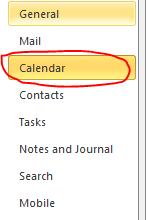
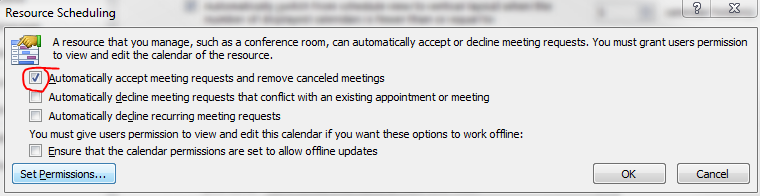
Goto->File->Options->Calender->Resource scheduling and uncheck it

Thats it…uncheck and click ok..problem solved.

Microsoft Office 365…whaooo

Microsoft Office 365 - Online Services & Hosted Software in the Cloud

What is this?????

Microsoft Office 365 delivers the power of cloud productivity to businesses of all sizes, helping to save time and money and free up valuable resources. Office 365 combines the familiar Microsoft Office desktop suite with online versions of our next-generation communications and collaboration services: Microsoft Exchange Online, Microsoft SharePoint Online, and Microsoft Lync Online. Office 365 services are easy to administer and simple to use—with the robust security, reliability, and control you need to run your business

Microsoft Office 365 includes: Exchange Online, SharePoint Online, Lync Online and the latest version of Microsoft Office Professional Plus desktop suite.

Microsoft Exchange Online is designed for organizations who want to get the benefits of cloud-based email without sacrificing the business-class capabilities that Exchange Server has been providing for decades. Built on Exchange Server 2010, Exchange Online provides organizations with the latest capabilities including built-in archiving, optional Conversation View, and MailTips, along with powerful web-based tools for managing online deployments.  With Exchange Online, Microsoft handles the ongoing maintenance, patches, and upgrades of the Exchange infrastructure while providing IT administrators the control and flexibility they require.

Microsoft Lync Online is a next-generation cloud communications service that connects people in new ways, anytime, from anywhere. Lync Online provides intuitive communications capabilities across presence, instant messaging, audio/video calling and a rich online meeting experience including PC-audio, video and web conferencing. Transform your interactions with colleagues, customers and partners from today’s hit-and-miss communication to a more collaborative, engaging, and effective experience.

Office 365 is the introduction of new productivity online services and capabilities. It provides new online platform capabilities related to the introduction of the latest underlying 2010 server software into Microsoft Online Services datacenters.  The limited beta release will be offered in following languages: Chinese (traditional), English, French, German, Italian, Japanese, and Spanish.

To know more..click here and to follow their blog, click here

Office 365 will be available for purchase in 2011.

Enterprise customers can contact a Microsoft sales representative or Microsoft partner directly for purchase details..to know about volume licensing, click here

Exchange Server 2010 SP1…Now Available

From my previous post Exchange Server 2010 Service Pack 1 Beta released and Exchange Server 2010 Service Pack 1 – Sneak-peak , they have released the RTM of Exchange server 2010 SP1..Read the blog 

Release Notes for Exchange Server 2010 SP1…Click here
What’s New in Exchange 2010 SP1…Click here
Exchange Server 2010 SP1 – Deployment topics … Click here
Deploy it today

Multiple email ID for your Social connector(s)

You can add multiple email ID to your    OR    account.

Why you want to link this?

Most of the users have more than one email id..one/two personnel email id, one business email id etc..and if you link all in one social connector account, its very easy to track others, whether it is business contacts, collegues or friends.. How to do it.

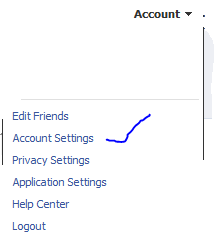
Go to your profile home page, and click on top right cornnet Account

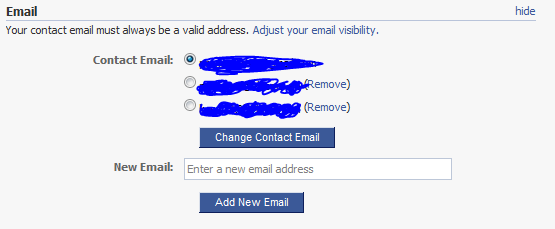
Click Account settings…and click “change” on the Email tab

Enter the other email ID here and click “add new” (If you have more than one email id other than the primary one..keep on add here)

REMEMBER : When you add an email id here, there will be a confirmation email send from this account..please confirm it back so that the email id you added get registered

Once you finish adding and click on the confirmation email(s), you will see the account like above, where your primary email id is now been selected in the radio button.

Thats it for FACEBOOK

Logon to your linkedin profile and go to the top right corner and click “Settings”

Under Personnel information, Select Email Address

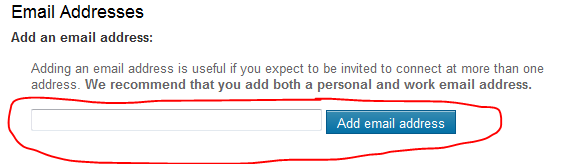
Add your other email id’s here…

REMEMBER : A Confirmation email will be send to each of the email id you add..

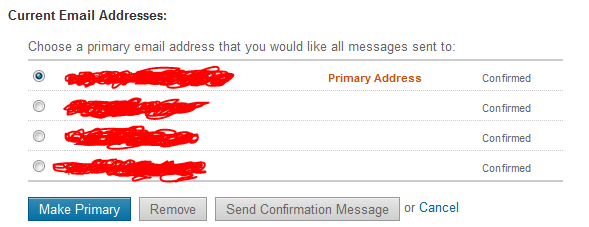
Once you done..your email profile will look like above…

That’s all

Public folder email forwarding issue!!!

When you have a mail enabled  public folder in your exchange server 2007/2010 environment, you might face issues with email forwarding from the public folder from your user account, where you will get an error “Operation failed”.

Resolution :

  1. Logon to outlook with administrator(Domain) credemtial
  2. Goto the Public folder
  3. Select the folder where you are facing the issue
  4. Right click
  5. Select Properties
  6. Goto Permission TAB
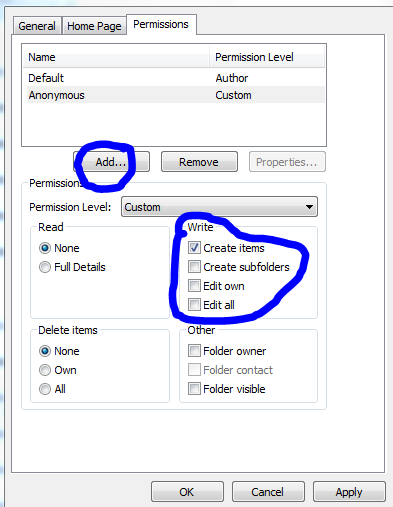
  7. Add users
  8. Check mark the appropriate rights on the “Write” permission area..normally “Edit all” will do the work
  9. Click apply and click ok.

Outlook cannot open attachments!!!

Recently i come across this issue, and resolution for how to fix it

PROBLEM : When you receive attachment in your outlook, and when you try to open it, it says ” No permission to open the attachment”

Troubleshoot : This has nothing to do with the permission..this is because the temp folder is full…either you clear the temp folder or do the following..

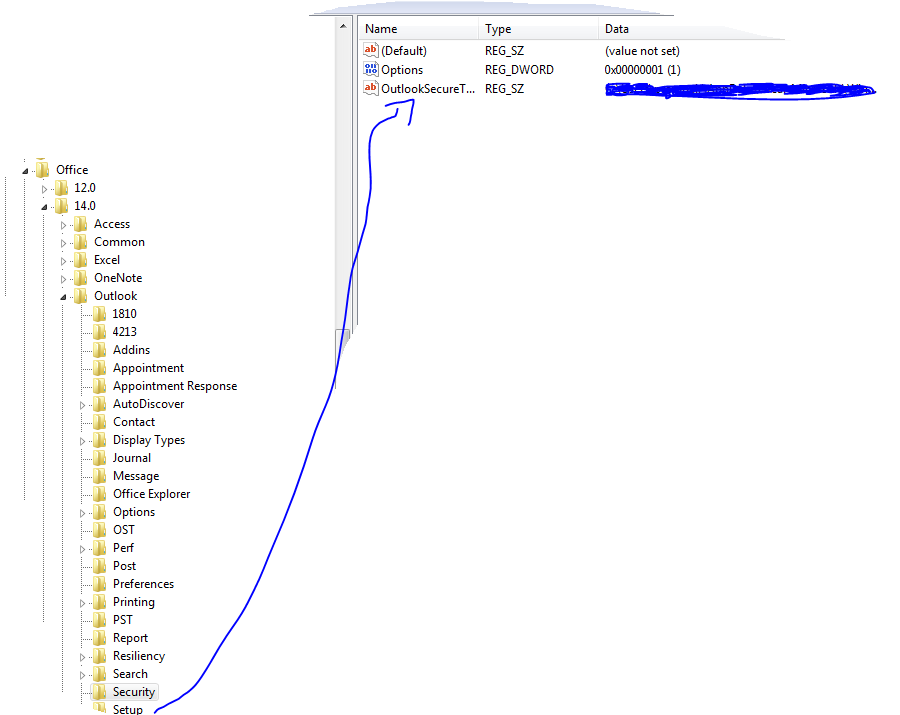
Solution : Go to REGEDIT->HKEY_CURRENT_USER ->Software ->Microsoft ->Office then click

  • 12 ->If you are using Microsoft Outlook 2007
  • 14 ->if you are using Microsoft Outlook 2010

then click Outlook -> expand it, select Security and edit the path “OutlookSecureTempFolder

Check the image below

 (Normally here you will see the default path..creat a temp folder under the available drive and then give the path here)

Microsoft Outlook Social Connector Provider for Facebook

The Microsoft Outlook Social Connector Provider for Facebook allows you to connect your Facebook account to the Outlook Social Connector and obtain information about your friends and colleagues.

You can see status updates and recently posted items from your Facebook contacts.

You can also use Outlook Social Connector to display a quick view of related Outlook content when you click on an email from a contact, such as recent e-mail conversations, meetings, and shared attachments to help you easily track your communications

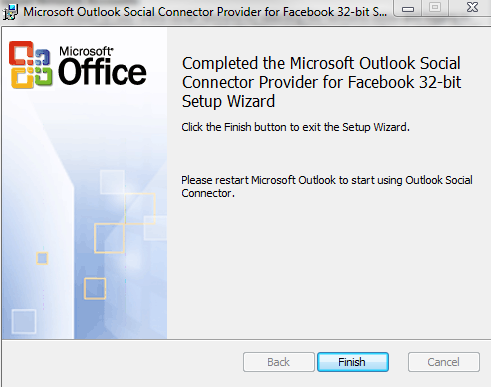
Once you finish installing the Social connector, Please re-start the Outlook and then goto your reading panel below down you can see the user icon  and underneath, there is a button called +ADD…click that (Check the above image) and then select each connector and type the credential…

You are ready to go!!! …read my previous blog for more Microsoft Outlook 2010 – Social connector
NOTE: The Microsoft Outlook Social Connector Provider requires Microsoft Outlook Social Connector and the related update (KB983403) to be installed. If these components are not already installed on your machine, the Microsoft Outlook Social Connector Provider for Facebook will download and install the necessary updates from the Microsoft Download Center before completing the provider installation.

To download click here

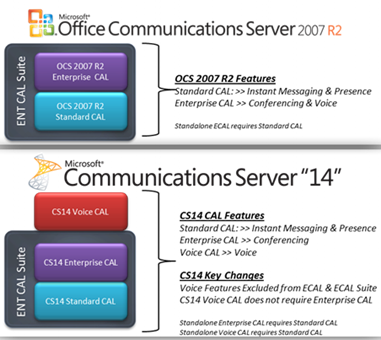
Disclosed Communications Server “14” @Tech•Ed North America 2010

Tech•Ed North America 2010 ( New Orleans, June 7-10th) is done and they disclosed Communications Server “14” features and functionality during the event.  You can catch presentation on-demand at Tech•Ed Online..Whats new in Communication 14 Video

Microsoft Communications ‘14’ really delivers on that promise of a more connected experience for people that want to stay plugged in to what’s going on, even when they are not there. The new collab experience is great. Having PowerPoint, the RoundTable view, and IM all in one view is great.

Exchange Server 2010 Service Pack 1 Beta released

In my last post Exchange Server 2010 Service Pack 1 – Sneak-peak and Microsoft Exchange Team Blog Yes Virginia, there is an Exchange Server 2010 SP1, the team shared information on some of the features  and  expected fixes  that are coming with the SP1 update. Microsoft committed to providing the final version of Exchange Server 2010 SP1 before the end of 2010, and now they have release the Beta of Exchange Server 2010 SP1. Video Preview from MSEXCHANGE Team ..You can download the Microsoft Exchange Server 2010 SP1 Beta from here…This pre-release software is intended for evaluation purposes only. You must accept the license terms before you are authorized to use the software. There is no product support for this trial software.

Is The New Exchange 2010 Service Pack Enough to Stop the Migration to Google Apps?..Click here to read

Exchange Server 2010 Service Pack 1 – Sneak-peak

Exchange Team Blog that provides the first public details about Exchange Server 2010 Service Pack 1 (SP1).  SP1 will of course include fixes and enhancements in the areas customers have helped us identify (including code from all of the Exchange 2010 post RTM update rollups we’ve released to date).  But SP1 will also include some new features and functionality changes, as well….cool

  • A new search preview helps with early case assessment by providing you an estimate on the number of items in the result set-with keyword statistics-before e-mail located in the search are copied to the designated discovery mailbox.
  • And, a new search result de-duplication option, when checked, only copies one instance of a message to the discovery mailbox.

Look at the below  menu for the DAG…what a cool feature it will be

With the release of Exchange Server 2010 last November, Microsoft introduced integrated archiving capabilities aimed at helping you preserve and discover e-mail data. In SP1, this has enhanced its archiving functionality based on the great feedback you’they got since the launch. This includes adding the flexibility to provision a user’s Personal Archive to a different mailbox database from their primary mailbox. This means your organization can now more easily implement separate storage strategies (or tiered storage) for less frequently accessed e-mail. And, we didn’t just stop there! We’ve also added new server side capabilities so you can import historical e-mail data from .PST files, directly into Exchange, as well as IT pro controls to enable delegate access to a user’s Personal Archive.

To help streamline the implementation of retention policies, SP1 updates the Exchange Management Console with new tools to create Retention Policy Tags, so you can automate the deletion and archiving of e-mail and other Exchange items. New optional Retention Policy Tags give you even more flexibility in defining your organizations retention management strategy….coooool

Can’t wait to get hold of this…Announcement blog from Microsoft Exhange Team …click here Yes Virginia, there is an Exchange Server 2010 SP1

Learn more about our approach to archiving by reading the Archiving with Exchange 2010 whitepaper.

Scott Schnoll’s weblog…click here