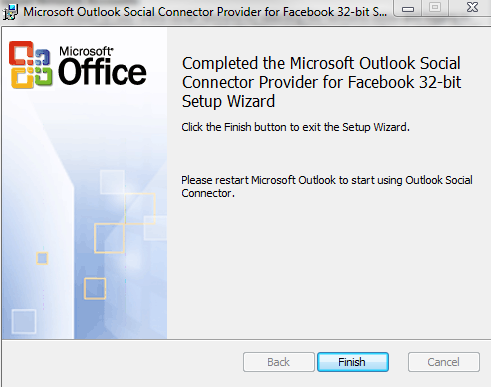
Microsoft Outlook Social Connector Provider for Facebook

The Microsoft Outlook Social Connector Provider for Facebook allows you to connect your Facebook account to the Outlook Social Connector and obtain information about your friends and colleagues.

You can see status updates and recently posted items from your Facebook contacts.

You can also use Outlook Social Connector to display a quick view of related Outlook content when you click on an email from a contact, such as recent e-mail conversations, meetings, and shared attachments to help you easily track your communications

Once you finish installing the Social connector, Please re-start the Outlook and then goto your reading panel below down you can see the user icon  and underneath, there is a button called +ADD…click that (Check the above image) and then select each connector and type the credential…

You are ready to go!!! …read my previous blog for more Microsoft Outlook 2010 – Social connector
NOTE: The Microsoft Outlook Social Connector Provider requires Microsoft Outlook Social Connector and the related update (KB983403) to be installed. If these components are not already installed on your machine, the Microsoft Outlook Social Connector Provider for Facebook will download and install the necessary updates from the Microsoft Download Center before completing the provider installation.

To download click here

Configure EWS, Autodiscover, OWA, OAB, ECP on Exchange Server 2010

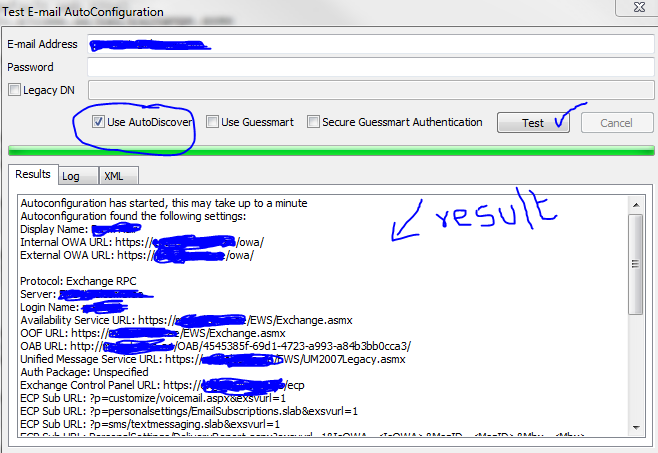
As you all know that the service connectivity for a mail server is the  main concern to all of us. In Exchange server 2010, the connectivity is as same as Exchange server 2007. Once you migrate or install the new version, this should be tested with the proper credentials and certificate..or else, you will end up with your mail server IP going to the blacklist, because of the wrong pointers and configurations. First of all, do the internal test. Go to your computer start bar, right side where Date and time is showing, you will find the Outlook icon, hold Ctrl + right click on the outlook icon and click “Test Email Auto Configuration…”

Select the “Use AutoDiscover” and click Test..

Above one is a success one..If failed, do the below. The Exchange Web Service (EWS) is the web service that allows access to the Out of Office service. If either the internal or external URL for the EWS is missing or incorrect, OOF will fail and other services may not work as expected. Using Exchange Management Shell, check the URLs assigned to the web service virtual directory using the Get-WebServicesVirtualDirectory command

First goto CAS server

Type the following Power Shell command for EWS (Exchange Web Service)

Copy code Get-WebServicesVirtualDirectory |fl identity,internalurl,externalurl

You will get the result like below

Identity    : ECAS1\EWS (Default Web Site)
InternalUrl : https://mailv.domain.com/EWS/Exchange.asmx
ExternalUrl : https://mailv.domain.com/ews/exchange.asmx

Identity    : ECAS2\EWS (Default Web Site)
InternalUrl : https://mailv.domain.com/EWS/Exchange.asmx
ExternalUrl : https://mailv.domain.com/ews/exchange.asmx

If this is not correct, you need to fix it.. This has to be done on Powershell command on the CAS server.

To do that…Copy code

[PS]C:\Windows\system32>Set-WebServicesVirtualDirectory -Identity “ECAS1\EWS (Default Web Site)” -InternalUrl https://mail.domain.com/EWS/Exchange.asmx -BasicAuthentication:$true

[PS]C:\Windows\system32>Set-WebServicesVirtualDirectory -Identity “ECAS2\EWS (Default Web Site)” -InternalUrl https://mail.domain.com/EWS/Exchange.asmx -BasicAuthentication:$true

[PS] C:\Windows\system32>Get-WebServicesVirtualDirectory |fl identity,internalurl,externalurl

Identity    : ECAS1\EWS (Default Web Site)
InternalUrl : https://mail.domain.com/EWS/Exchange.asmx
ExternalUrl : https://mail.domain.com/ews/exchange.asmx

Identity    : ECAS2\EWS (Default Web Site)
InternalUrl : https://mail.domain.com/EWS/Exchange.asmx
ExternalUrl : https://mail.domain.com/ews/exchange.asmx

Now you can see that the URL has been fixed. This is for Web Services.

Now for Autodiscovery….

[PS] C:\Windows\system32>Get-AutodiscoverVirtualDirectory

To see the settings

[PS] C:\Windows\system32>Get-ClientAccessServer |fl identity,autodiscoverserviceinternaluri

RESULT

[PS] C:\Windows\system32>Get-ClientAccessServer |fl identity,autodiscoverserviceinternaluri
Identity                       : ECAS1
AutoDiscoverServiceInternalUri : https://mailv.domain.com/Autodiscover/Autodiscover.xml

Identity                       : ECAS2
AutoDiscoverServiceInternalUri : https://mailv.domain.com/Autodiscover/Autodiscover.xml

To FIX it..

[PS] C:\Windows\system32>Set-ClientAccessServer -Identity ECAS1 -AutoDiscoverServiceInternalUri https://mail.domain.com/Autodiscover/Autodiscover.xml
[PS] C:\Windows\system32>Set-ClientAccessServer -Identity ECAS2 -AutoDiscoverServiceInternalUri https://mail.domain.com/Autodiscover/Autodiscover.xml 

 Now for the Outlook Web Apps, Exchange Control Panel, Exchange ActiveSync, Offline Address book…you have to go to Exchange Management Console (EMC)

  1. Goto one of the CAS server
  2. Open EMC
  3. Goto Server Configuration
  4. Select Client Access
  5. On the Middle top pannel, you can see the CAS server listed.
  6. Select one, on the bottom pannel, you will see like below.
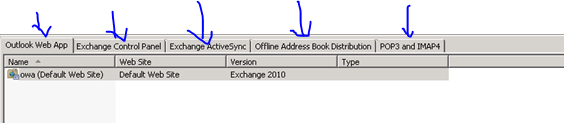
Select each tab and then right click on the object and change the path as required. Once you done with the first CAS servr, do the same for the second as well.

Thats it…you are good to go for production.

Exchange Server 2010 Service Pack 1 – Sneak-peak

Exchange Team Blog that provides the first public details about Exchange Server 2010 Service Pack 1 (SP1).  SP1 will of course include fixes and enhancements in the areas customers have helped us identify (including code from all of the Exchange 2010 post RTM update rollups we’ve released to date).  But SP1 will also include some new features and functionality changes, as well….cool

  • A new search preview helps with early case assessment by providing you an estimate on the number of items in the result set-with keyword statistics-before e-mail located in the search are copied to the designated discovery mailbox.
  • And, a new search result de-duplication option, when checked, only copies one instance of a message to the discovery mailbox.

Look at the below  menu for the DAG…what a cool feature it will be

With the release of Exchange Server 2010 last November, Microsoft introduced integrated archiving capabilities aimed at helping you preserve and discover e-mail data. In SP1, this has enhanced its archiving functionality based on the great feedback you’they got since the launch. This includes adding the flexibility to provision a user’s Personal Archive to a different mailbox database from their primary mailbox. This means your organization can now more easily implement separate storage strategies (or tiered storage) for less frequently accessed e-mail. And, we didn’t just stop there! We’ve also added new server side capabilities so you can import historical e-mail data from .PST files, directly into Exchange, as well as IT pro controls to enable delegate access to a user’s Personal Archive.

To help streamline the implementation of retention policies, SP1 updates the Exchange Management Console with new tools to create Retention Policy Tags, so you can automate the deletion and archiving of e-mail and other Exchange items. New optional Retention Policy Tags give you even more flexibility in defining your organizations retention management strategy….coooool

Can’t wait to get hold of this…Announcement blog from Microsoft Exhange Team …click here Yes Virginia, there is an Exchange Server 2010 SP1

Learn more about our approach to archiving by reading the Archiving with Exchange 2010 whitepaper.

Scott Schnoll’s weblog…click here

Exchange server 2007 to 2010 Live migration!!!! Live blog!!! Live Platform…real time scenario!!!

Please find on my blog, one page dedicated to this task…you can see it on my blog top page… or click here

             TO                                          

 MIGRATION…Started on June 8, 2010 ….Today 20th of June..all the objects has been replicated to Exchange 2010..Now the decommissioning starts..Finish too

Microsoft Office 2011 for Mac!!!

Microsoft focusing on three things with this new release: better compatibility across platforms, improved collaboration tools, and a more refined user interface.  The new version of Office will incorporate document-collaboration features that take advantage of Microsoft’s online storage features. Office for Mac 2011, Mac users will be able to share files and collaborate on documents with other Mac and Windows users via Microsoft’s SharePoint, SkyDrive, and Office Web Apps. The Mac version of the Ribbon doesn’t replace any menu bars, but it does replace Office 2008’s controversial Elements Gallery, which took some fire from Mac users for its size and inflexibility. This new Ribbon is designed to give users quick access to each program’s most commonly used tools. A big news in Office 2011 is the demise of Entourage and the return of Outlook. The new Outlook will support PST imports (allowing you to move an Outlook installation, including all your old e-mails, from a Windows PC to a Mac). It will also support Microsoft’s Information Rights Management (IRM), which allows senders to specify what recipients can do with messages (print, forward, and so on). Previously-Windows only, IRM is required in some corporate settings. IRM support in Office 2001 is aimed at Mac users in cross-platform environments. Microsoft has re-engineered the Outlook message database system to be a series of small files, so it’s more easily backed up with Time Machine and searched in Spotlight. “Outlook’s new database is more reliable, faster, and fully supports Time Machine and Spotlight.