What’s new in Windows Server 2008 R2 with Service Pack 1

Windows Server 2008 is the most advanced Windows Server operating system yet, designed to power the next-generation of networks, applications, andWeb services. With Windows Server 2008 you can develop, deliver, and manage rich user experiences and applications, provide a highly secure network infrastructure, and increase technological efficiency and value within your organization. Windows Server 2008 R2, now with Service Pack 1 (SP1) provides new virtualization technology that enables you to deliver more advanced capabilities to your business for increased IT efficiency and agility. Whether you want to consolidate servers, build a private cloud or offer Virtual Desktop Infrastructure, the addition of these powerful virtualization features enables you to take your datacenter and desktop virtualization strategy to a new level.

Windows Server 2008 R2 with SP1 Product Overview
Windows Server 2008 R2 with SP1 builds on the award-winning foundation of Windows Server 2008, expanding existing technology and adding new features. Just a few of the enhancement in this release include new virtualization tools consisting of an updated version of Hyper-V with Live Migration and Dynamic Memory, Remote Fx in Remote Desktop Services, improved power management, and added features with Windows 7 integration such as BranchCache and Direct Access. Have greater control and the ability to react to business needs faster than ever before with powerful tools such as Internet Information Services (IIS) version 7.5, updated Server Manager and Hyper-V platforms and Windows PowerShell version 2.0. More info about Windows Server 2008 R2 with SP1 Product Overview

Virtualize your Server and Desktop Infrastructure
Virtualization is a major part of today’s data centers. The operating efficiencies offered by virtualization allow organizations to dramatically reduce operational effort and power consumption. Windows Server 2008 R2 with SP1 provides the following virtualization types: Client and Server virtualization provided by Hyper-V and Presentation virtualization with Remote Desktop Services.

New Virtualization Technology in Hyper-V

Since the Windows Server 2008 release, Microsoft has introduced a new version of Hyper-V. Included as part of the Windows Server 2008 R2 with SP1 operating system, Hyper-V contains a number of core areas of improvements for creating dynamic virtual data centers and cloud computing, namely private cloud.  These improvements provide you with increased availability and performance, improved management, and simplified methods for deployment including live migration.  And, when combined with System Center, you are able to build out a dedicated private cloud environment to transform the way you deliver IT services to the business, using the infrastructure as a service (IaaS) model. Learn more about Hyper-V in Windows Server 2008 R2 with SP1.

Remote Desktop Services – Expanded Features in Remote Desktop Services

Remote Desktop Services provides users and administrators with both the features and the flexibility necessary to build the most robust access experience in any deployment scenario. To expand the Remote Desktop Services feature set, Microsoft has been investing in the Virtual Desktop Infrastructure, also known as VDI. VDI is a centralized desktop delivery architecture, which enables Windows and other desktop environments to run and be managed in virtual machines on a centralized server. Learn more about the Virtualization Platform in Windows Server 2008 R2.

Virtual Desktop Infrastructure (VDI) : It’s an emerging architectural model where a Windows client operating system runs in server-based virtual machines (VMs) in the data center and interacts with the user’s client device such as a PC or a thin client. Similar to session virtualization (formerly known as Terminal Services), VDI provides IT with the ability to centralize a user’s desktop; instead of a server session, however, a full client environment is virtualized within a server-based hypervisor. With VDI, the user can get a rich and individualized desktop experience with full administrative control over desktop and applications. However, this architecture, while flexible, requires significantly more server hardware resources than the traditional session virtualization approach. To read more about Enabling Server Virtualization and Virtual Desktop Infrastructure (VDI)

Key benefits of VDI are:

  • Better enablement of flexible work scenarios, such as work from home and hot-desking
  • Increased data security and compliance
  • Easy and efficient management of the desktop OS and applications

VDI Standard Suite and VDI Premium Suite
Microsoft provides two suite offerings to purchase and deploy VDI: Microsoft Virtual Desktop Infrastructure Standard Suite (“VDI Standard Suite”) and Microsoft Virtual Desktop Infrastructure Premium Suite (“VDI Premium Suite”). These two suites make it simple for customers to purchase the comprehensive Microsoft VDI infrastructure and management software, while providing excellent value amongst competing VDI offerings.

The Microsoft VDI Standard Suite is a complete VDI offering which offers the following features:

  • Desktop Delivery: Basic connection broker to deliver personalized and pooled virtual machine-based desktops in low-complexity environments
  • Web-based remote access and full-fidelity end user experience with Microsoft RemoteFX
  • Application Delivery: Separation of application layer from image with app streaming
  • Reduces app-to-app conflicts and need for regression testing
  • Easy application life cycle management via policies
  • Virtualization Platform: Reliable, micro-kernelized hypervisor with small footprint
  • Supports live migration
  • Management: Integrated, end-to-end management
  • Dynamic provisioning of apps to physical, virtual and session-based desktops
  • Rapid VM provisioning with cloned VHD’s
  • Support for failover clustering and storage migration
  • Patching, updating and monitoring of physical VDI host

Virtualization is a major part of today’s data centers. The operating efficiencies offered by virtualization allow organizations to dramatically reduce operational effort and power consumption, and increase IT flexibility.

To know more, click here
Licensing Remote Desktop Services in Windows Server 2008 R2
Remote Desktop Services (RDS, formally known as Terminal Services in Windows Server 2008) functionality in Windows Server 2008 R2 lets you remotely execute applications or an entire desktop on a Windows-based session host server from a wide range of devices over virtually any type of network connection; it also lets you remotely execute virtual machine-based (virtual) desktops on a Hyper-V-based virtualization host server. A server hosting Remote Desktop Services sessions can be referred to as a Remote Desktop Session Host (RDSH) Server, and a RDS server hosting virtual machines can be referred to as a Remote Desktop Virtualization Host (RDVH) Server. More information about the VECD license can be found here.

Remote Desktop Services Licensing Requirements

  • Windows Server Client Access License and TS/RDS Client Access License: In addition to a server license, a Windows Server Client Access License (CAL) is required to access the Windows Server software. If you wish to utilize the RDS functionality of the Windows Server software, an incremental Terminal Services Windows Server 2008 Terminal Services Client Access License (TS CAL), or the new Remote Desktop Services Client Access License (RDS CAL) is required as well. A TS or RDS CAL is required for each user or device. To be specific, a WS 2008 TS CAL or WS 2008 RDS CAL may access a server running Windows Server 2008 R2. An RDS CAL is functionally equivalent to a TS CAL.
  • Inclusion of App-V for TS in the Windows Server 2008 RDS CAL / TS CAL: Application compatibility and management is a driver of cost for many TS / RDS customers. By including the right to use App-V for TS as part of the TS & RDS CALs we have simplified licensing and enabled a broader set of RDS customers to enjoy the benefits that Microsoft Application Virtualization for Terminal Services provides which in addition to solving app-to-app conflicts and multiuser application conflicts also enables the RDS / TS customer to
  1. Consolidate Session Host / terminal servers and end server siloing
  2. End application conflicts and regression testing
  3. Accelerate application deployment for Session Hosts
  4. Reduce Deployment Risk
  5. Simplify Profile Management

DirectAccess Technical Overview for Windows 7 and Windows Server 2008 R2

The Windows® 7 and Windows Server® 2008 R2 operating systems introduce DirectAccess, a new solution that provides users with the same experience working remotely as they would have when working in the office. With DirectAccess, remote users can access corporate file shares, Web sites, and applications without connecting to a virtual private network (VPN). DirectAccess establishes bi-directional connectivity with the user’s enterprise network every time the user’s DirectAccess-enabled portable computer is connected to the Internet, even before the user logs on. With DirectAccess, users never have to think about whether they are connected to the corporate network. DirectAccess also benefits IT by allowing network administrators to manage remote computers outside of the office, even when the computers are not connected to a VPN. DirectAccess enables organizations with regulatory concerns to extend regulatory compliance to roaming computer assets. More info click here.

Windows Server 2008 R2 Upgrade Paths..Click here

Windows Server 2008 R2 is the next major Windows Server release – Road Map
 

Old public folder – How to remove from Exchange server

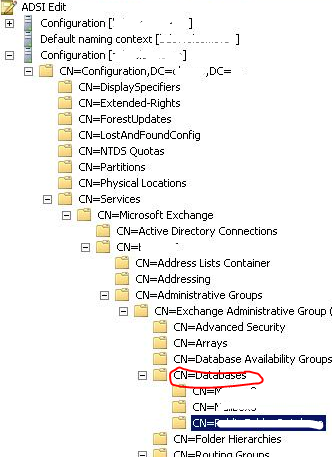
It is difficult to delete old public folder from EMC. How to do it, use the ADSIEDIT to clear the old ones.

Right click on the folder you want to delete from CN=Exchange Administrative Group, CN=Databases,  and click delete. The go to Active directory Sites and Services and initiate the replication across the domain.

Go to EMC and refresh.

Thats it.

Active Directory – Difference in between SYSVOL and NETLOGON folders

Regarding this topic, Oz Casey Dedeal Virginia, VA, United States had a good article on this topic..Read more Click here

Exchange server 2010 – Symantec 2010 – DAG Backup failed – Scenario/Solution

Here is a typical scenario of a DAG backup failure from Symantec.

If you come across an email alert from the Backup administrator like below,

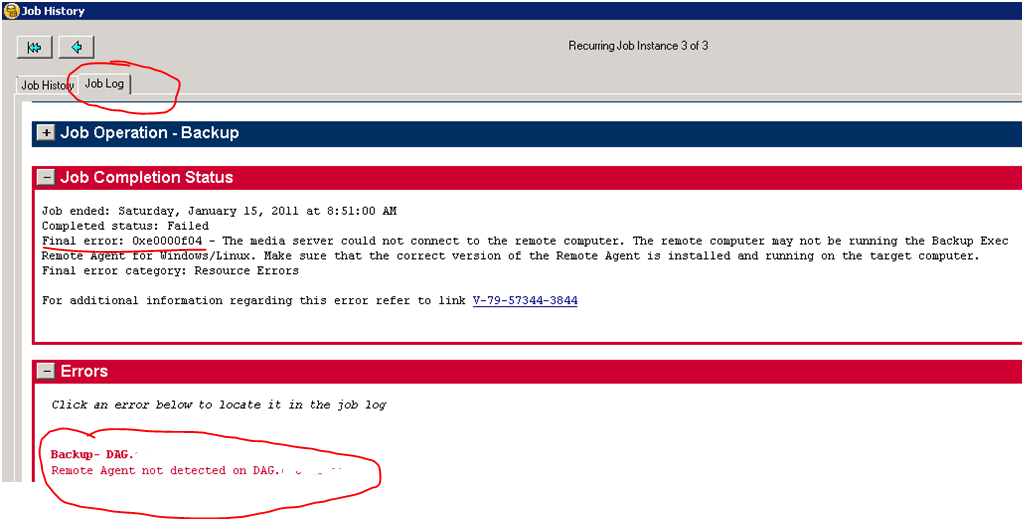
Not to be panic…click on the attachment and see what the error is..and it should be like below

Then go to details…

Exchange server 2010 DAG backup failed!!! ohhhhhh.. Try to ping the DAG IP address. If no response, Logon to Mailbox server, and open Failover cluster manager.

Remember, DAG’s basics is on clustering. Click on Cluster events

Goto to the Services -> click on Cluster Services and then click Restart.

This will happen when the mailbox server faces “Dirty Shutdown” or Network connection lost.

Changing your domain password in OWA

In the previous edition of OWA and Exchange server 2007, there was a problem for users to change their password…because the loss of the IISADMPWD virtual directory as a supported feature in Windows Server 2008/IIS 7.0. This prevented OWA users with expired passwords from being able to change their password and log on. This was a problem for many OWA users ; especially remote/mobile users with non-domain-joined computers..From Exchange Server 2010 Service Pack 1 and Exchange Server 2007 Service Pack 3 (running on Windows Server 2008 or Windows Server 2008 R2) onwards, they have a new feature that will allow users with expired passwords to change their password. This also works for users who have their accounts configured to change password on next logon.

Use this procedure to enable it on Exchange 2007 SP3 and Exchange 2010 SP1 Client Access servers. If you are using a CAS Array, you must perform these steps on each CAS in the array.

  1. On the Client Access Server (CAS), click Start > Run and type regedit.exe and click OK.
  2. Navigate to HKLM\SYSTEM\CurrentControlSet\Services\MSExchange OWA.
  3. Right click the MSExchange OWA key and click New > DWord (32-bit).
  4. The DWORD value name is ChangeExpiredPasswordEnabled and set the value to 1.
    Note: The values accepted are 1 (or any non-zero value) for “Enabled” or 0 or blank / not present for “Disabled”
  5. After you configure this DWORD value, you must reset IIS. The recommended method to reset IIS is to use IISReset /noforce from a command prompt.

NOTE : User can’t use a User Principal Name (UPN) (eg: myname@domain.com) in the Domain\user name field in the Change Password window like below. It should be domain\myname

Once you done with it, click submit…make sure that your new password should match with the domain password policy.

Windows 7 and Windows Server 2008 R2 SP1 RC

Windows 7 and Windows Server 2008 R2 SP1 RC helps keep your PCs and servers on the latest support level, provides ongoing improvements to the Windows Operating System (OS), includes previous updates delivered over Windows Update as well as continuing incremental updates to the Windows 7 and Windows Server 2008 R2 platforms based on customer and partner feedback, and is easy for organizations to deploy a single set of updates.

Windows 7 and Windows Server 2008 R2 SP1 RC will help you: Click here to get to know more : http://technet.microsoft.com/en-us/evalcenter/ff183870.aspx

  • Keep your PCs supported and up-to-date
  • Get ongoing updates to the Windows 7 platform
  • Easily deploy cumulative updates at a single time
  • Meet your users’ demands for greater business mobility
  • Provide a comprehensive set of virtualization innovations
  • Provide an easier Service Pack deployment model for better IT efficiency

Great Plains 2010 gone live in 15 days!!!

Attend a Microsoft Dynamics GP 2010 Launch Event – The new way to do business

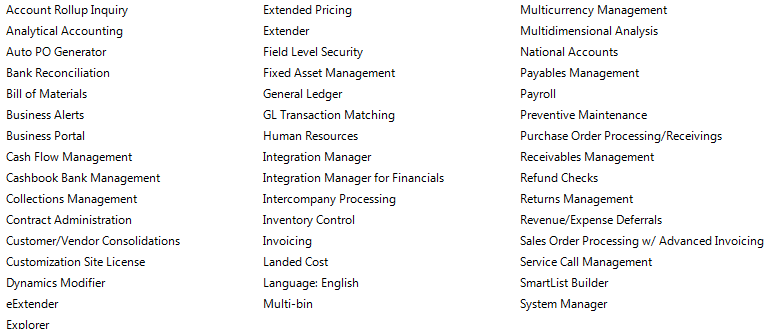
This year was a challenging year for us when it comes to ERP. Microsoft GP 8, we moved to GP10 and Microsoft released Great Plains 2010 and we decided to move to GP2010 because of the new features and collaborations. In 15 days we achieve this task by pulling the data from GP10 database, which is SQL2008 to GP2010 database. 15days with major customization on field service module, New codings on Analytical accounting and our in-house team is able to manage it well, within the time frame..and we are using all the below modules as well…

Now we are in Great Plains 2010…Congratulation to our team

Xerox ColorQube with Solid ink

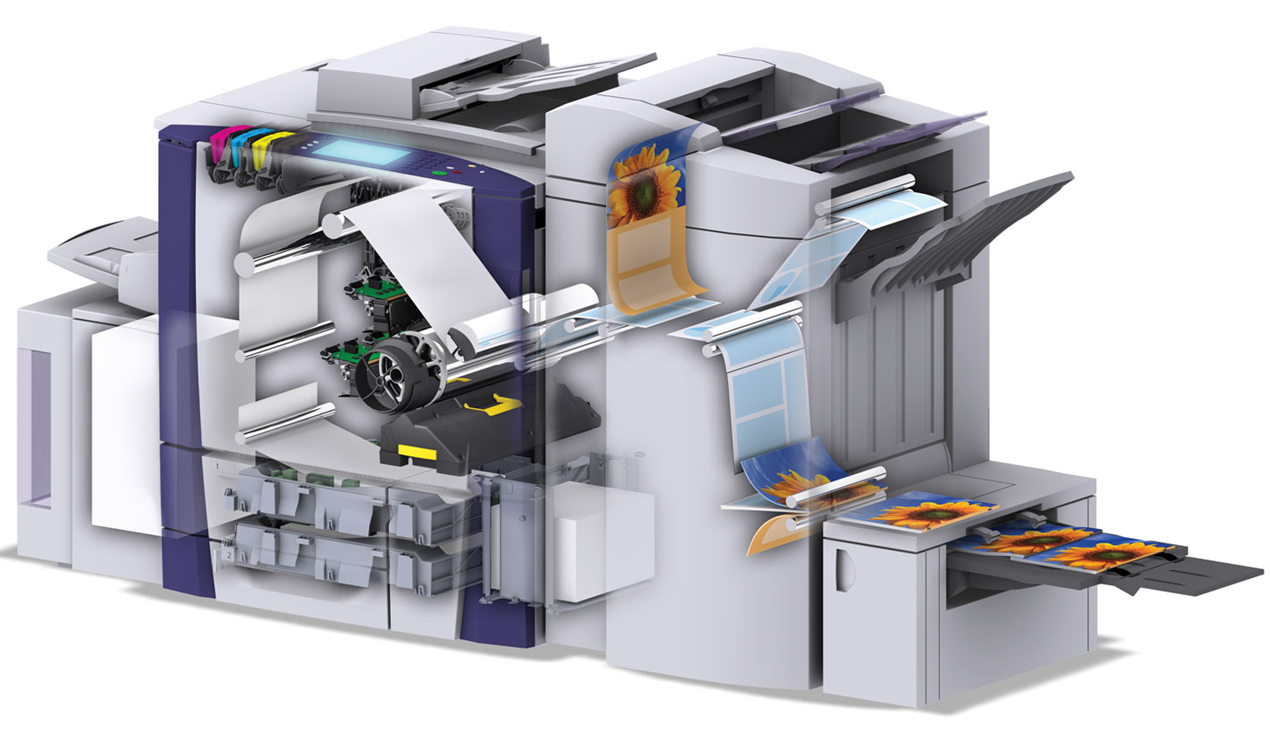
Xerox’s new ColorQube printer revolutionize the color-printing game using a crayon-esque ink that can reduce the cost per page by as much as 62%. Like traditional multi-function printers, the ColorQube can print, copy, scan and fax and it is loaded with Network printing features. However, it’s the crayon-esque ink that’s the real star of the show. The ink is melted and sprayed onto a spinning drum which deposits the ink onto the page. The hazle of replacing the waste toner is also cool, its just like a frozen tar and not like powder and you can reuse the tray as well. 

Solid ink’s cartridge-free design and minimal packaging, its nearly waste-free printing process and its safe, toxin-free solid ink sticks make it a very environmentally-conscious way to print.


Exchange Server 2007 Service Pack 3 released

Exchange Server 2007 SP3 supports all Exchange 2007 roles on the Windows Server 2008 R2 operating system.

Exchange 2007 SP3 provides support only for a new installation of Exchange on Windows Server 2008 R2.

Exchange 2007 SP3 is not supported in an upgrade scenario on Windows Server 2008 R2. For example, Exchange 2007 SP3 does not support the following installation scenarios:

  • A new Exchange 2007 SP3 installation on a Windows Server 2008 R2-based computer that has been upgraded from Windows Server 2008
  • Upgrading Exchange 2007 SP2 to Exchange 2007 SP3 on a Windows Server 2008 R2-based computer that has been upgraded from Windows Server 2008
  • Upgrading the operating system from Windows Server 2008 to Windows Server 2008 R2 on a computer that has Exchange 2007 SP3 installed

Exchange Server 2007 SP3 provides

  • further flexibility with the addition of Windows Server 2008 R2 support for server roles and Windows 7 support for the Exchange management tools.
  • These additions, along with enhancements for the advanced protection options against e-mail security threats, such as spam and viruses and the tools which help manage internal compliance and high availability needs provide Exchange administrators with the tools they need to manage their Exchange 2007 environments efficiently.
  • Exchange 2007 SP3 introduces password reset functionality for Internet Information Services (IIS) 7.
  • Exchange 2007 SP3 includes updates to the Exchange Search (MSSearch) component.
  • MSSearch provides support for creating full text indexes for Exchange stores.
  • Exchange 2007 SP3 updates the MSSearch binary files to MSSearch 3.1.
  • Exchange 2007 SP3 includes Active Directory schema changes for certain Unified Messaging (UM) mailbox attributes.
  • Exchange 2007 SP3 includes support for Right-to-Left text in e-mail message disclaimers in a right-to-left language, such as Arabic.
  • In earlier versions of Exchange, when you use a transport rule to create a disclaimer in a right-to-left language on an Exchange 2007 Hub Transport server, the text appears incorrectly when you view it from Outlook 2007.
  • Exchange 2007 SP3 adds functionality to the transport rule setting to fully support right-to-left text in disclaimers

Useful Links

Other downloads

Issues

  1. In the recently released Exchange 2007 Service Pack 3, there’s a version mismatch between the Outlook Web Access (OWA) S/MIME Control, an Active X control used to provide S/MIME support in OWA. After you install SP3, users who have the control installed will get prompted to install the latest version of the control. The way this works – the code compares the “Version” property of the client S/MIME control (MIMECTL.DLL) on the user’s computer with the ProductVersion property of the MSI file (OWASMIME.MSI) on the Client Access Server. to know more click Exchange 2007 SP3 and OWA S/MIME Version Mismatch from Microsoft Exchange Team Blog

Configure EWS, Autodiscover, OWA, OAB, ECP on Exchange Server 2010

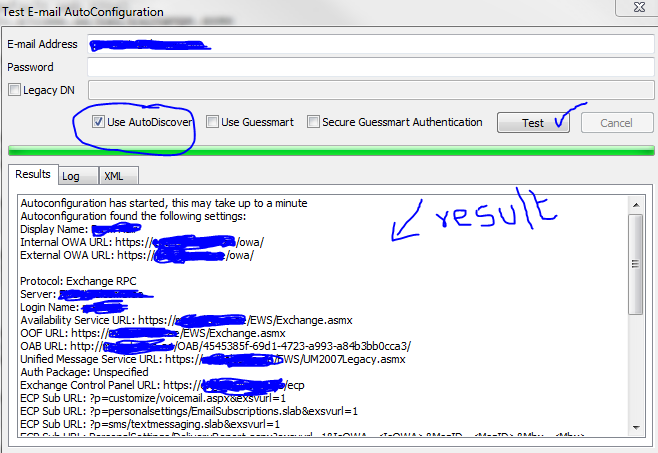
As you all know that the service connectivity for a mail server is the  main concern to all of us. In Exchange server 2010, the connectivity is as same as Exchange server 2007. Once you migrate or install the new version, this should be tested with the proper credentials and certificate..or else, you will end up with your mail server IP going to the blacklist, because of the wrong pointers and configurations. First of all, do the internal test. Go to your computer start bar, right side where Date and time is showing, you will find the Outlook icon, hold Ctrl + right click on the outlook icon and click “Test Email Auto Configuration…”

Select the “Use AutoDiscover” and click Test..

Above one is a success one..If failed, do the below. The Exchange Web Service (EWS) is the web service that allows access to the Out of Office service. If either the internal or external URL for the EWS is missing or incorrect, OOF will fail and other services may not work as expected. Using Exchange Management Shell, check the URLs assigned to the web service virtual directory using the Get-WebServicesVirtualDirectory command

First goto CAS server

Type the following Power Shell command for EWS (Exchange Web Service)

Copy code Get-WebServicesVirtualDirectory |fl identity,internalurl,externalurl

You will get the result like below

Identity    : ECAS1\EWS (Default Web Site)
InternalUrl : https://mailv.domain.com/EWS/Exchange.asmx
ExternalUrl : https://mailv.domain.com/ews/exchange.asmx

Identity    : ECAS2\EWS (Default Web Site)
InternalUrl : https://mailv.domain.com/EWS/Exchange.asmx
ExternalUrl : https://mailv.domain.com/ews/exchange.asmx

If this is not correct, you need to fix it.. This has to be done on Powershell command on the CAS server.

To do that…Copy code

[PS]C:\Windows\system32>Set-WebServicesVirtualDirectory -Identity “ECAS1\EWS (Default Web Site)” -InternalUrl https://mail.domain.com/EWS/Exchange.asmx -BasicAuthentication:$true

[PS]C:\Windows\system32>Set-WebServicesVirtualDirectory -Identity “ECAS2\EWS (Default Web Site)” -InternalUrl https://mail.domain.com/EWS/Exchange.asmx -BasicAuthentication:$true

[PS] C:\Windows\system32>Get-WebServicesVirtualDirectory |fl identity,internalurl,externalurl

Identity    : ECAS1\EWS (Default Web Site)
InternalUrl : https://mail.domain.com/EWS/Exchange.asmx
ExternalUrl : https://mail.domain.com/ews/exchange.asmx

Identity    : ECAS2\EWS (Default Web Site)
InternalUrl : https://mail.domain.com/EWS/Exchange.asmx
ExternalUrl : https://mail.domain.com/ews/exchange.asmx

Now you can see that the URL has been fixed. This is for Web Services.

Now for Autodiscovery….

[PS] C:\Windows\system32>Get-AutodiscoverVirtualDirectory

To see the settings

[PS] C:\Windows\system32>Get-ClientAccessServer |fl identity,autodiscoverserviceinternaluri

RESULT

[PS] C:\Windows\system32>Get-ClientAccessServer |fl identity,autodiscoverserviceinternaluri
Identity                       : ECAS1
AutoDiscoverServiceInternalUri : https://mailv.domain.com/Autodiscover/Autodiscover.xml

Identity                       : ECAS2
AutoDiscoverServiceInternalUri : https://mailv.domain.com/Autodiscover/Autodiscover.xml

To FIX it..

[PS] C:\Windows\system32>Set-ClientAccessServer -Identity ECAS1 -AutoDiscoverServiceInternalUri https://mail.domain.com/Autodiscover/Autodiscover.xml
[PS] C:\Windows\system32>Set-ClientAccessServer -Identity ECAS2 -AutoDiscoverServiceInternalUri https://mail.domain.com/Autodiscover/Autodiscover.xml 

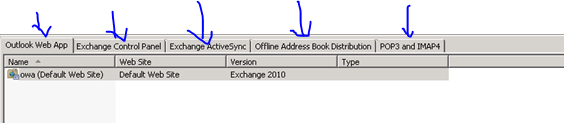
 Now for the Outlook Web Apps, Exchange Control Panel, Exchange ActiveSync, Offline Address book…you have to go to Exchange Management Console (EMC)

  1. Goto one of the CAS server
  2. Open EMC
  3. Goto Server Configuration
  4. Select Client Access
  5. On the Middle top pannel, you can see the CAS server listed.
  6. Select one, on the bottom pannel, you will see like below.

Select each tab and then right click on the object and change the path as required. Once you done with the first CAS servr, do the same for the second as well.

Thats it…you are good to go for production.