Restricting email to the Internet on a per user AND per domain basis

This blog post is meant to show how easy it now is to accomplish this oft heard request in Exchange 2010. Transport rules, introduced with Exchange 2007, provided a lot of new options for administration of mail resulting in even more requests for additional functionality. The rules now have new predicates and actions extending the possibilities of what can be done. For our example, the rule will restrictActive Directory Mail enabled users” who have their ‘Department‘ defined as ‘Temp Employees‘ from sending mail to the internet, except they must be allowed to send to 2 external domains called: ‘partnerdomain.com‘ and ‘fourthcoffee.com‘. Additionally, to reduce Helpdesk calls, you want to send an NDR when they violate the rule. For demonstration purposes I will use 2 Conditions, one Action and one Exception.

Microsoft Exchange Team Blog will explain you how to do it in Exchange 2010…beautiful blog post..click here

Apple iPad 2 may soon replace aviation paper charts

Apple iPad 2 may soon replace paper charts…to start with The Federal Aviation Administration (FAA) has granted preliminary approval for the use of iPads in airplane cockpits. Read more, Click here.
FAA: iPad Can Replace Charts For Executive Jet – Read more, Click here
Apple IPads in Cockpits May Hasten End of Era for Paper Charts – Bloomberg – Click here
FAA approves iPads for pilots’ electronic charts – CNN Tech
So to know more about iPad2 from Apple.. click here
For technical Specification, Click here
For Built-in Apps for iPad, Click here
Features:
  • iPad is one big, beautiful display — 9.7 inches of high-resolution photos, movies, web pages, books, and more. LED backlighting makes everything you see remarkably crisp, vivid, and bright.
  • Two powerful cores in one A5 chip mean iPad can do twice the work at once.
  • Multi-Touch on iPad. You use your fingers to do everything, so everything you do — surfing the web, typing email, reading books, and swiping through photos — is easier and a lot more fun.
  • You’ll see two cameras on iPad — one on the front and one on the back. They may be tiny, but they’re a big deal. They’re designed for FaceTime video calling, and they work together so you can talk to your favorite people and see them smile and laugh back at you.
  • It’s highly secure, stable, and responsive, and it’s made to work seamlessly with the iPad hardware. iOS 4 is the reason no other device has yet come close to iPad.
    Pick up your iPad, press the Home button, and it wakes from sleep instantly. That’s because iPad features fast, efficient, and reliable flash storage that lets you access data quickly.
  • Every iPad is built with advanced 802.11n wireless technology.  iPad is also available with 3G connectivity.
  • With the built-in accelerometer, you can rotate iPad to portrait or landscape, or even upside down, and whatever you’re watching, reading, or seeing adjusts to fit the display.
  • Video mirroring is new for iPad and for every app, web page, presentation, video, movie, or photo you want to show a big audience. Just plug in the Apple Digital AV Adapter or Apple VGA Adapter (sold separately) and your HDTV or projector becomes a bigger version of your iPad.
  • With up to nine times the graphics performance, gameplay on iPad is even smoother and more realistic.
  • Even with the new thinner and lighter design, iPad has the same amazing 10-hour battery life
  • AirPrint – Print your email, photos, web pages, and documents right from your iPad over Wi-Fi
  • Photo Booth – When the mood strikes, turn the camera on yourself, make some faces, and start shooting snapshot-style.
  • Accelerometer, three-axis gyroscope, and compass all work together.
  • AirPlay –  your music, photos, and video — can now stream wirelessly to your HDTV and speakers via AirPlay-enabled speakers or Apple TV on a Wi-Fi network

Microsoft SharePoint Workspace 2010 – New turn

SharePoint Workspace 2010 is the new name for and succeeds Microsoft Office Groove 2007. SharePoint Workspace 2010 is a client application that provides fast, any-time interactive access to document libraries and lists on Microsoft SharePoint Server 2010 and Microsoft SharePoint Foundation 2010. SharePoint Workspace 2010 also provides options for creating Groove peer workspaces and Shared Folder workspaces. SharePoint Workspace 2010 is more versatile than Microsoft Office Groove 2007 and can be integrated with Microsoft SharePoint Server 2010 or can run independently. Microsoft SharePoint Workspace 2010 provides a client for Microsoft SharePoint Server 2010 and Microsoft SharePoint Foundation 2010 that enables real-time synchronization of desktop content with SharePoint documents and lists. SharePoint Workspace 2010 also provides options for creating Groove collaboration workspaces and synchronized shared folders. By using SharePoint Workspace 2010, information workers can easily synchronize online and offline content with a designated SharePoint site or collaborate with external partners and offsite team members through shared workspaces. SharePoint Workspace 2010 is included with Microsoft Office Professional Plus 2010.

Key features of SharePoint Workspace 2010 include the following:

A choice of workspace types:

  • SharePoint workspaces — Provide direct bi-directional synchronization of library and list content between a SharePoint site and a workspace on an individual client computer. Creation of a SharePoint workspace enables individual SharePoint users to check out and check in SharePoint library documents from their local computers, bring SharePoint documents and lists to their computers where they can work online or offline, and synchronize local content with a SharePoint site. When an individual client establishes a connection with a SharePoint server, synchronization occurs at regular intervals when the client is online. When a client cannot connect to a SharePoint site, the user can easily take work offline to make updates. The updated documents are automatically synchronized with SharePoint document libraries and lists when the user reconnects. This interface offers an efficient and satisfying alternative to browser access of SharePoint. Unlike other workspace types, the SharePoint workspace is a personal synchronized copy of a SharePoint site.
  • Groove workspaces — Provide a rich and secure peer collaboration environment that supports synchronization of content among peer client computers that host a shared workspace. Creation of a Groove workspace enables SharePoint Workspace users to quickly form teams and automatically synchronize online or offline contributions with fellow team members. A full set of collaboration tools lets team members schedule meetings, hold discussions, and share work with trusted partners around the world. Support for communications under various network conditions and across firewalls facilitates timely and effective collaboration.
  • Shared Folder workspaces — Support Windows folder sharing among clients. Creation of a Shared Folder workspace lets information workers share the contents of a common folder in a designated Windows Explorer directory.
  • Easy setup   Windows users can easily download and run SharePoint Workspace 2010 without IT assistance.
  • Offline and online collaboration   Information workers can easily synchronize online and offline work, through a SharePoint workspace, Groove workspace, or Shared Folder workspace. Content is synchronized dynamically among online collaboration points and updates are transmitted immediately when an offline client comes back online. When an offline client reconnects, SharePoint Workspace automatically adds offline contributions to the workspace and applies workspace updates to the previously offline client.
  • Integration with Windows logon   SharePoint Workspace 2010 uses Windows logon credentials to authenticate users so that a separate logon is not necessary.
  • Common file dialog boxes   Windows technology enables Microsoft Office 2010 users to directly open and save files in SharePoint Workspace.

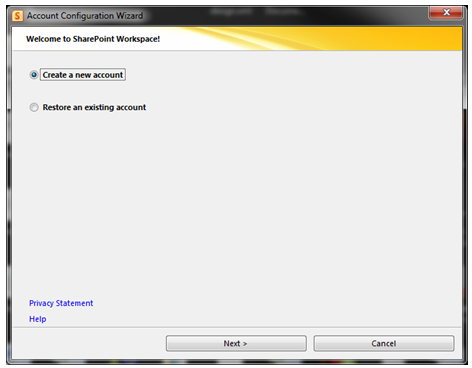
When you install Microsoft Office 2010 package, you will get a program, which is Sharepoint workspace 2010, which is the replacement of Grove and the installation as follows

If you have a SPS domain in your domain network, use your own login credential only.
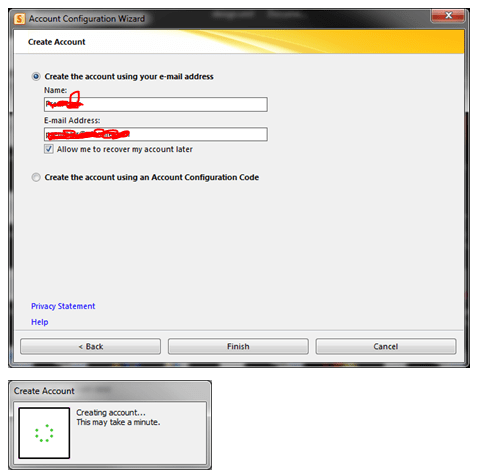
Once this is done, click Internet Explorer and open your SPS webpage. Under Site Action, Click Sync to SPS workspace

Once the Sync is completed, you can now use your doman SharePoint Site offline and online.

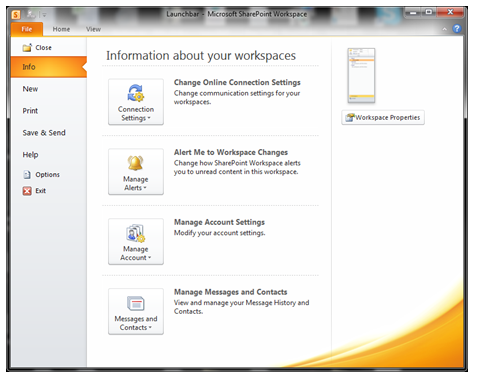
For Setting modification, use the File menu and do the needful

Operational Restrictions
SharePoint Workspace operates with a recommeded maximum number of synchronized documents – 10,000. Synchronizing extremely large document libraries, such as a Document Center, is not supported.

SharePoint Workspace also has limited support for metadata extensions to the document library. BDC Fields based on Business Connectivity Services – tagging documents based on external datasources – is not supported, and libraries that use BDC field definitions cannot be synced to Workspace. On the other hand, Managed Metadata fields (MMS) can be included in synchronized libraries. SharePoint Workspace is able to view, but not modify, field values based on MMS term stores.

To Download SharePoint Workspace 2010: Groove Web Services Software Development Kit, Click here.

Enjoy!!!

Old public folder – How to remove from Exchange server

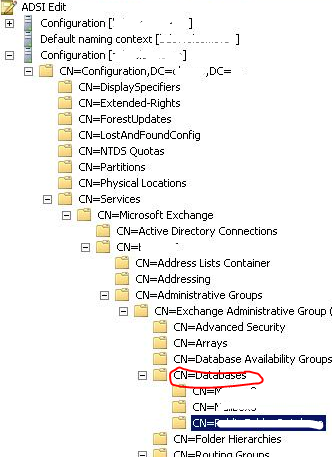
It is difficult to delete old public folder from EMC. How to do it, use the ADSIEDIT to clear the old ones.

Right click on the folder you want to delete from CN=Exchange Administrative Group, CN=Databases,  and click delete. The go to Active directory Sites and Services and initiate the replication across the domain.

Go to EMC and refresh.

Thats it.

Yahoo Mail Beta..look and feel of hotmail

Cool one..beautiful one…watch the ad .. http://features.mail.yahoo.com/

Look and feel…see it


Cool..isn’t it!!!

Evernote 4 for Windows

Evernote 4 is a major departure from Evernote 3.5 in every way. While 3.5 added tons of great new features. So theydecided to start over from scratch, with fast, native C++ that we knew we could rely on. As you’ll see, the results are amazing. This new version will set a foundation for rapid improvement. It is designed to give you a great experience on any computer that you use, whether you’re on a netbook, a five year old Windows XP machine or a super fast top-of-the-line Windows 7 computer.

Here are a few of our favorite user interface improvements:

  • Space saving layout: The toolbar and menu bar are merged to take up less screen space. You can always switch to the old school layout in the Option menu.
  • More responsive interface: Switching between notes, displaying searches, bringing Evernote into the foreground, and virtually all other interactions are much faster.
  • Easier new note creation: We’ve added a New Note split button, which lets you pick the type of note you wish to create (text, ink or webcam). It will remember your selection for next time.
  • Relocated Search Bar: Note search and the search description now reside directly over the note list—a more intuitive location. You can click the small arrow to open and close the search description. Closing the description gives you more room to view your notes list, opening it makes it easy to modify your search.
  • Clearer note info: The note information panel is more crisp and clear with the title, notebook and source links right up top. Just like the search panel, you can open the note information panel to access the details. Navigating through the note info panel and tagging notes using your keyboard is fast and efficient.

New Hotmail look & feel …cool

I really love the new look and features…Outlook webapps is playing an important role here…Now, its  faster Hotmail experience with great new features like one-click filters, Sweep, Active Views and more..also it does’nt now sign you automatically to messenger, when you log on to mail…cool one

New look and feel

 Junk mail options are getting better..need room to improve..i’m waiting for the active sync for hotmail…or direct push service…

Hotmail on iPhone..superb…i tried..really cool..read this post

Best of luck to Hotmail Team!!!!

For your feedbacks…click here to post

Windows Live Team Blog…click here

Multiple email ID for your Social connector(s)

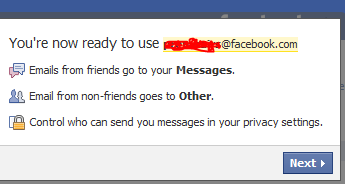
You can add multiple email ID to your    OR    account.

Why you want to link this?

Most of the users have more than one email id..one/two personnel email id, one business email id etc..and if you link all in one social connector account, its very easy to track others, whether it is business contacts, collegues or friends.. How to do it.

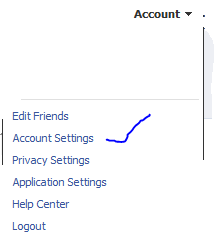
Go to your profile home page, and click on top right cornnet Account

Click Account settings…and click “change” on the Email tab

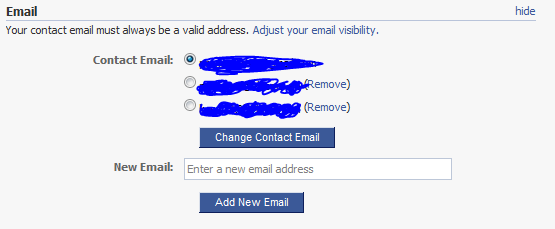
Enter the other email ID here and click “add new” (If you have more than one email id other than the primary one..keep on add here)

REMEMBER : When you add an email id here, there will be a confirmation email send from this account..please confirm it back so that the email id you added get registered

Once you finish adding and click on the confirmation email(s), you will see the account like above, where your primary email id is now been selected in the radio button.

Thats it for FACEBOOK

Logon to your linkedin profile and go to the top right corner and click “Settings”

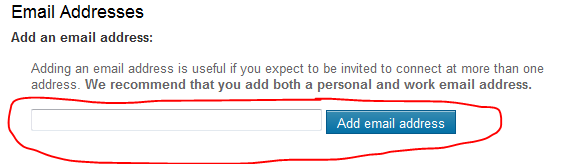
Under Personnel information, Select Email Address

Add your other email id’s here…

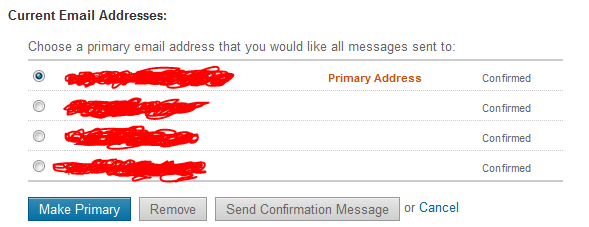
REMEMBER : A Confirmation email will be send to each of the email id you add..

Once you done..your email profile will look like above…

That’s all

Outlook cannot open attachments!!!

Recently i come across this issue, and resolution for how to fix it

PROBLEM : When you receive attachment in your outlook, and when you try to open it, it says ” No permission to open the attachment”

Troubleshoot : This has nothing to do with the permission..this is because the temp folder is full…either you clear the temp folder or do the following..

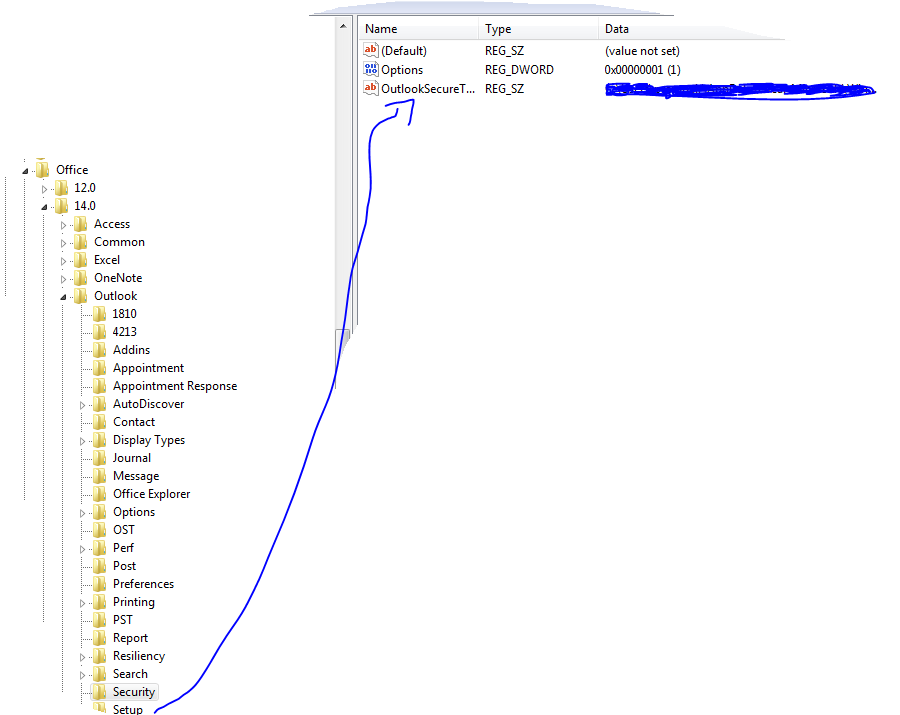
Solution : Go to REGEDIT->HKEY_CURRENT_USER ->Software ->Microsoft ->Office then click

  • 12 ->If you are using Microsoft Outlook 2007
  • 14 ->if you are using Microsoft Outlook 2010

then click Outlook -> expand it, select Security and edit the path “OutlookSecureTempFolder

Check the image below

 (Normally here you will see the default path..creat a temp folder under the available drive and then give the path here)