Changing your domain password in OWA

In the previous edition of OWA and Exchange server 2007, there was a problem for users to change their password…because the loss of the IISADMPWD virtual directory as a supported feature in Windows Server 2008/IIS 7.0. This prevented OWA users with expired passwords from being able to change their password and log on. This was a problem for many OWA users ; especially remote/mobile users with non-domain-joined computers..From Exchange Server 2010 Service Pack 1 and Exchange Server 2007 Service Pack 3 (running on Windows Server 2008 or Windows Server 2008 R2) onwards, they have a new feature that will allow users with expired passwords to change their password. This also works for users who have their accounts configured to change password on next logon.

Use this procedure to enable it on Exchange 2007 SP3 and Exchange 2010 SP1 Client Access servers. If you are using a CAS Array, you must perform these steps on each CAS in the array.

  1. On the Client Access Server (CAS), click Start > Run and type regedit.exe and click OK.
  2. Navigate to HKLM\SYSTEM\CurrentControlSet\Services\MSExchange OWA.
  3. Right click the MSExchange OWA key and click New > DWord (32-bit).
  4. The DWORD value name is ChangeExpiredPasswordEnabled and set the value to 1.
    Note: The values accepted are 1 (or any non-zero value) for “Enabled” or 0 or blank / not present for “Disabled”
  5. After you configure this DWORD value, you must reset IIS. The recommended method to reset IIS is to use IISReset /noforce from a command prompt.

NOTE : User can’t use a User Principal Name (UPN) (eg: myname@domain.com) in the Domain\user name field in the Change Password window like below. It should be domain\myname

Once you done with it, click submit…make sure that your new password should match with the domain password policy.

Recover deleted email item(s) – Outlook 2010 with Exchange 2010

Even if you delete item from the deleted items from your outlook 2010, you can go to the tab under folder on the main page of the outlook 2010 and click “Recover Deleted Item” and view the items on the list

Outlook 2010 feature


Automatically accepting meeting request from Microsoft Outlook 2010

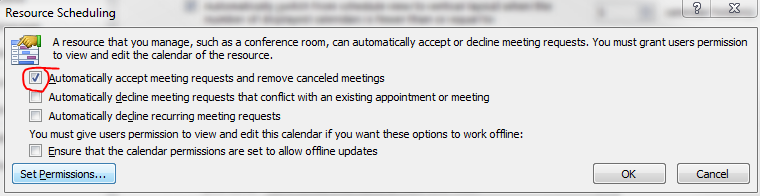
Recently we have noticed that some of the users after upgrading from Microsoft Outlook 2007 to 2010, Meeting request gets auto accept and user won’t notice it.

How to resolve it in Outlook 2010…!

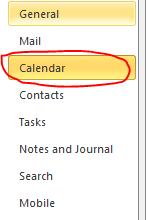
Goto->File->Options->Calender->Resource scheduling and uncheck it

Thats it…uncheck and click ok..problem solved.

Evernote 4 for Windows

Evernote 4 is a major departure from Evernote 3.5 in every way. While 3.5 added tons of great new features. So theydecided to start over from scratch, with fast, native C++ that we knew we could rely on. As you’ll see, the results are amazing. This new version will set a foundation for rapid improvement. It is designed to give you a great experience on any computer that you use, whether you’re on a netbook, a five year old Windows XP machine or a super fast top-of-the-line Windows 7 computer.

Here are a few of our favorite user interface improvements:

  • Space saving layout: The toolbar and menu bar are merged to take up less screen space. You can always switch to the old school layout in the Option menu.
  • More responsive interface: Switching between notes, displaying searches, bringing Evernote into the foreground, and virtually all other interactions are much faster.
  • Easier new note creation: We’ve added a New Note split button, which lets you pick the type of note you wish to create (text, ink or webcam). It will remember your selection for next time.
  • Relocated Search Bar: Note search and the search description now reside directly over the note list—a more intuitive location. You can click the small arrow to open and close the search description. Closing the description gives you more room to view your notes list, opening it makes it easy to modify your search.
  • Clearer note info: The note information panel is more crisp and clear with the title, notebook and source links right up top. Just like the search panel, you can open the note information panel to access the details. Navigating through the note info panel and tagging notes using your keyboard is fast and efficient.

Multiple email ID for your Social connector(s)

You can add multiple email ID to your    OR    account.

Why you want to link this?

Most of the users have more than one email id..one/two personnel email id, one business email id etc..and if you link all in one social connector account, its very easy to track others, whether it is business contacts, collegues or friends.. How to do it.

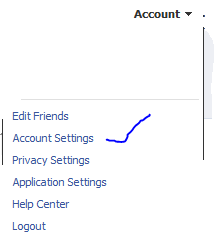
Go to your profile home page, and click on top right cornnet Account

Click Account settings…and click “change” on the Email tab

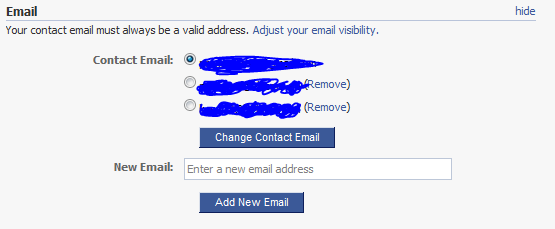
Enter the other email ID here and click “add new” (If you have more than one email id other than the primary one..keep on add here)

REMEMBER : When you add an email id here, there will be a confirmation email send from this account..please confirm it back so that the email id you added get registered

Once you finish adding and click on the confirmation email(s), you will see the account like above, where your primary email id is now been selected in the radio button.

Thats it for FACEBOOK

Logon to your linkedin profile and go to the top right corner and click “Settings”

Under Personnel information, Select Email Address

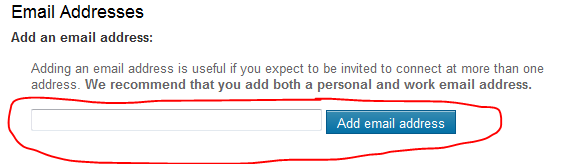
Add your other email id’s here…

REMEMBER : A Confirmation email will be send to each of the email id you add..

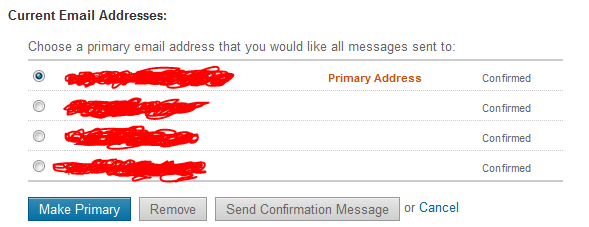
Once you done..your email profile will look like above…

That’s all

Public folder email forwarding issue!!!

When you have a mail enabled  public folder in your exchange server 2007/2010 environment, you might face issues with email forwarding from the public folder from your user account, where you will get an error “Operation failed”.

Resolution :

  1. Logon to outlook with administrator(Domain) credemtial
  2. Goto the Public folder
  3. Select the folder where you are facing the issue
  4. Right click
  5. Select Properties
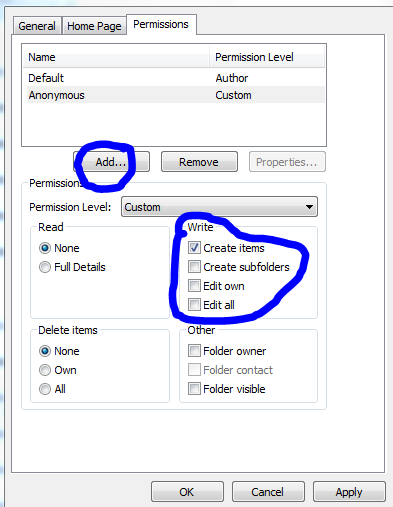
  6. Goto Permission TAB
  7. Add users
  8. Check mark the appropriate rights on the “Write” permission area..normally “Edit all” will do the work
  9. Click apply and click ok.

Outlook cannot open attachments!!!

Recently i come across this issue, and resolution for how to fix it

PROBLEM : When you receive attachment in your outlook, and when you try to open it, it says ” No permission to open the attachment”

Troubleshoot : This has nothing to do with the permission..this is because the temp folder is full…either you clear the temp folder or do the following..

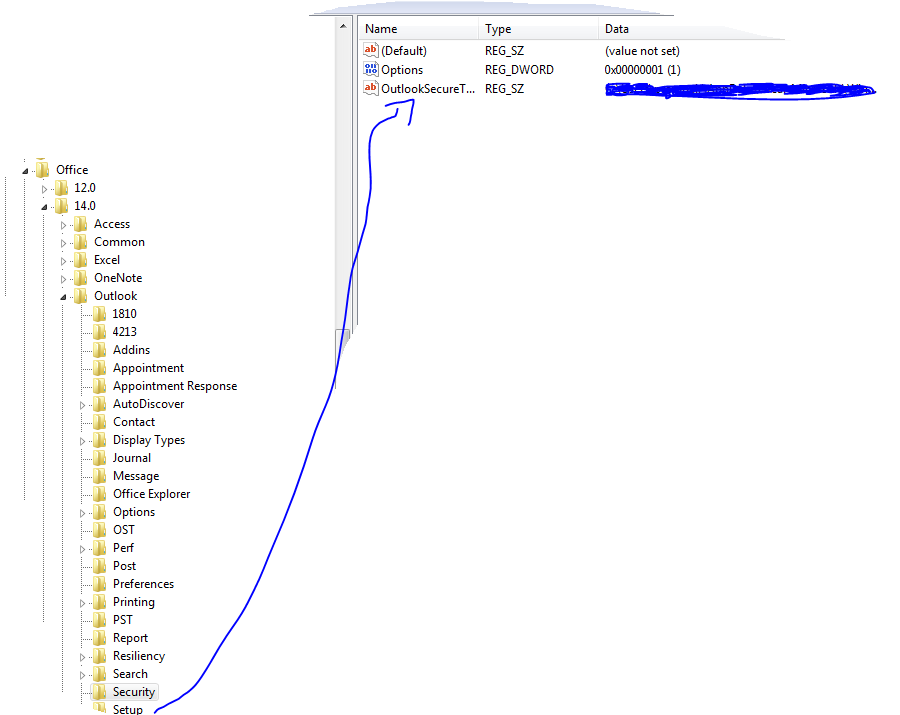
Solution : Go to REGEDIT->HKEY_CURRENT_USER ->Software ->Microsoft ->Office then click

  • 12 ->If you are using Microsoft Outlook 2007
  • 14 ->if you are using Microsoft Outlook 2010

then click Outlook -> expand it, select Security and edit the path “OutlookSecureTempFolder

Check the image below

 (Normally here you will see the default path..creat a temp folder under the available drive and then give the path here)

Microsoft Outlook Social Connector Provider for Facebook

The Microsoft Outlook Social Connector Provider for Facebook allows you to connect your Facebook account to the Outlook Social Connector and obtain information about your friends and colleagues.

You can see status updates and recently posted items from your Facebook contacts.

You can also use Outlook Social Connector to display a quick view of related Outlook content when you click on an email from a contact, such as recent e-mail conversations, meetings, and shared attachments to help you easily track your communications

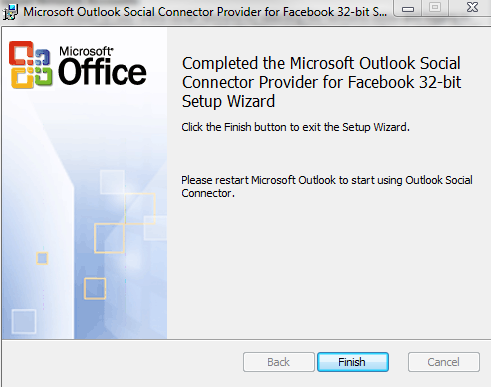
Once you finish installing the Social connector, Please re-start the Outlook and then goto your reading panel below down you can see the user icon  and underneath, there is a button called +ADD…click that (Check the above image) and then select each connector and type the credential…

You are ready to go!!! …read my previous blog for more Microsoft Outlook 2010 – Social connector
NOTE: The Microsoft Outlook Social Connector Provider requires Microsoft Outlook Social Connector and the related update (KB983403) to be installed. If these components are not already installed on your machine, the Microsoft Outlook Social Connector Provider for Facebook will download and install the necessary updates from the Microsoft Download Center before completing the provider installation.

To download click here

Exchange Server 2010 Service Pack 1 Beta released

In my last post Exchange Server 2010 Service Pack 1 – Sneak-peak and Microsoft Exchange Team Blog Yes Virginia, there is an Exchange Server 2010 SP1, the team shared information on some of the features  and  expected fixes  that are coming with the SP1 update. Microsoft committed to providing the final version of Exchange Server 2010 SP1 before the end of 2010, and now they have release the Beta of Exchange Server 2010 SP1. Video Preview from MSEXCHANGE Team ..You can download the Microsoft Exchange Server 2010 SP1 Beta from here…This pre-release software is intended for evaluation purposes only. You must accept the license terms before you are authorized to use the software. There is no product support for this trial software.

Is The New Exchange 2010 Service Pack Enough to Stop the Migration to Google Apps?..Click here to read

iOS 4 and Exchange ActiveSync

Apple released iOS 4 recently and since its release there have been numerous reports of a number of issues with new iPhone 4s when using Exchange ActiveSync . Here is the link from Microsoft Exchange Team Blog

PATCH Released from Apple : iPhone users who use the iPhone4 or upgraded to iOS4 must install a related Apple configuration patch on their iPhone. The patch, along with installation directions, can be found here:
http://support.apple.com/kb/TS3398.