Microsoft SharePoint Workspace 2010 – New turn

SharePoint Workspace 2010 is the new name for and succeeds Microsoft Office Groove 2007. SharePoint Workspace 2010 is a client application that provides fast, any-time interactive access to document libraries and lists on Microsoft SharePoint Server 2010 and Microsoft SharePoint Foundation 2010. SharePoint Workspace 2010 also provides options for creating Groove peer workspaces and Shared Folder workspaces. SharePoint Workspace 2010 is more versatile than Microsoft Office Groove 2007 and can be integrated with Microsoft SharePoint Server 2010 or can run independently. Microsoft SharePoint Workspace 2010 provides a client for Microsoft SharePoint Server 2010 and Microsoft SharePoint Foundation 2010 that enables real-time synchronization of desktop content with SharePoint documents and lists. SharePoint Workspace 2010 also provides options for creating Groove collaboration workspaces and synchronized shared folders. By using SharePoint Workspace 2010, information workers can easily synchronize online and offline content with a designated SharePoint site or collaborate with external partners and offsite team members through shared workspaces. SharePoint Workspace 2010 is included with Microsoft Office Professional Plus 2010.

Key features of SharePoint Workspace 2010 include the following:

A choice of workspace types:

  • SharePoint workspaces — Provide direct bi-directional synchronization of library and list content between a SharePoint site and a workspace on an individual client computer. Creation of a SharePoint workspace enables individual SharePoint users to check out and check in SharePoint library documents from their local computers, bring SharePoint documents and lists to their computers where they can work online or offline, and synchronize local content with a SharePoint site. When an individual client establishes a connection with a SharePoint server, synchronization occurs at regular intervals when the client is online. When a client cannot connect to a SharePoint site, the user can easily take work offline to make updates. The updated documents are automatically synchronized with SharePoint document libraries and lists when the user reconnects. This interface offers an efficient and satisfying alternative to browser access of SharePoint. Unlike other workspace types, the SharePoint workspace is a personal synchronized copy of a SharePoint site.
  • Groove workspaces — Provide a rich and secure peer collaboration environment that supports synchronization of content among peer client computers that host a shared workspace. Creation of a Groove workspace enables SharePoint Workspace users to quickly form teams and automatically synchronize online or offline contributions with fellow team members. A full set of collaboration tools lets team members schedule meetings, hold discussions, and share work with trusted partners around the world. Support for communications under various network conditions and across firewalls facilitates timely and effective collaboration.
  • Shared Folder workspaces — Support Windows folder sharing among clients. Creation of a Shared Folder workspace lets information workers share the contents of a common folder in a designated Windows Explorer directory.
  • Easy setup   Windows users can easily download and run SharePoint Workspace 2010 without IT assistance.
  • Offline and online collaboration   Information workers can easily synchronize online and offline work, through a SharePoint workspace, Groove workspace, or Shared Folder workspace. Content is synchronized dynamically among online collaboration points and updates are transmitted immediately when an offline client comes back online. When an offline client reconnects, SharePoint Workspace automatically adds offline contributions to the workspace and applies workspace updates to the previously offline client.
  • Integration with Windows logon   SharePoint Workspace 2010 uses Windows logon credentials to authenticate users so that a separate logon is not necessary.
  • Common file dialog boxes   Windows technology enables Microsoft Office 2010 users to directly open and save files in SharePoint Workspace.

When you install Microsoft Office 2010 package, you will get a program, which is Sharepoint workspace 2010, which is the replacement of Grove and the installation as follows

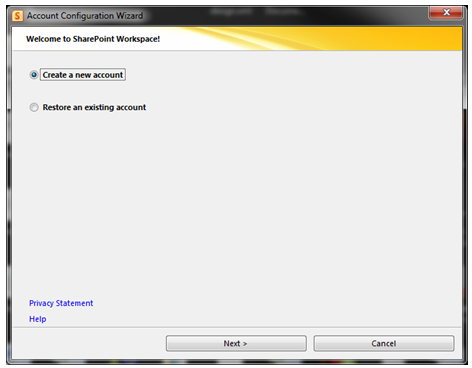
If you have a SPS domain in your domain network, use your own login credential only.

Once this is done, click Internet Explorer and open your SPS webpage. Under Site Action, Click Sync to SPS workspace

Once the Sync is completed, you can now use your doman SharePoint Site offline and online.

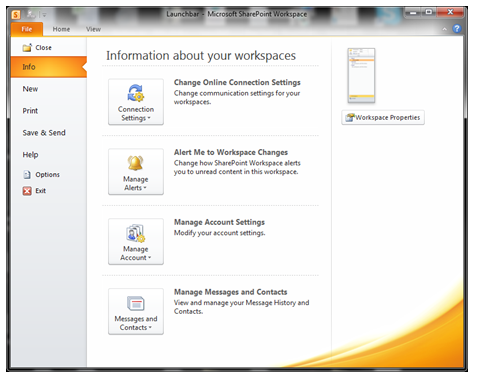
For Setting modification, use the File menu and do the needful
Operational Restrictions
SharePoint Workspace operates with a recommeded maximum number of synchronized documents – 10,000. Synchronizing extremely large document libraries, such as a Document Center, is not supported.

SharePoint Workspace also has limited support for metadata extensions to the document library. BDC Fields based on Business Connectivity Services – tagging documents based on external datasources – is not supported, and libraries that use BDC field definitions cannot be synced to Workspace. On the other hand, Managed Metadata fields (MMS) can be included in synchronized libraries. SharePoint Workspace is able to view, but not modify, field values based on MMS term stores.

To Download SharePoint Workspace 2010: Groove Web Services Software Development Kit, Click here.

Enjoy!!!

View user mailbox size from Outlook

Adding attachment size limit in Outlook through Exchange 2010 EMC

Common for entire organization, from the mail box server, from EMC, under Organization, Mailbox->Select database, Properties, do the following

Here i mentioned about 20MB attachments to send and receive by the users. The problem here is that, it take a bit time to receive/send because of the high size. So be careful and be patient.

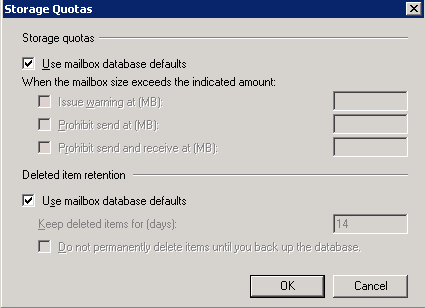
When you do this default setting on the organization level, each users mailbox will have the following (User mailbox database defaults)

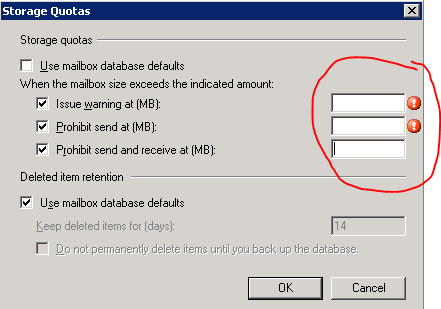
If you want to over write this policy to certain users, go to the users mailbox settings, Storage quotas and edit as below. 

First Uncheck the “Use mailbox database defaults and insert the value as you want. This settings will override the defaults.

Thats all folks!!!

Changing your domain password in OWA

In the previous edition of OWA and Exchange server 2007, there was a problem for users to change their password…because the loss of the IISADMPWD virtual directory as a supported feature in Windows Server 2008/IIS 7.0. This prevented OWA users with expired passwords from being able to change their password and log on. This was a problem for many OWA users ; especially remote/mobile users with non-domain-joined computers..From Exchange Server 2010 Service Pack 1 and Exchange Server 2007 Service Pack 3 (running on Windows Server 2008 or Windows Server 2008 R2) onwards, they have a new feature that will allow users with expired passwords to change their password. This also works for users who have their accounts configured to change password on next logon.

Use this procedure to enable it on Exchange 2007 SP3 and Exchange 2010 SP1 Client Access servers. If you are using a CAS Array, you must perform these steps on each CAS in the array.

  1. On the Client Access Server (CAS), click Start > Run and type regedit.exe and click OK.
  2. Navigate to HKLM\SYSTEM\CurrentControlSet\Services\MSExchange OWA.
  3. Right click the MSExchange OWA key and click New > DWord (32-bit).
  4. The DWORD value name is ChangeExpiredPasswordEnabled and set the value to 1.
    Note: The values accepted are 1 (or any non-zero value) for “Enabled” or 0 or blank / not present for “Disabled”
  5. After you configure this DWORD value, you must reset IIS. The recommended method to reset IIS is to use IISReset /noforce from a command prompt.

NOTE : User can’t use a User Principal Name (UPN) (eg: myname@domain.com) in the Domain\user name field in the Change Password window like below. It should be domain\myname

Once you done with it, click submit…make sure that your new password should match with the domain password policy.

Recover deleted email item(s) – Outlook 2010 with Exchange 2010

Even if you delete item from the deleted items from your outlook 2010, you can go to the tab under folder on the main page of the outlook 2010 and click “Recover Deleted Item” and view the items on the list

Outlook 2010 feature


Microsoft Exchange Server 2010 – Organizational Settings for MailTips

MailTips are informative messages displayed to users while they compose a message. Works with only Exchange server 2010 with Outlook 2007/2010.

Microsoft Exchange Server 2010 analyzes the message, including the list of recipients to which it’s addressed. If a potential problem is detected, MailTips notify users prior to sending the message. With the help of the information provided by MailTips, senders can adjust the message they are composing to avoid undesirable situations or non-delivery reports (NDRs).

You can’t use the EMC to enable or disable MailTips. You need to be assigned permissions before you can perform this procedure. To see what permissions you need, click here

EMS : Set-OrganizationConfig cmdlet to enable or disable MailTips in your organization. MailTips are enabled by default, when you install a new Exchange 2010 organization.

Examples of Mailtips, when you activate is like

  • Invalid Internal Recipient : The Invalid Internal Recipient MailTip is displayed if the sender adds a recipient that appears to be internal to the organization but doesn’t exist in Active Directory. It comes due to name resolution cache or an entry in the sender’s Contacts or if the sender types an SMTP address with a domain for which Exchange is authoritative and the address doesn’t resolve to an existing recipient. The MailTip indicates the invalid recipient and gives the sender the option to remove the recipient from the message…cool na
  • Mail Box full :  MailTip is displayed if the sender adds a recipient whose mailbox is full and your organization has implemented a Prohibit Receive restriction for mailboxes over a specified size. MailTip will be updated every two hours in his/her draft folder even if you save it and did’nt send the message.
  • External Recipients : The External Recipients MailTip is displayed if the sender adds a recipient that’s external, or adds a distribution group that contains external recipients. By default, this MailTip is turned off. You can turn it on using the Set-TransportConfig cmdlet. The External Recipients MailTip relies on group metrics data. Therefore, if you enable the External Recipients MailTip, make sure that the group metrics MailTip is also enabled. EMS : Set-OrganizationConfig -MailTipsExternalRecipientsTipsEnabled $true

To know more.. click here

Exchange server 2010 SP1 is bringing up with more featueres and i will update you this in my comming blog

Automatically accepting meeting request from Microsoft Outlook 2010

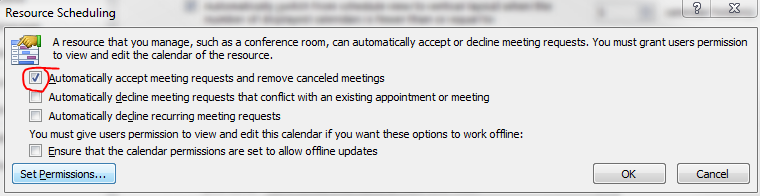
Recently we have noticed that some of the users after upgrading from Microsoft Outlook 2007 to 2010, Meeting request gets auto accept and user won’t notice it.

How to resolve it in Outlook 2010…!

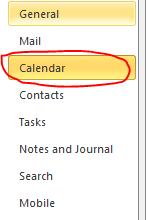
Goto->File->Options->Calender->Resource scheduling and uncheck it

Thats it…uncheck and click ok..problem solved.

Evernote 4 for Windows

Evernote 4 is a major departure from Evernote 3.5 in every way. While 3.5 added tons of great new features. So theydecided to start over from scratch, with fast, native C++ that we knew we could rely on. As you’ll see, the results are amazing. This new version will set a foundation for rapid improvement. It is designed to give you a great experience on any computer that you use, whether you’re on a netbook, a five year old Windows XP machine or a super fast top-of-the-line Windows 7 computer.

Here are a few of our favorite user interface improvements:

  • Space saving layout: The toolbar and menu bar are merged to take up less screen space. You can always switch to the old school layout in the Option menu.
  • More responsive interface: Switching between notes, displaying searches, bringing Evernote into the foreground, and virtually all other interactions are much faster.
  • Easier new note creation: We’ve added a New Note split button, which lets you pick the type of note you wish to create (text, ink or webcam). It will remember your selection for next time.
  • Relocated Search Bar: Note search and the search description now reside directly over the note list—a more intuitive location. You can click the small arrow to open and close the search description. Closing the description gives you more room to view your notes list, opening it makes it easy to modify your search.
  • Clearer note info: The note information panel is more crisp and clear with the title, notebook and source links right up top. Just like the search panel, you can open the note information panel to access the details. Navigating through the note info panel and tagging notes using your keyboard is fast and efficient.

Multiple email ID for your Social connector(s)

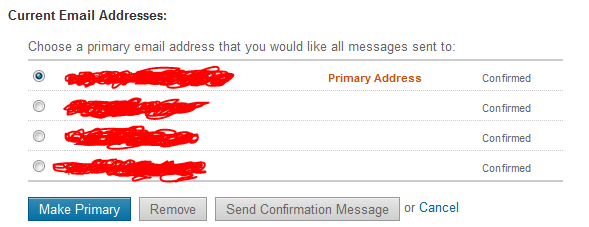
You can add multiple email ID to your    OR    account.

Why you want to link this?

Most of the users have more than one email id..one/two personnel email id, one business email id etc..and if you link all in one social connector account, its very easy to track others, whether it is business contacts, collegues or friends.. How to do it.

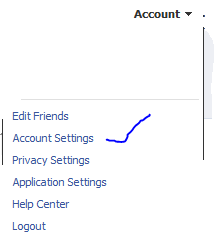
Go to your profile home page, and click on top right cornnet Account

Click Account settings…and click “change” on the Email tab

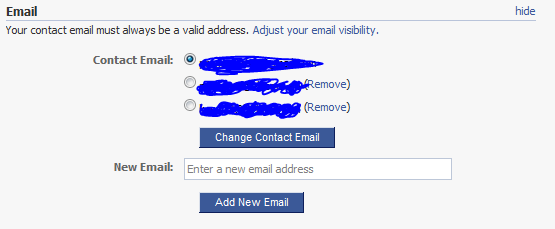
Enter the other email ID here and click “add new” (If you have more than one email id other than the primary one..keep on add here)

REMEMBER : When you add an email id here, there will be a confirmation email send from this account..please confirm it back so that the email id you added get registered

Once you finish adding and click on the confirmation email(s), you will see the account like above, where your primary email id is now been selected in the radio button.

Thats it for FACEBOOK

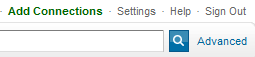
Logon to your linkedin profile and go to the top right corner and click “Settings”

Under Personnel information, Select Email Address

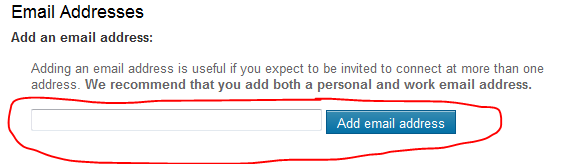
Add your other email id’s here…

REMEMBER : A Confirmation email will be send to each of the email id you add..

Once you done..your email profile will look like above…

That’s all

Public folder email forwarding issue!!!

When you have a mail enabled  public folder in your exchange server 2007/2010 environment, you might face issues with email forwarding from the public folder from your user account, where you will get an error “Operation failed”.

Resolution :

  1. Logon to outlook with administrator(Domain) credemtial
  2. Goto the Public folder
  3. Select the folder where you are facing the issue
  4. Right click
  5. Select Properties
  6. Goto Permission TAB
  7. Add users
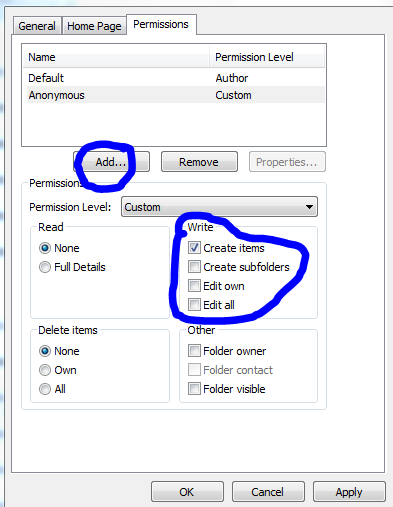
  8. Check mark the appropriate rights on the “Write” permission area..normally “Edit all” will do the work
  9. Click apply and click ok.